Installing MDOpen for Web
Version 8.6.18
Published August 7, 2026
Overview & Architecture
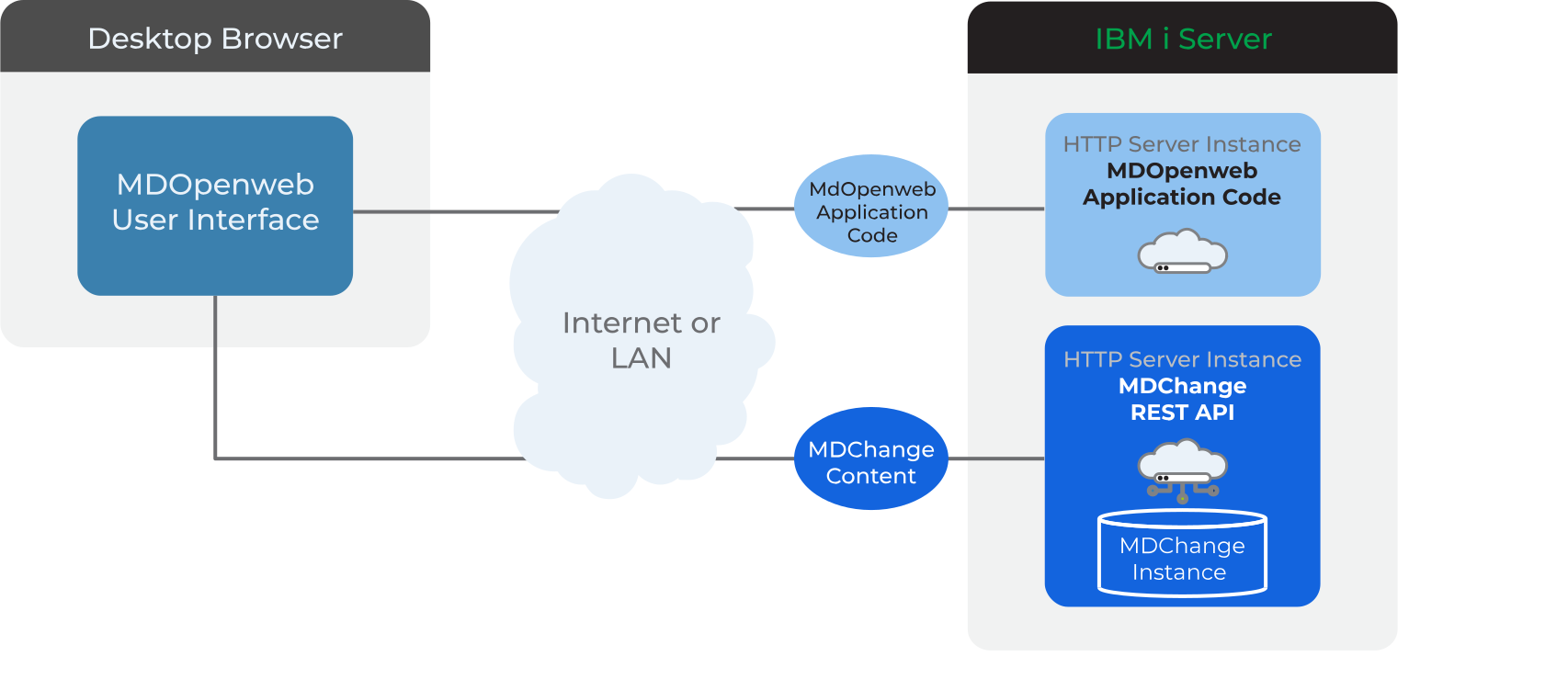
MDOpen for Web is a browser-based implementation of MDOpen, providing all features found in the desktop versions with the exception of: * Source editing (source viewing is provided) * Local Workspace interaction
It is the ideal UI for the MD products for the following users: * MD Product Administrators * Project User and Managers * Test Users and Managers * Approval Users and Managers * Release Operators and Managers * anyone else requiring access without a desktop application
It is installed and runs natively as a web application from an IBM i HTTP server instance.
MDOpen for Web uses the same MDCMS REST APi's as MDOpen for RDi and MDOpen for VS Code, to retrieve the content.
MDOpen for Web Architecture
Pre-Requisites
- MDCMS Rest API Server configured and running.
- Available TCP port numbers for MDOpen for Web HTTP server instance. Consult with your Operations/Infrastructure Administrator
- MDCMS Instance Suffix
- V7R2M0 IBM i OS or later
MDOpen for Web Server Installation Process
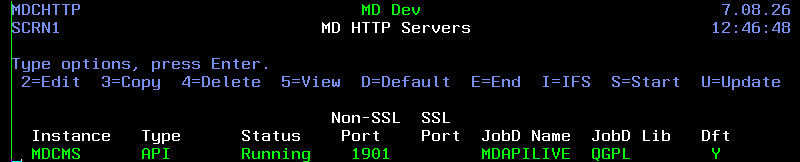
Navigate to MDCMS HTTP Servers Screen screen using:
- Command MDCMS within a 5250 session
- Option 1 - MDCMS Setup Menu
- Option 10 - Interface Settings
- Option 9 - HTTP Servers
Info
More Details about MDCMS HTTP Servers Screen
From the MDCMS HTTP Servers Screen, press F6 to add a new server
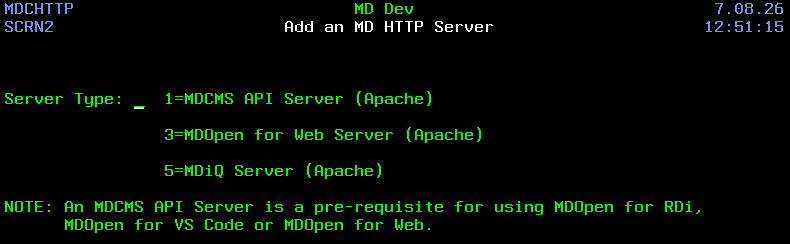
Use option 3 to create a new MDOpen for Web server instance, and press enter.
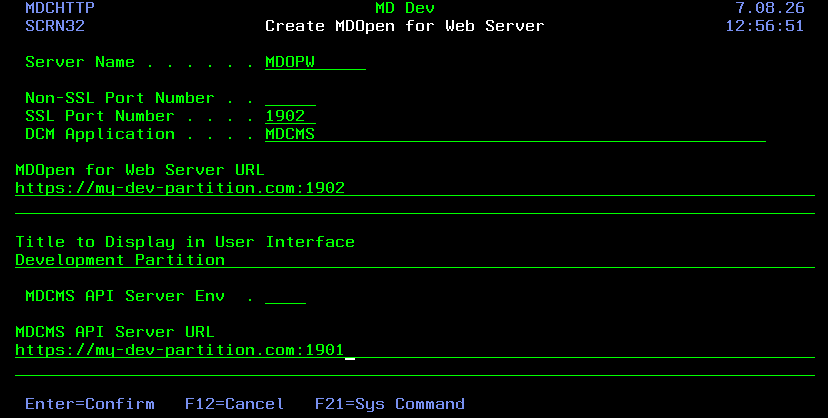
| Parameter | Description |
|---|---|
| Server Name | The name of the Server to create. The server will be replaced if it already exists. Normally, only one server should be active for a given instance and partition of MDCMS. When created, the server configuration will be placed in IFS folder /www/<server name> |
| Non-SSL Port Number | The port number that the server should listen to for incoming insecure http requests. The port number can be up to 5 digits and must not be used by any other server on the partition. If HTTPS is used for the MDCMS API server, then HTTPS must also be used for the MDOpen for Web Server, either directly with a SSL Port Number or with proxy-forwarding from another HTTPS server. |
| SSL Port Number | The port number that the server should listen to for incoming https requests. The port number can be up to 5 digits and must not be used by any other server on the partition. If both the Non-SSL Port number and the SSL Port Number are defined, they can not be the same number. |
| DCM Application | The name of an Application in the *SYSTEM certificate store that is assigned to the preferred SSL certificate. This is only necessary when configuring an SSL port. creating a DCM Application |
| MDOpen for Web Server URL | The full URL string that a user would paste into a browser to bring up the application. MDOpen for Web doesn't use a resource name in the address, so the URL will be http(s)://hostname-or-ip. The :port-number is required as well when the port number isn't 80 for http or 443 for https. |
| Title to Display in User Interface | A title that will be displayed on the Login screen and will be used for the browser tab name. Useful to distinguish one instance of the application from another (such as Dev vs. Production) |
| MDCMS Environment | The Instance name that MDCMS runs under. This is the suffix of the MDCMS library name. Leave blank if using the default instance (library MDCMS) |
| MDCMS API Server URL | The URL of the MDCMS API Server. Omit the /MDCMS resource - just include the http(s)://hostname-or-ip. The :port-number is required as well when the port number isn't 80 for http or 443 for https. The MDCMS API Server doesn't have to be on the same partition as the MDOpen for Web Server. |
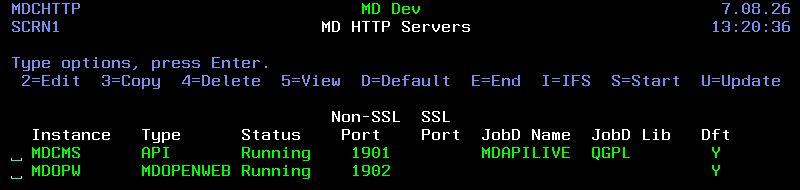
When Enter is pressed, the server is created and automatically started. The MD HTTP Servers screen will update and show the MDOPENWEB server added to the list:
Verify MDOpen for Web Server is Running
To check if the server is running, use option 5 to view the details of the MDOPENWEB instance and click on the MDOpen for Web Server URL.
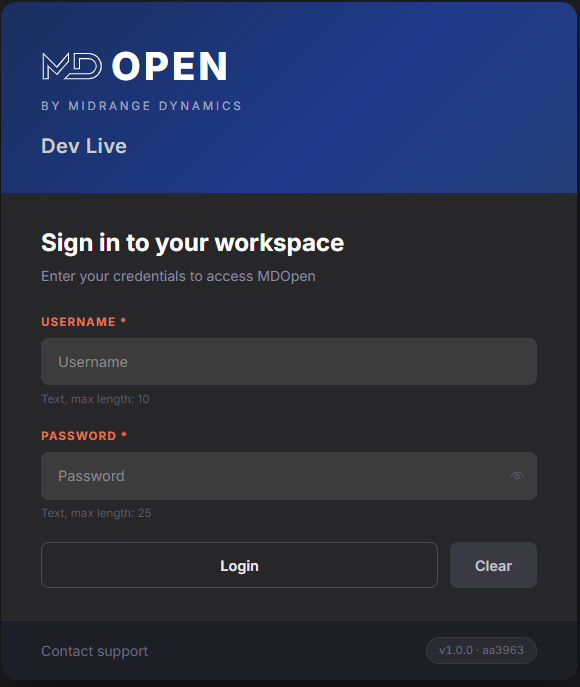
You should be presented with the login screen for MDOpen for Web:
Installation Logs
The installation log is found here:
/www/<server_instance_name>/logs/<server_instance_name>_installation_audit_<date>_<time>.log