Application Groups
The Application Maintenance function defines application software into manageable groups for MDCMS.
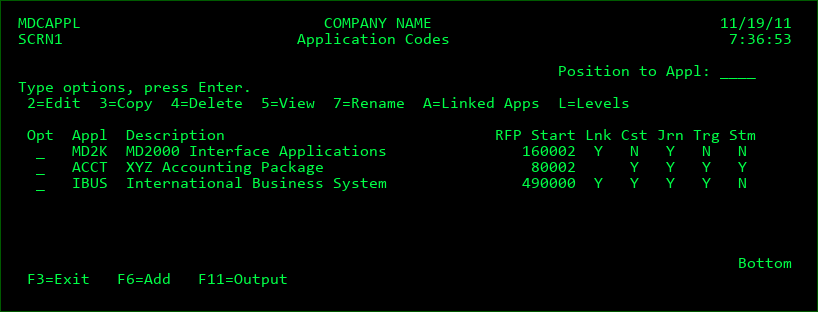
Screen Definitions:
Position to Appl
This is used to position the display to a specific Application Group.
Opt
2=Edit - Change the Description of an Application Group
3=Copy - Copy values for Entity to a new Application Group. Any child elements like levels, attributes, etc. are not copied.
4=Delete - Delete an Application Group. This is only possible if there are no Levels defined for the Application Group
5=Display - View all information for the Application Group
7=Rename - Rename the application code to a new value. When renamed, the application code in all related tables for configuration, activity and history are also renamed. The original value is only retained in API logs for audit reasons.
If the flag Rename in Synced Locs is set to Y, the application code will also be renamed on each location defined in the ibmi-locations Locations settings that actively connect via DDM.
A=Linked Apps - Manage the list of Applications that contain objects that reference objects existing in the selected Application
L=Levels - list all promotion levels defined for the selected application
Application Code
This is a 6-character abbreviation of an Application Group to be used by MDCMS, MDXREF and MDSEC.
Description
A brief title to identify an Application Group.
RFP Start Index
The start position of new RFP numbers. An RFP number is the identifier for an installation package. By default, MDCMS spaces the range for RFP numbers 40000 positions apart so that each application has its own range of numbers. If preferred, applications can start at any point, including at the same point as other applications. MDCMS ensures that any generated number is not already in use by the same or other application.
Automatically Reapply Constraints
Y - When a physical file is installed for the given application, automatically reapply all constraints that were defined for the previous version of the file. If the new version of the file already contains a constraint of the same name, the new version of the constraint will remain in place and not be overwritten by the old version.
N - Any constraints will not be automatically reapplied
This value is the default for all files in the application and partition, and can be overridden for specific files.
Automatically Reapply Journaling
Y - When a physical or logical file is installed for the given application, automatically reapply journaling based on the settings defined for the previous version of the file.
N - Journaling will not be automatically reapplied
This value is the default for all files in the application and partition, and can be overridden for specific files.
Automatically Reapply Triggers
Y - When a physical file is installed for the given application, automatically reapply all system (non-SQL) triggers that were defined for the previous version of the file. Any SQL triggers that should be re-applied should be requested for recompile and placed on same RFP as the file.
N - Any triggers will not be automatically reapplied
This value is the default for all files in the application and partition, and can be overridden for specific files.
Allow RFP Compile Resume
This flag determines what should occur if an exception occurs in an RFP during the Submit (bundle) phase, when multiple objects are on the RFP and the compile/validation process for at least one of the objects was successful.
Y - The RFP Status will be set to SE=Submission Error and the developer can make corrections to the source or object in error or any object request after the one in error. Any requests in the RFP that were already processed are in a lock state. Once the RFP is submitted for promotion again, it will resume at the errored object request, which can save a lot of time for the developer when the RFP is very large.
If an object needs to be added to the RFP or if a processed object needs to be modified, the RFP will need to be Reset from status SE back to status 01 using the Reset option on the RFP.
N - If an error occurs, the entire RFP will be automatically reset back to status 01. Once the RFP is submitted for promotion again, it will start over from the beginning.
Auto-Merge RFP in Send List
When a user requests to submit an RFP for promotion, MDCMS checks if any of the objects in the RFP are currently requested to be sent to other levels within open RFPs in the Send List. If any are found, this flag determines what should occur.
O - Optional - the developer will be given the option to have the RFPs in the Send List auto-merge into the new RFP or to leave the existing RFPs separate.
Y - The open RFPs in the Send List will always merge into the new RFP once it is installed.
N - The open RFPs in the Send List will always remain separate. Since the Send is dynamic, though, the prior RFPs will send the newest version of the source or object. Manual merging directly in the Send List is still possible for authorized users.
Auto-Merge Received RFP
When a sent RFP is received onto the target partition, MDCMS checks for object request conflicts for each received object request. For each conflict, the following rules are applied in the order listed:
- If object checked out for modification locally for the target level, the received object will be requested in unlocked mode.
- Orphaned object requests (requests not on an RFP) will be automatically deleted and replaced with the received request.
- If object requested for a different application, the received object will be requested in unlocked mode.
- If object is from a prior send of the same RFP, the entire RFP will be replaced by the newly received RFP.
- If object requested for an RFP that is beyond status 01 (requests assigned), the received object will be requested in unlocked mode.
- Otherwise: the value of this parameter determines what to do with the conflict
Y - the existing RFP will be merged with the newly received RFP with the newly received objects having priority over the existing objects in the case of duplicates. The description of the received RFP will be appended to the existing description, if different.
N - no automatic merging - all newly received objects will stick together in a new RFP and any duplicate objects will be requested in unlocked mode.
Auto-Delete LFs in Unmanaged Lib
When an RFP is requested to be submitted for deployment, MDCMS checks if there are any unrequested logical files that are based on requested physical files. If this is the case, and the logical file resides in an unmanaged library, it can be automatically deleted during the installation phase. An unmanaged library is a library that isn't the target for any MDCMS attributes. A typical use case are indexes that are generated by the system for performance reasons.
Y - automatically delete unrequested, dependent logical files residing in unmanaged libraries
N - prompt the user to decide if specific logical files should be deleted or not
Auto-End Jobs Locking Files
During the installation phase of an RFP, MDCMS attempts to get a lock on all files that are to be installed. If a job is locking one of the files, this parameter specifies if MDCMS should automatically end that job.
S - Automatically end QSQSRVR or QZDASOINIT jobs only (default)
N - Do not automatically end jobs locking files to be installed
Y - Automatically end any jobs locking files to be installed
Update Object Description's User Defined Attribute with Attribute
Y - When an object is installed for the given application, automatically put the MDCMS attribute value in the object description's user defined attribute.
N - The object description's user defined attribute will not be automatically updated
Update Object Description's Object Control Level with RFP #1
F - When an object is installed for the given application, automatically put the MDCMS From RFP value in the object description's Object Control Level.
O - When an object is installed for the given application, automatically put the MDCMS Origin RFP value in the object description's Object Control Level.
C - When an object is installed for the given application, automatically put the MDCMS Current RFP value in the object description's Object Control Level.
N - The object description's Object Control Level will not be automatically updated
The combination of the RFP types #1 and #2 make up position 8 of the Object Control Level. It is necessary to store this in the object because it designates the type of RFPs stored in the object. The types of RFP's being stored in objects could change for future stamping after some stamping was already done to some objects.
Update Object Description's PTF with RFP #2
F - When an object is installed for the given application, automatically put the MDCMS From RFP value in the object description's PTF.
O - When an object is installed for the given application, automatically put the MDCMS Origin RFP value in the object description's PTF.
C - When an object is installed for the given application, automatically put the MDCMS Current RFP value in the object description's PTF.
N - The object description's PTF will not be automatically updated
Update Object Description's APAR with Appl and Level
Y - When an object is installed for the given application, automatically put the MDCMS Appl and Level values in the object description's APAR.
N - The object description's APAR will not be automatically updated
Update Object Description's LICPGM with Project, Task and Subtask
Y - When an object is installed for the given application, automatically put the MDCMS Project, Task and Subtask values in the object description's LICPGM fields. The format will be project-task.subtask. LICPGM consists of 2 7-character fields that are separated from each other on the screen, so if the value is more than 7 characters, it will be split between the 2 fields.
If there are multiple tasks assigned to an object, the object's LICPGM will get stamped with the lowest task.
N - The object description's LICPGM will not be automatically updated
Function Keys:
F3=Exit
F6=Add -Add a new Application Group
F11=Output - Display the MD Output panel and other spool files
Linked Applications
View and Manage the list of Applications that contain objects that reference objects existing in the selected Base Application.
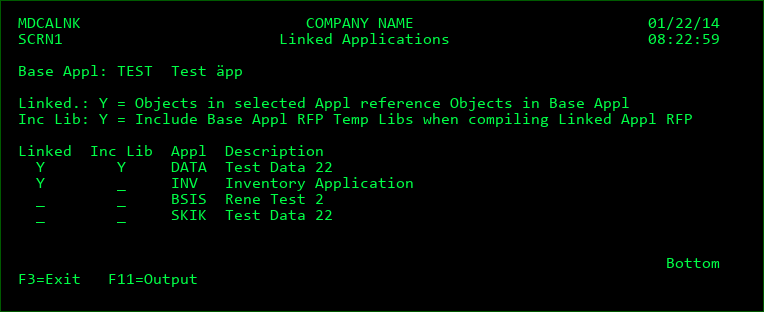
All defined Applications are listed on this screen. The Applications that are currently linked to the Base Application are listed first.
Linked
Y - The Application contains objects that reference objects in the Base Application indicated at the top of the screen. If an Application is linked, MDCMS will show the referencing objects when using the option Include Related Objects from the Object Manager for an object in the Base Application.
For example, a file in the Base Application is checked out. The programmer then uses option I=Include Related Objects in the Object Manager to check out impacted programs, etc. MDCMS will first show dependencies within the same Base Application and then will proceed to show the dependencies in each linked application.
When submitting an RFP for Promotion from the Base Application, MDCMS will also check and warn the programmer of any dependencies in the linked Applications.
The Level Number in the Linked Application must match the Level Number in the Base Application for the Referencing to be considered.
Inc Lib
Y - Any temporary MDCMS Installation Libraries for Base Application RFPs will be included in the library list during the compile of objects for a Linked Application RFP. The libraries will be placed after the temporary libraries for the Linked RFP but before the rest of the library list.
This is typically relevant for environments, such as Production, that have the RFPs compiled and prepared during the day and then have the installation itself occur at a later time.
For a Base Application RFP to be considered, the status of the RFP must be one of the following:
02 - Waiting for Approval
03 - Waiting for Installation
IP - Installation Pending
04 - Installation Job submitted but not yet started