Attributes
The Attribute Maintenance function defines the destination of objects and source that are installed during the promotion process. Each destination for an Application/Level and Object (or source or message) type is uniquely identified by an Attribute. This attribute is then used for setting command definitions, object authority, etc…
When initially defining attributes for a new application, it is best to start out by pressing F9 to automatically generate the most common attributes, compile commands, and object authorities. Special object handling can then be individually maintained from the attribute maintenance screens.
Once all attributes are set for a given promotion level, the easiest way to propagate those settings to another promotion level on the same system is to specify 'copy attribute settings' when copying the promotion level. The easiest way to propagate the settings to a promotion level on another system is to send the settings using options 17 or 18 from the settings menu.
Filters
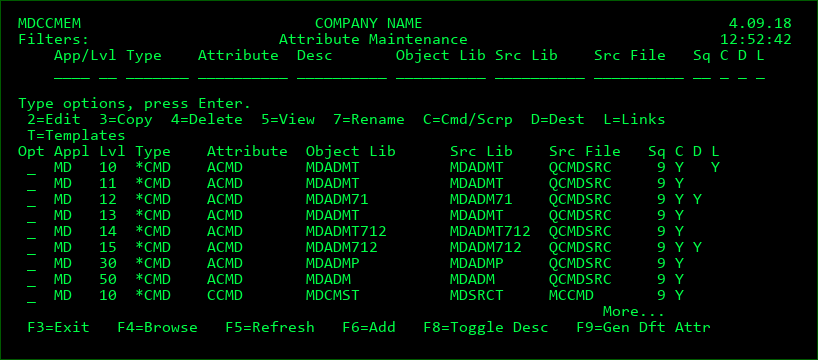
The entry of values into one or more of the filter fields will result in a subsetted list of attribute records which exactly match those filters. For example, enter '10' in the lvl filter to see only attribute records for level '10'. For the Attribute, Object Lib, Src Lib and Src File filters, records will be included if the initial string matches. For example, enter 'TE' in the Src Lib filter to see all records with a source library beginning with TE.
Sq is the Compile Sequence Filter
C specifies if any commands are defined for the Attribute. Use value N to see only attributes without commands.
D specifies if Deletion Level templates are assigned to the Attribute. Use value N to see only attributes without Deletion Level templates.
L specifies if other Attributes are Linked to the Attribute. Use value N to see only unlinked attributes
Opt
2=Edit - Change the parameters of an attribute
3=Copy - Copy the parameters of an attribute to a new attribute
4=Delete - Delete an attribute
5=View - Display the parameters of an attribute
7=Rename - Rename the attribute code to a new value. When renamed, the attribute in all related tables for configuration, activity and history are also renamed. The original value is only retained in API logs for audit reasons.
C=Cmd/Scrp - Edit the default compile and installation commands or scripts for an attribute
D=Dest - View/edit the options of what should be sent to target systems (source, object, both, or neither) for the specific attribute.
L=Links - Edit the list of attributes that should prompted to check out, when a programmer checks out an object for this attribute
T=Templates - View/edit the templates to be assigned to the attribute for replication, deletion, etc…
Appl
This is a 6-character abbreviation of an Application Group to be used by MDCMS.
The Application Group must exist - see Application Group Maintenance.
Level
This is a 3-digit numeric identification of the Promotion Level as defined in the Promotion Level Maintenance.
Type
| Option / Field | Description |
|---|---|
| all IBMi object types | Standard IBMi object types (*PGM, *FILE, *CMD, etc...) that exist in standard QSYS libraries. These objects may be compiled from a source member or may be handled as an object only. |
| *DATA | A MDCMS object type to migrate some or all data records into a physical file while leaving the file description intact. All records in the file prior to the installation can be archived and rolled back if parameter Archive Generations is > 0 for the attribute. |
| *DTAGRP | A MDCMS object type to define a collection of files (1 or more) with common key values for their records. The records for each file matching the requested value will be migrated. See the next section for more information. The specific data records impacted by the installation of a *DTAGRP object can be archived and rolled back if parameter Archive Generations is > 0 for the attribute. NOTE: Robot Schedule data can also be managed within MDCMS using the *DTAGRP Attribute (see details in next section of this manual) |
| *DUMMY | A MDCMS object type to allow information to be migrated without any actual object being involved. |
| *IFS | A MDCMS object type to handle objects that are stored in the Integrated File System. |
| *MNUDDS | A MDCMS object type to handle all relevant objects and source for a DDS menu. This means that the display file, message file, menu object, display source, and command list source are all managed by a single reservation. |
| *MSGD | A MDCMS object type to handle individual message descriptions to be stored in a message file. |
| *PIPE | A MDCMS object type to contain objects that will be built, tested and deployed using a Pipeline server such as Azure, Bamboo, Bitbucket, GitLab or Jenkins. MDOpen is required to define the Pipeline servers as well as the Pipelines to apply to the attribute. |
| *REMOTE | A MDCMS object type to physically deploy objects that reside on non-IBM i platforms using FTP. MDOpen is required to define the FTP servers and request the objects. |
| *SOURCE | A MDCMS object type to handle source-only items such as copybooks. |
| *SQLALS | An SQL Alias using the SQL name for the alias. Additionally, use the For Database and For Library fields for the attribute to define the location of the table or view that the alias points at for the given level. A compile command (typically RUNSQLSTM) must be defined for the attribute to create the alias at installation time. Enter a valid Object Authority template, which is applied to the DDM file created on behalf of the SQL Alias. |
| *SQLCST | An SQL Constraint using the SQL name for the constraint. A RUNSQLSTM command of type 3 (Post-Installation) must be defined for the attribute to create the constraint at installation time. |
| *SQLFUN | An SQL Function using the SQL name for the function. A compile command (typically RUNSQLSTM) must be defined for the attribute to create the function at installation time. It's recommended to define the SQL long schema name for the Object Library value (if different than system library name) for functions to avoid having to look it up at installation time. |
| *SQLIDX | An SQL Index using the SQL name for the index. |
| *SQLMQT | An SQL Materialized Query Table using the SQL name for the table. A compile command (typically RUNSQLSTM) must be defined for the attribute to create the table at installation time. |
| *SQLPRC | An SQL Procedure using the SQL name for the procedure. A compile command (typically RUNSQLSTM) must be defined for the attribute to create the procedure at installation time. It's recommended to define the SQL long schema name for the Object Library value (if different than system library name) for procedures to avoid having to look it up at installation time. |
| *SQLSCR | An SQL Script to manipulate data in tables. The Object Library is the SQL schema name that is the target for the SQL statements in the script. The object replication template can be used to repeat the statements for several libraries during a single deployment. A RUNSQLSTM command of type 3 (Post-Installation) must be defined for the attribute. |
| *SQLSEQ | An SQL Sequence using the SQL name for the sequence |
| *SQLTAB | An SQL Table using the SQL name for the table. |
| *SQLTRG | An SQL Trigger using the SQL name for the. A RUNSQLSTM command of type 3 (Post-Installation) must be defined for the attribute to create the trigger at installation time. Enter a valid Object Authority template, which is applied to the CLE program created on behalf of the SQL Trigger. |
| *SQLUDT | An SQL User Defined Type using the SQL name for the type. |
| *SQLVAR | An SQL Variable using the SQL name for the variable. A compile command (typically RUNSQLSTM) must be defined for the attribute to create the variable at installation time. Enter a valid Object Authority template, which is applied to the service program created on behalf of the SQL Variable. |
| *SQLVW | An SQL View using the SQL name for the view. |
Attribute
This field is used to uniquely identify each source or object attribute to be handled by MDCMS. Standard IBMi object attributes can be used or the user may define customized attributes.
Example:
- Standard IBMi object attributes or source types are, for example, RPG, CBL, PF, LF, DSPF, PRTF.
- User defined source types may look like RPG1. The definition in MDCMS could be for special compilers for RPG type programs using a specific application compiler or different RPG compiler defaults. It could also be to have the source or object placed in a different library than standard RPG programs.
Description
An optional description to further clarify the purpose of the attribute
Object Library
This field identifies where an application object resides for a specific Application, Level, Type, and Attribute. This is used when installing an object into an environment.
This is left blank for source-only items.
For *IFS and *REMOTE attributes, the directory path is to be entered here beginning with the root.
For *DATA and *DTAGRP attributes, the file library should be entered here. If data shouldn't be copied into a library for the given level, special value *NONE can be used - this can be useful when the level is for a delta database environment so that the target files may not exist. MDCMS will internally retain the data from the prior library for migration or send to the next level.
For *SQL attributes (except *SQLPKG), the SQL name of the target library should be entered here.
Source File
This field identifies the source file for a specific Application, Level, Type, and Attribute. This is used when installing source into an environment.
For message descriptions, this is the name of the message file.
*IFS - use this value if the source is stored in IFS and enter the full path of the directory in the Source Library field
*REQONLY - use this value for an attribute that has source defined for it at lower levels, but the source and object shouldn't be deployed to this level or higher. Instead, only the request record will travel with the RFP without actions being taken. This is typically used for copybooks or ILE modules on a production system where the source or modules aren't allowed/needed, but when the RFP returns to the copy of production on the development system, then source will be indirectly pulled from the delta development environment for deployment into the production copy environment.
This field is left blank for object-only items.
Source Library
This field identifies the source library for a specific Application, Level, Type, and Attribute. This is used when installing source into an environment.
If the source is contained in source members, the library containing the source files is used.
If the source is stored in IFS, the value is the complete IFS path of the directory containing the source files.
For message descriptions (*MSGD), this is the library where the message file is located.
*TEMP - temporarily migrate source for compiles, but don't keep the source in the target environment. Typically used for production environments where persistent source isn't allowed.
This field is left blank for object-only items.
Dft Source Naming
By default, the name of the source is the same as the name for the object and is defined as ++OBJNAM++. If source names for the attribute have different names as for the object, the naming pattern can be entered here. For example, use ++OBJNAM++.sql to automatically assign the suffix .sql to the end of the source name when checking out the object. Each object checked out can individually be assigned a different source and MDCMS retains this information for future checkouts of the object.
Dft Source Type
The type to apply by default when requesting to generate a new source member.
This type is also applied when MDCMS converts source that has been imported from Git, SVN or other file systems.
Archive Generations
This flag is only relevant for *DATA or *DTAGRP attributes.
The number of generations of the entire file (in the case of *DATA) or the specific impacted records (in the case of *DTAGRP) that will be archived, providing the ability to view the prior state of the records or to roll back to the prior state if necessary. The archived records are copied to a stream file in IFS and then zipped to reduce storage requirements as much as possible.
If set to 0, the prior data is not archived and can't be rolled back at a later date. This is only recommended if disk space availability is minimal or if the data is otherwise saved prior to installations. *DTAGRP attributes require a minimum of 1 generation.
Retain Data Set for Migration to next Level
This flag is only relevant for *DATA or *DTAGRP attributes.
Y = when the data collection is prepared for deployment into the initial level, only records in that collection will migrate to higher levels regardless if changes or additions are made to the files in the initial level. For example, 2 records are migrated into level 10 which also has 10 other records matching the same filter criteria. Only the 2 records will continue on to level 20.
N = the data collection is freshly prepared at each level. For example, 2 records are migrated into level 10 which also has 10 other records matching the same filter criteria. All 12 records will continue on to level 20.
Allow *NONE
This flag is only relevant for *DATA or *DTAGRP attributes.
Y = when an object request of the given attribute is checked out, *NONE as a value is allowed because the data will already be in the library for the target level.
N = the developer library to migrate the data from must be defined for the checkout request.
Server Location
The target server that *REMOTE objects for the given attribute should be deployed to. Press F4 to select from the list of target servers. MDOpen must be used to manage the target server list as well as to check out *REMOTE files and folders.
*NONE can be used to indicate that the *REMOTE objects shouldn't be physically deployed to a remote server for this promotion level. The requests will merely travel with the RFP to the next level in the migration path.
In the case of *IFS attributes, a server name can be stored in this field. The value will then be used by occurrences of the ##SERVER## placeholder by commands and scripts for an IFS file using the attribute.
Require Approval
Y - If an RFP contains a request for the given attribute, an authorized user must approve the RFP before it can be installed even if the Attribute's level is set to auto-approve RFPs.
T - If an RFP contains a request for the given attribute, approval will be based on Object Approval Templates, even if the Attribute's level is set to auto-approve RFPs.
N - The auto-approve flag for the Attribute's level determines if the RFP is auto-approved or not.
Compile Sequence
The compile sequence is used by MDCMS to sequence the order of object compiles during a request for promotion. The sequence is in ascending order.
The compile sequence is automatically set for all object types except *DTAGRP and *FILE.
*DTAGRP - the compile sequence is by default 16, and the data records are only migrated after the installation is complete. If a lower compile sequence is entered, the records will be migrated during compile time based on the sequence, in case the compiler for other objects depends on that data. When the compile step for all objects in the RFP is complete, the data migration will be rolled back and re-migrated after the installation is complete.
*FILE - Recommended compile sequence for files:
Reference file = 3
Physical files = 4
Logical files = 5
Display/Printer files = 7
SQL Views (*SQLVW) are set to sequence 6, which is why display and printer files are 7, as they may reference field definitions in views.
Acceptance Group Type
If MDWorkflow is licensed for the partition, a user group type can be defined for the attribute. When defined, once objects of the given attribute are installed into the target level, a member of the group defined for the impacted project(s) must review and then accept the results of the installation before the RFP can continue to the next level in the migration path.
This group type will be in addition to any Acceptance Group Types defined for all objects for the level. This way, this additional acceptance is only necessary for these special attributes. For example, a DBA group may need to review configuration data or database changes in the test environment before the RFP can be promoted to QA.
Ignore Dependencies
Y - Any non-Database Relation dependencies over a file, module, service program or copybook Object Request of the given attribute will not be considered when checking for missing dependencies during the RFP Pre-Submit Warning process and they will not be auto requested when using Continuous Integration from Git. The dependencies will still be shown when explicitly asking to request dependencies for an Object Request.
N - All dependencies will be considered for an Object Request of the given attribute.
Copy from Library
This parameter is displayed for *DATA and *DTAGRP attributes. If a library name is entered, data will be copied from that library down to the developer library at checkout rather than from the target library of the attribute.
For Database
The name of the Relational Database for an SQL Alias to point to. Press F4 to select from the list of defined RDB entries. The value of this field corresponds to placeholder ##RMTRDB##, which should be placed in the SQL script to dynamically handle the location of the target table or view when the CREATE ALIAS script is invoked.
For Library
The system name of the Library for an SQL Alias to point to. The value of this field corresponds to placeholder ##RMTLIB##, which should be placed in the SQL script to dynamically handle the location of the target table or view when the CREATE ALIAS script is invoked.
Function Keys:
F3=Exit
F4=Browse - Browse the list of valid values for a field.
F6=Add - Add an environment attribute
F8=Toggle Desc - toggle the listing display between a single line per row without the attribute description and a 2nd line per row with the attribute description
F9=Gen Dft Attr - Generate default attributes for a promotion level
Templates for Attribute
Various templates can be assigned to an attribute to affect its behaviour based on the definition of the template. This eliminates the need to generate complex definitions individually for each attribute. The template screen automatically appears in the 2nd step of adding a new attribute. To view/modify the templates assigned to an existing attribute, use option T=Templates.
Object Authority Template
The name of the template containing the Object Authority Definition to apply to objects for this template. This template is required for all object types except *SOURCE, *MSGD, *DATA, *DTAGRP and *DUMMY.
The template type must correspond to the object type:
IFS - *IFS object types. The authority for IFS source is automatically applied from the *DFTIFS template
OS400 - OS/400 object types
REMOTE - *REMOTE object types
IFS Source Authority Template
If an attribute is defined to deploy source to an IFS folder (source file = *IFS), then an Object Authority template of type IFS needs to be assigned to the attribute. The IFS file will then have the template's authority applied at the time of deployment.
Object Replication Locs Template
When an installation occurs, an object using this attribute will always be deployed to the defined Object Library.
If that same object should be replicated to additional libraries for the same environment, then the name of the Object Replication Template that contains the list of locations should be entered.
Common Usage Examples:
- The complete set of physical and logical files for production is also stored in Month-End and Year-End libraries. If the format for a file changes, then the format change could be replicated to the Month-End and Year-End libraries at the same time of the format change for production. The data for each library/file is mapped back appropriately.
- Multiple web servers are used in the same environment for load balancing purposes. Replication can be used to deploy remote object changes to each of those servers at the same time.
Source Replication Locs Template
When an installation occurs, a source member using this attribute will always be deployed to the defined Source Library or Directory.
If that same source member or IFS file should be replicated to locations for the same environment, then the name of the Source Replication Template that contains the list of locations should be entered.
Object Search Locations Template
When checking out an object that doesn't contain source, the defined Object Library for the attribute and level will be checked for existence. If it doesn't exist in that location, MDCMS checks in the target locations for the higher levels on the local partition. If the object still isn't found, an Object Search Location template can be used to search additional libraries/directories for the object.
Source Search Locations Template
When checking out source, the defined Source Library/File for the attribute will be checked for existence. If it doesn't exist in that location, MDCMS check in the target locations for the higher levels on the local partition. If the source still isn't found, a Source Search Location template can be used to search additional libraries/directories for the source. In the case of source members, the source locations can be on remote systems if DDM is implemented.
Object Deletion Levels Template
If objects should be removed from delta or emergency levels after installation into this level, the Deletion Level template defining the list of levels can be entered here.
Source Deletion Levels Template
If source should be removed from delta or emergency levels after installation into this level, the Deletion Level template defining the list of levels can be entered here.
In the case of source members, the levels can be on remote systems if DDM is implemented.
Source Comments Template
If comments should automatically be generated in the source code during deployment for the attribute, apply the template matching the commenting format intended for that attribute.
MDRapid Usage Template
If MDRapid is licensed for the system to minimize downtime during the deployment of database changes, and the attribute is a *FILE, *SQLIDX, *SQLTAB or *SQLVW type, a MDRapid template can be applied to the attribute to indicate when and how MDRapid should be launched for files using that attribute.
Code Review
If the source code for an object request of this attribute should undergo an automatic Code Review by a tool such as SonarQube once it has been deployed into this level, a Code Review template can be applied. Code Review templates must be defined using MDOpen, but the list of defined templates can be viewed and selected from by pressing F4 on the Code Review Template field.
Automated Testing
If the object requests of this attribute should undergo Automated Testing by MDTest or Testbench from Original Software once it has been deployed into this level, an Automated Testing template can be applied. Automated Testing templates must be defined using MDOpen, but the list of defined templates can be viewed and selected from by pressing F4 on the Automated Testing Template field.
Git Commit
If the source code (or IFS file) for object requests of this attribute should be committed to a local Git Repository and then pushed to the Git origin server. The commit/push will occur once the RFP is installed for any code that is different from the code already in the repository. The Git Commit template processing can also automatically create branches to hold the changes and create Pull Requests to merge the changes into another branch. Git Commit templates must be defined using MDOpen, but the list of defined templates can be viewed and selected from by pressing F4 on the Git Commit Template field.
SQL Package Template
SQL Package Templates manage the location and existence of SQL Packages for Programs and Service Programs containing embedded SQL statements. SQL Package Templates can be applied to *MODULE and *PGM attributes to ensure the correct target library for the SQL Packages on the CRTSQL* commands and SQL Package Templates can be applied to *PGM and *SRVPGM attributes for automatically creating and deleting SQL Packages during RFP deployment of the programs.
*DTAGRP Attribute
*DTAGRP is a special MDCMS object type to define a collection of files (1 or more) with common key values for their records. The records from the first member for each file matching the requested value will be migrated.
For example, 3 files have a field containing the table ID. A user wishes to migrate all records in each file where the table ID = "ABC". The user simply requests object name "ABC" using a *DTAGRP attribute that describes the 3 files and relevant field for each file. MDCMS will then migrate the records to the next level(s).
If a rollback is performed for ABC, the record contents for table ID ABC will be restored to the state prior to the installation.
Note: If you wish to migrate records from a different member of a multi-member file, the *DATA attribute type should be used instead.
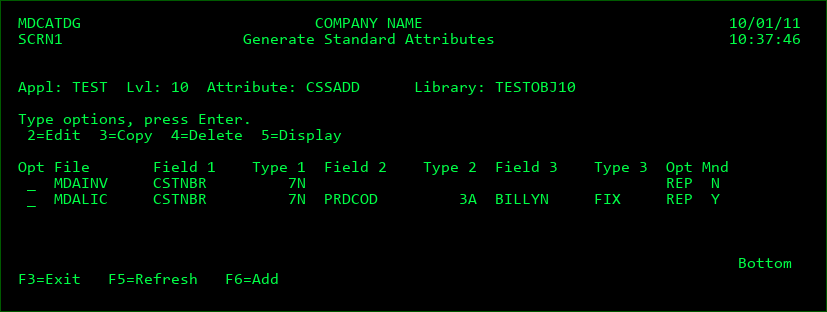
The list of files for a particular *DTAGRP attribute are maintained by pressing F8 from the attribute detail screen.
File
The name of the file that must exist in the object library defined for the attribute. Press F4 to browse using MDXREF.
Field
The name of the field to use as a record filter for the file. Up to 3 fields may be defined per file. Every record in the file where the value for these fields matches the value requested in the Object Manager will be included in the data set. Press F4 to browse the list of fields in the file. Alphanumeric or Numeric fields are allowed for use as the record filter.
Be certain that the ordering of the fields match the order for the other files in the Data Group.
If no fields are specified for the file, then all records will be included in the data set.
Starting Pos / Length
If the field is alphanumeric, a substring of the field can be used for the key value by specifying the starting position and length of the substring. If these 2 fields are left blank, then the entire field is used for the key value.
Fixed Value
Each defined field for the file may have a fixed value so that a value for that field doesn't need to be entered for each object request.
Blank - the value is entered as a variable in the object request name
*EMPTY - only records where this field is blank (or 0 for numeric fields) will be migrated
Value - only records where this field contains this value will be migrated
Record Option
*ADDNEW - any records that don't already exist in the table for the given field values will be added when migrated into this level. The file itself must be defined as uniquely keyed to use this feature.
*REPLACE - all records for the given field values will be replaced by the records being migrated. The *REPLACE option is permitted for any physical file, regardless of key definitions for the file.
*UPDADD - existing records with matching field values will be updated and new records will be added. The file itself must be defined as uniquely keyed to use this feature.
Records Mandatory
Y - 1 or more records must be available to migrate, otherwise the installation will fail
N - records with matching field values are not mandatory for this file
Requesting a *DTAGRP migration in the Object Manager
The records are requested using option M or N in the Object Manager. Enter the value for each variable field (fields without a fixed value defined) in the object name. If more than 1 field is defined for a file in the Data Group, separate the values with a comma. Trailing spaces should not be entered.
If the value for an alphanumeric field should be blanks, enter special value *EMPTY for that field.
Use option D to delete all records in the files where the keys equal the value of the object requested.
Example of Object Name
The example Data Group contains a variable alphanumeric field, a variable numeric field, and a fixed value field with value Y.
In the Object Manager, the programmer would enter the alphanumeric key value, a comma, and then the numeric key value:
EXAMPLE STRING, 75
When deploying the RFP, all records where field 1 = EXAMPLE STRING, field 2 = 75 and field 3 = Y would be migrated.
After pressing Enter to Request a Data Group value with option M or N, a confirmation screen will be displayed with the following 2 parameters:
Copy Data from Dev Library
*NONE - the data already exists in the initial level and the collection is copied from that level to any higher levels when subsequent RFPs are installed.
Otherwise, enter the name of the Developer Library that the data will be copied from.
Copy Data to Dev Library
N - nothing will be copied to the Developer Library
Y - if the Data Group files do not exist in the Developer Library, they will be created. Once existing the current applicable records in the target library for level will be copied to the files in the Developer Library.
*DTAGRP for managing Robot Schedule data
Robot Schedule can also be managed within MDCMS using the *DTAGRP Attribute.
The purpose of this feature is for the migration of Robot Schedule job schedule data from a user's pre-production system that contains their test version of the Robot Schedule product to their production system that contains their Robot Schedule product version.
Setup
When setting up the *DTAGRP Attribute for managing Robot Schedule data, follow these steps:
Using the F6=Add from the Attribute Maintenance panel (MDCCMEM/SCRN1) fill in the parameters as shown here.
Application
Specify the Application Group code that the Attribute will be added for. Since Robot Schedule exists once per partition, it is best to be an application containing a single level per partition.
Level
Specify the Application Group code Level value that the Attribute will be added for.
Object Type
Specify a value of *DTAGRP
Object Attribute
Specify the name of the Attribute that will help you recognize it as being specific for Robot Schedule.
Object Library
The library that contains the Robot Schedule database. This is typically ROBOTLIB.
Allow *NONE
This must be set to Y.
The remaining field values depend on your preferences. Pressing ENTER on the Add Attribute Record panel will bring you to the Attribute Data Group Files panel. Use the F6=Add function key to add the following record:
File Name
Enter a File Name value of *ROBOT
The remaining field values will be set automatically by MDCMS.
Object Request and Migration
The user should use the standard method available within the Robot Schedule product for creating, changing, or deleting job schedule entries. MDCMS will be used to distribute those changes to product instances on other partitions.
The name of the actual Robot Schedule job name will be used when requesting and migrating within the MDCMS Object Manager for either option M-Modify Object or option D-Delete Object.
When an object request is initiated on the originating system that contains the schedule job to be exported, the Copy Data from Library parameter should be set to *NONE as it is not necessary to copy any data to the user's development environment. When the object request is then added to an RFP, it is done so for the purpose of sending the updated (or deleted) Robot Schedule job entry from the originating system to the various target systems. When the local RFP is processed for deployment to the target system, the Robot API RBTMRG is used with parameter DIRECTION (*EXPORT) to place all of the job information in library RBTMRGLIB. MDCMS then saves the library to a save file for the RFP package and sends it to the target system.
When the installation of the RFP occurs on the target system, the Robot API RBTMRG is used with parameter DIRECTION(*IMPORT) to restore the Robot Schedule library RBTMRGLIB from the RFP save file and then migrate the job schedule information directly into the user's production version of Robot Schedule.
When a delete is performed at installation time the Robot API RBTBCHDLT is used to remove the job entities from Robot Schedule.
IMPORTANT NOTES:
When the scheduled job entry being imported had already existed within the target system, the job history will be deleted by the Robot API.
The Robot API does not handle REACT jobs correctly. The Robot scheduled job should be sent to the target system without any REACT parameters defined and then the REACT parameters should be added to the scheduled job on the target system after the migration has been installed.
Generate Standard Attributes
In order to quickly define attributes and compile commands for a new promotion level, or for a new library within a promotion level, F9 may be pressed from the Attribute Maintenance screen.
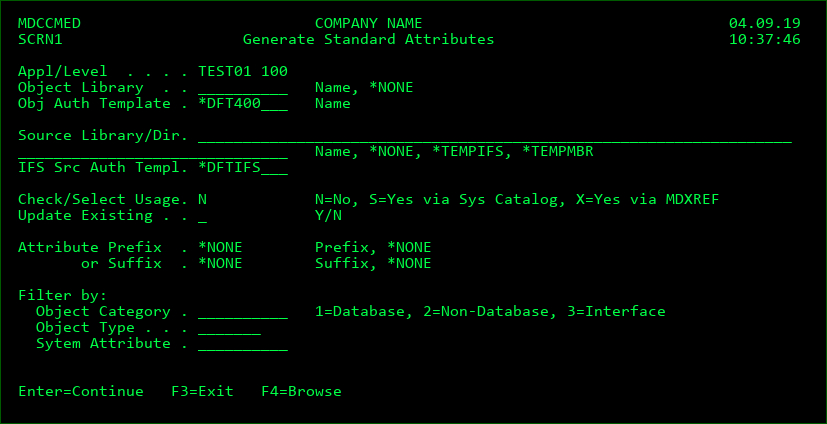
The first screen is used to get the default settings for all common attributes that are to be generated. After Enter is pressed, the next screen is displayed where the attributes may be selected.
Application
This is a 6-character abbreviation of an Application Group to be used by MDCMS.
The Application Group must exist - see Application Group Maintenance.
Press F4 with the cursor on the field to select a defined Application/Level pair
Level
This is a 3-digit numeric identification of the Promotion Level as defined in the Promotion Level Maintenance.
Press F4 with the cursor on the field to select a defined Application/Level pair
Object Library
The name of the library where the objects are stored.
Press F4 with the cursor on the field to select a library already defined in MDXREF. If the library isn't in MDXREF, press F11 to select from all libraries on the partition for the given namespace.
The object library doesn't have to already exist. MDCMS will prompt to create the library for you. If you don't want to create the library at this time, but would like to define the attributes to use for the library, command key F8 will be provided to skip the library creation.
Special values:
*NONE - no object destination to be defined for the attributes.
Obj Auth Template
The Object Authority template to apply to the attributes to be generated using this process. When an object of the given attribute is deployed to the target Application Level, the object authority rules defined by the template will be applied to the object.
Press F4 with the cursor on the field to manage and select a Template ID.
Source Library/Dir
The name of the library or IFS Directory where the source is stored.
The source library doesn't have to already exist. MDCMS will prompt to create the library for you. If you don't want to create the library at this time, but would like to define the attributes to use for the library, command key F8 will be provided to skip the library creation. MDCMS will not automatically create a source IFS folder.
Special values:
*NONE - no source destination to be defined for the attributes
*TEMPIFS - temporary source to be stored in the IFS and then discarded as soon as the RFP deployment is complete.
*TEMPMBR - temporary source to be stored in a source file and then discarded as soon as the RFP deployment is complete.
IFS Source Auth Template
The Object Authority template to apply to IFS source folders for the attributes to be generated using this process. When IFS source of the given attribute is deployed to the target Application Level, the object authority rules defined by the template will be applied to the IFS source file.
Press F4 with the cursor on the field to manage and select a Template ID.
Check/Select Usage
If and how the existence of objects matching a given attribute should be checked in the target library.
N=No - don't check for the types of objects that exist in the target library
S=Yes via Sys Catalog - the IBM system catalog for the target library will be checked. This can take some time but doesn't require that the cross-referencing is already built over the library. Any attributes that match objects in the library will be automatically selected for inclusion.
X=Yes via MDXREF - the MDXREF information for the target library will be checked. This is very fast, but requires that the cross-referencing is already built over the library. Any attributes that match objects in the library will be automatically selected for inclusion.
Update Existing
N - if the attribute already exists for the application level, don't overwrite it
Y - if the attribute already exists for the application level, overwrite it with the default parameters for the attribute
Attribute Prefix
A set of characters to place at the beginning of each system attribute for the naming of MDCMS attributes. For example, 'AA' would result in the MDCMS attribute of AARPG for RPG programs. No prefix will be generated, if the value *NONE is entered.
Attribute Suffix
A set of characters to place at the end of each system attribute for the naming of MDCMS attributes. For example, 'AA' would result in the MDCMS attribute of RPGAA for RPG programs. No suffix will be generated, if the value *NONE is entered. You have the choice of a prefix or a suffix. Both simultaneously is not allowed.
Filter by Object Category
1 - limit the attribute listing to standard database attributes
2 - limit the attribute listing to standard non-database attributes
3 - limit the attribute listing to interface attributes (JDE World and Synon/2E)
Filter by Object Type
limit the attribute listing to attributes of an entered type, such as *PGM
Filter by System Attribute
limit the attribute listing to attribute names containing the entered value
Once the information is entered on the initial screen, press Enter to continue to the attribute listing.
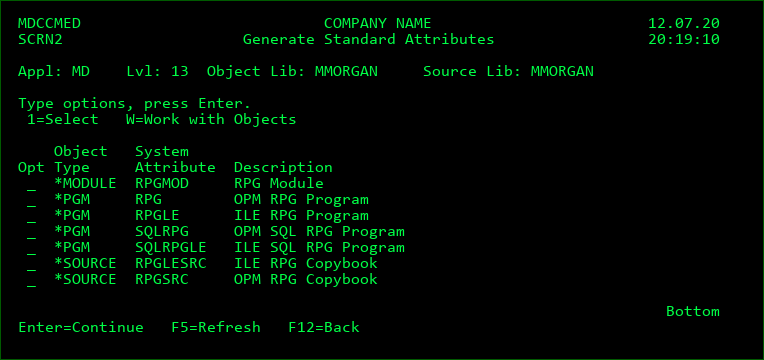
Use option 1 to select each attribute that should be generated.
Option W can be used for attributes pertaining to actual objects for further review of the contents of the object library.
Once the selections have been made, press Enter to verify the selections and modify any of the properties for specific attributes.
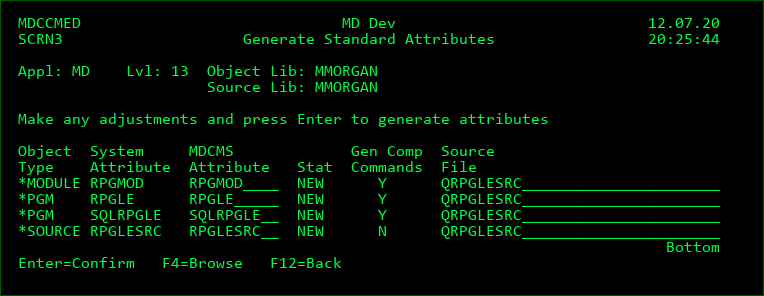
The attribute name can be changed for specific attribute.
If the attribute is applicable for a source member, the source file name can be changed. If the source file doesn't exist, MDCMS will prompt to create it. This can be ignored by using F8 when it appears.
If the attribute is applicable for source in the IFS, a subfolder can be selected for the attribute which is relative to the parent path of the source folder entered on the first screen.
F4 can be used to browse the list of source files or subfolders.
Linked Attribute Checkout Definitions
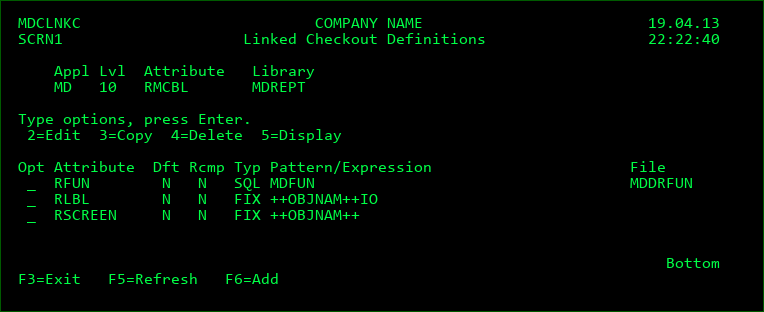
When an object for a particular attribute is checked out in the Object Manager, the programmer can be prompted to check out other objects that frequently need to be changed at the same time. This is most commonly used for selecting all components for a 4GL, Case Tool or other Middleware process when a program is checked out. The list of linked attributes can be managed by entering option L for the parent attribute.
Opt
2=Change - Change the definition for a linked attribute
3=Copy - Copy the definition
4=Delete - Delete the definition
5=View - display the definition
Function Keys:
F5=Refresh
F6=Add - Add a new Linked Attribute Checkout Definition
Linked Attribute Checkout Definition Detail
Linked Attribute
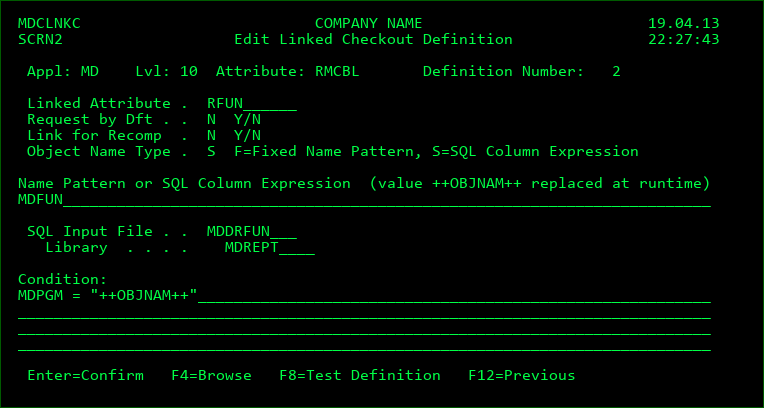
Enter the name of an existing MDCMS attribute for the same application and level whose object should be prompted for checkout when an object for the parent attribute is checked out. Multiple definitions for the same linked attribute are allowed, as long as the resulting object names will be different.
Request by Dft
Y - The object will already be selected for checkout when the prompt screen is displayed
N - The object will be displayed but not already selected for checkout in the prompt screen
Link for Recomp
Y - The programmer will be prompted to check out the linked object even if the parent object is requested for recompile
N - The programmer will not be prompted to check out the linked object when the parent object is requested for recompile
Object Name Type
F - Fixed Name Pattern - a name pattern is provided to determine the name of the linked object
S - SQL Column Expression - an SQL column expression (as used in a SELECT statement), SQL Input file and an optional SQL condition will be used to determine the name of the linked object
Name Pattern or SQL Column Expression
If fixed naming is used for the definition, specify the constant value pattern to be used for the object name. The string ++OBJNAM++ can be used anywhere within the pattern and will replaced with the name of the parent object at run-time.
If SQL naming is used, enter the name as a valid SQL expression for a column. The expression can be any combination of table field names and constants. ++OBJNAM++ can be used within the expression and will be replaced with the name of the parent object at run-time.
SQL Input File
If SQL naming is used for the definition, specify the name and library of the file that the object name will be derived from.
Condition
If SQL naming is used for the definition, optionally specify a valid SQL condition (without the WHERE clause) to appropriately limit the records in the file that would be used to provide the object name.
If more than 1 record exists for the file/condition, only the first record will be used to provide the object name.
Function Keys:
Enter=Confirm
F4=Browse - browse the list of possible fields, files or libraries when using SQL naming
F8=Test Definition - Immediately run a test to ensure that the definition correctly generates the object name
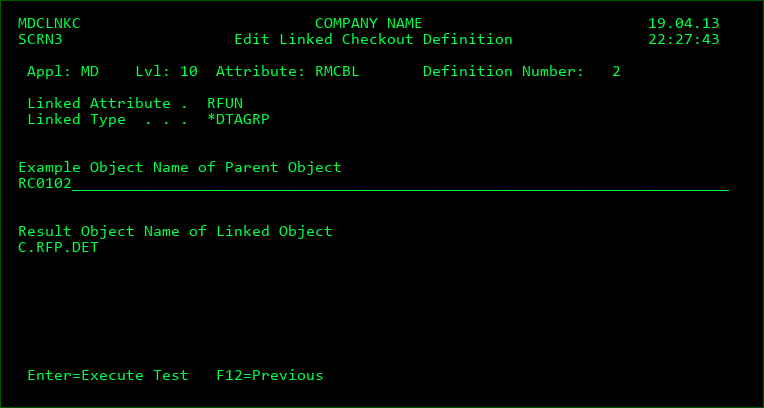
Linked Attribute Definition Test
Example Object Name of Parent Object
Enter a potential name for an object checked out for the parent attribute. Then, press Enter to have MDCMS generate the Linked Object name based on the Fixed Pattern or SQL definition.