Developer Library Naming Templates
By default, the name of the developer library or folder used to make modifications to source code will be the same name as the user profile of the developer and can then be set per user and level.
However, if the library should instead be a shared development library based on a Project, Task, Subtask, RFP or some other entity, then a Developer Library Naming Template can be created and applied to one or more levels to define the naming pattern to be used.
The Developer Library Naming templates can be modified from the MDCMS Setup Menu option 5=Templates -> option 23= Developer Library Naming.
Developer Library Naming Template Maintenance
Developer Library Naming Templates Screen:
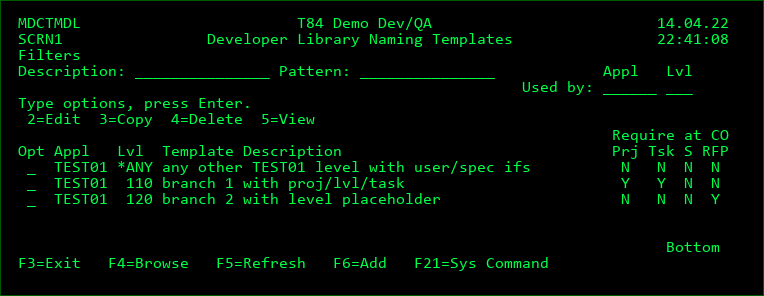
Filters
The entry of values into one or more of the filter fields will result in a subsetted list of records which contain the values of those filters.
Used by
To see which template, if any, would be applied to a specific application level, enter the value for the application and level and press Enter.
Options
2 - Edit an existing Template definition
3 - Copy the definition for a Template to a new Template name
4 - Delete a Template definition
5 - Display all details of the Template definition
Function Keys
F3=Exit
F4=Browse list of possible values for the Application and Level
F6=Add - Add a new Template Definition
F21=Sys Command - access a command line
Developer Library Naming Template Fields
Application
The application that will be using this template. Set to *ANY if any application should use the template
Level
The level that will be using this template. Set to 0 if any level should use the template.
When a checkout request is being created, MDCMS will apply a template in the following order:
- A template exists exactly matching the Application and Level
- A template exists exactly matching the Application and the Template Level is set to 0
- A template exists exactly matching the Level and the Template Application is set to *ANY
- A template exists and the Template Application is set to *ANY and the Template level is set to 0
If none of the 4 combinations exist, the default naming per user and target level will be applied.
Description
A 50-Character optional description of the template
Object Library Naming Pattern
*USER = the default naming per user and target level will be applied
Otherwise, specify any combination of fixed values together with MD, Project, Task, Level or Custom placeholders. Use F7 to select a placeholder from a list and insert it into the pattern at the current cursor position.
Example Library Naming Pattern:
++PROJID(1,4)++++PROLVL(2,2)++++TASKID(TLZ)++
In this example, the library name will be:
the first 4 characters of the Project ID for the object request
-
the 2nd and 3rd digits of the promotion level
-
the Project Task number for the object request with any leading zeroes trimmed from it.
Source Library Naming Pattern
*SAME = use the same value as for the Object Library Naming Pattern
*USER = the default naming per user and target level will be applied
Otherwise, specify any combination of fixed values together with MD, Project, Task, Level or Custom placeholders. Use F7 to select a placeholder from a list and insert it into the pattern at the current cursor position.
Object Folder Naming Pattern
*USER = the default naming per user and target level will be applied
Otherwise, specify any combination of fixed values together with MD, Project, Task, Level or Custom placeholders. Use F7 to select a placeholder from a list and insert it into the pattern at the current cursor position.
Example Folder Naming Pattern:
/home/++APPLIC++/dev/++PROJID++/++TASKID(TLZ)++
In this example, the folder name for IFS objects will be:
Parent directory of /home
-
child directory of the application code
-
child directory of dev
-
child directory of the Project ID for the object request
-
child directory of the Project Task number for the object request with any leading zeroes trimmed from it
Source Folder Naming Pattern
*SAME = use the same value as for the Object Folder Naming Pattern
*USER = the default naming per user and target level will be applied
Otherwise, specify any combination of fixed values together with MD, Project, Task, Level or Custom placeholders. Use F7 to select a placeholder from a list and insert it into the pattern at the current cursor position.
When Task is Closed, Auto-Delete
The recommended approach with temporary libraries and folders is that they are based on a Project Task and persist for the life of the task. If this is how you have defined the naming pattern, MDCMS can automatically delete after the associated task is closed. The deletion will occur during the next run of the MDCLEAN job after the closing.
Libraries:
N - Any libraries created to contain the checked-out source and objects will remain on the partition until they are manually deleted.
Y - The MDCLEAN service job will automatically delete the library once the associated task is closed.
Folders:
N - Any IFS Folders created to contain the checked-out source and objects will remain on the partition until they are manually deleted.
Y - The MDCLEAN service job will automatically delete the folder once the associated task is closed.
Authority Template for new Libraries
MDCMS will automatically create the library if it doesn't exist and can apply ownership and user authority based on an Authority template. Objects that are compiled into the library using MDCMS will also use the template to apply authority to those objects.
*USER - don't apply a template - the user of the job will be the owner of the library
Otherwise, the name of an OS400 Authority Template. Press F4 to select from a list.
Authority Template for new Src Files
MDCMS will automatically create Source Files in the library if they don't exist and can apply ownership and user authority based on an Authority template.
*USER - don't apply a template - the user of the job will be the owner of the source file.
Otherwise, the name of an OS400 Authority Template. Press F4 to select from a list.
ASP Device for new Libraries
MDCMS will automatically create the library if it doesn't exist into the ASP defined here.
*SYSTEM - create the library in the system ASP
Otherwise, the name of an ASP device.
Authority Template for new Folders
MDCMS will automatically create the folder path if it doesn't exist and can apply ownership and user authority based on an Authority template.
*USER - don't apply a template - the user of the job will be the owner of each new folder in the path
Otherwise, the name of an IFS Authority Template. Press F4 to select from a list.
Require Project at Checkout
If Y, MDCMS won't allow a modification request to proceed unless a Project has been selected for the request.
Require Task at Checkout
If Y, MDCMS won't allow a modification request to proceed unless a Project Task has been selected for the request.
Require Subtask at Checkout
If Y, MDCMS won't allow a modification request to proceed unless a Project Subtask has been selected for the request.
Require RFP at Checkout
If Y, MDCMS won't allow a modification request to proceed unless an RFP has been selected for the request.