IBMi Locations
The IBMi Locations define all locations where MDCMS should connect to for the distribution of settings and promotions, or for data connections to synchronize project, RFP and MDWorkflow information and perform remote retrieval of source or MDXREF information.
MDCMS utilizes the DDM (Distributed Database Management) features of the IBMi system for executing the data connections. MDSEC can be used to manage the security and logging of DDM usage.
For the distribution of promotions, a variety of methods are available.
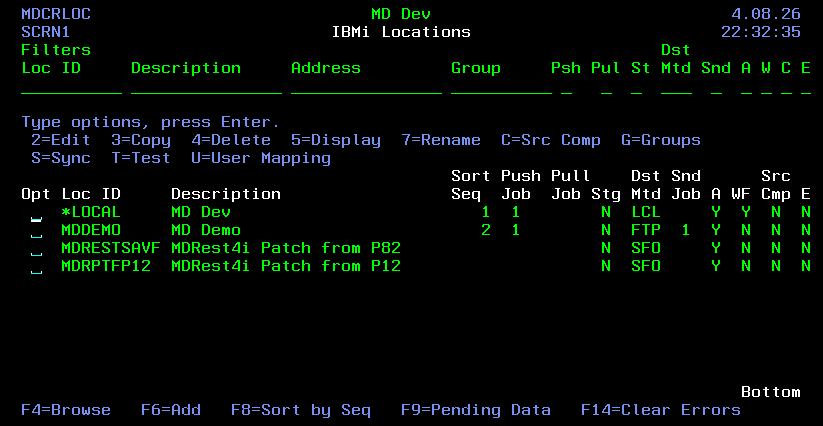
Screen Definitions:
Opt
2=Edit - Edit the parameters for a location
3=Copy - Copy the parameters of an existing location to a new location
4=Delete - Delete a remote location from the list.
7=Rename - Rename a remote location id.
C=Src Comp - Define the Level residing at the location for source to be compared to when that source is checked out on the local system.
G=Groups - View the Location Groups that the location belongs to. Additionally, manage the Location Groups. Location Groups are used to provide a means of filtering a list of Locations in the Distribution screens by any definition necessary for the organization. Multiple locations can belong to a location group and multiple location groups can contain the same location.
S=Sync - Provide project information from the local system to the target system. If the target system contains the MDWorkflow repository, then additional object and promotion information is provided. If the local system contains the MDWorkflow repository, it should also be synced initially to load the local information into the MDWorkflow tables.
T=Test - Test the DDM connection from this location to the remote location and provide an overview of the connection configuration to ensure everything is correct on both sides of the connection.
U=User Mapping - Map the User IDs of Sending Users on the local system to the corresponding User IDs on the target system, if the target system uses different naming patterns.
Special Function Keys
F8-Sort by Seq/Sort by ID - toggle the listing between ordering the entries by sort sequence or by the Location ID.
F9-Pending Data - View a count of pending data transactions waiting to be delivered to each target system via DDM. Option 4 can then be used from the Pending Data listing to delete the pending records for a Location.
F14-Clear Errors - Reset all error flags to N. The error flag for a given location will then return to Y only if a new error occurs for the location.
Location DDM Settings
Location settings span up to 3 pages per location. The first page defines the DDM settings for the location.
Location ID
A unique ID for the location. This ID must match the Location ID entered in the system settings on the target system.
Additionally, there is the special value of *LOCAL to maintain MDWorkflow, source comparison and local branch distribution settings for the local system.
Description
A free-format description of the location
Address
The network host name or IP address of the target OS/400 partition
Database Name
The name of the DB/400 database containing MDCMS at the remote location. To easily find the name of the database, enter command STRSQL at a command line on the remote system. The database name will be displayed.
DRDA Port
The port number used on the remote system for handling DDM service requests. *DRDA is the default port number, which is correct in most circumstances.
Loc Active
A flag indicating if connections should be attempted to this location
MDPUSH Job#
If the local system can connect to the location via DDM, a number between 1 and 9 should be specified. This number corresponds to the MDPUSH job to push asynchronous data to the location.
If there are only a couple of locations to push information to, it is recommended to only use 1 push job. However, if there are many locations, then it is recommended to split the locations across several MDPUSH jobs in parallel.
MDPULL Job#
If the local system can connect to the location via DDM, but the location can't connect to the local system, then a queue number between 1 and 9 should be specified. This number corresponds to the MDPULL job to pull asynchronous data from the location.
If there are only a couple of locations to pull information from, it is recommended to only use 1 pull job. However, if there are many locations, then it is recommended to split the locations across several MDPULL jobs in parallel.
In general, it is better to be able to push rather than pull for performance and administration reasons. However, if a firewall only allows one-way DDM connections, then the pull process will enable this to be technically possible.
Stage Data
If the local system can't connect to the location via DDM, but the location can connect to the local system, then the local system can stage the data and the remote location can use an MDPULL job to retrieve the staged data.
MDWorkflow Rep
Set this value to Y if this location contains the repository that the MDWorkflow web application connects to. This indicates to the local system that additional information needs to be distributed to the location so that all necessary data appears in MDWorkflow.
If the local system contains the repository, then set this parameter to Y for location *LOCAL.
MDWorkflow Sort#
If the local system contains the MDWorkflow repository, then set the sort sequence for each location to be viewed from within MDWorkflow.
Remote User
The user id to be used on the remote IBMi in order to process synchronizations or source retrieval. The password for the user on the remote system must also be entered.
This user requires either *ALLOBJ authority, or the user should be granted *CHANGE authority to all *FILE objects in MDCMS, MDSEC and MDXREF on the target location.
If authority is specifically granted to this user on the library objects, it's important to reapply the authority when an upgrade of MDCMS is performed.
UTC Offset
The difference in time between the local time of the location and UTC standard time. The 5-character field has the following format:
shhmm, where s=sign (+/-), hh=hours (00-24) and mm=minutes (00-59)
*LCL - special value for UTC offset to indicate that the target location has the same UTC offset as the local system.
Special Function Keys:
F10=Test DDM Connection - test the DDM connection to the remote location based on the current settings for the location. Pressing this will also refresh the Version, Build Date and Install Date information of MDCMS on the remote location that is shown in the local Location display.
F14=Show/Hide New PW - if adding or modifying the value for the password, press F14 to see the entered value for the field. This will not show the currently stored value of the password for security reasons.
Location Distribution General Settings
Location settings span up to 3 pages per location. The 2nd page defines the general Distribution settings for the location.
Dist. Method
The method to send an RFP or Settings from this partition to another partition
| Column 1 | Column 2 | Column 3 |
|---|---|---|
| Value | Description | Distribution Address Value |
| CDR | IBM Connect:Direct | C:D Node |
| FTP | Native File Transfer Protocol | Hostname/IP |
| GOA | Linoma GoAnywhere MFT | GA Project ID |
| LCL | Direct Send to *LOCAL Level For use on the *LOCAL location only. Typically used when sending promotions from the top of a deployment branch to the bottom of the trunk. Direct Save/Restore of Send Package without use of Network Connectivity. | N/A |
| MDF | MDFTP Client to transfer via FTPS or SFTP. A location entry for a FTPS service (such as OpenSSL) or SFTP service (such as OpenSSH) must be defined in the Remote Server Location Settings using MDOpen. The connection information is then pulled from that entry. | Remote Server Location Address |
| OBJ | ObjectConnect (SAVRSTOBJ). Transfer using command SAVRSTOBJ, if ObjectConnect is installed and configured on both systems. If DDM is defined for the Location, MDCMS can automatically receive the file on the target. Otherwise, use MDRCVSNA for user *SAVF to listen for new RFPs to receive on the target. | The Control Point name of the remote system. It can be unqualified if for the same Network ID, otherwise use format NNNN.CCCCCCCC where N is the Network ID and C is the Control Point name. This information can be viewed using command DSPNETA on the remote system. |
| OPT | Optical Device | Device Name |
| SFF | Save File with Full RFP Information for manual distribution to other systems that use MDCMS. In order to receive the file into a target system, place it in folder /MDCMS/SEND/(instance) on that system and use command MDRCVIFS to process it. | IFS Folder including Path |
| SFO | Save File with Source/Objects only for manual distribution to other systems that don't use MDCMS | Library Name OR IFS Folder including Path |
| SNA | IBM Systems Network Architecture | SNA Queue |
| TAP | Tape Device | Device Name |
| XCM | CA XCOM Data Transport | XCOM Remote System |
Dist. Address
The value of the address based on the method in the table above. Special value *LOCADR can be used if the DDM address is the same as the distribution address.
MDSEND Job#
If the selected distribution method will transfer RFPs to a remote location, a number between 1 and 9 should be specified. This number corresponds to the MDSEND job to transfer the built save file asynchronously to the location. During the RFP Send process, one job runs per RFP that saves the source, objects and metadata to a save file. Then, the transfer of this save file is passed to the MDSEND job defined for the target location. This concurrent processing provides a much lower amount of time to complete the transfer of RFPs to multiple locations.
Set the number of MDSEND jobs to start in the services settings to match the highest job# defined in the location settings.
Target Release
The operating system that is currently installed on the destination system. This value can be overridden for each Distribution Level.
*CURRENT - the default indicating that the OS versions are equal between the 2 systems
*PRV - the destination system runs on the previous OS version
VxRxMx - the exact version number of the destination system (e.g. V6R1M0)
Data Compression
If the data sent to the target location should be compressed before sending.
N - the save file isn't compressed before sending. The preparation of the save file takes a bit less time, but the transfer of the data may take 2-3 times longer.
Y - the save file size is minimized using high data compression. The preparation of the save file takes a bit more time, but the transfer of the data will be 2-3 times faster. Recommended for slow connections.
When to Send
Determines when and whether to send an RFP to the target level. This value can be overridden for each Distribution Level.
A - Automatically send to the target level as soon as the RFP is installed into the distribution level
G - Automatically send to the target level as soon as all quality gates for the installed RFP are open.
Quality Gates: MDWorkflow Acceptance, Task Status Boundary, Code Review or Automated Testing
M - When manually sending an RFP, the target level will be selected by default. The target level will also be selected when a Task Status Trigger to Send RFPs is executed.
N - When manually sending an RFP, the target level will not be selected by default. A trigger will not cause a send to the target level and an RFP will auto-close even if the target level hasn't been sent to.
Object Owner
The Owner of the Temporary Library and Objects that are saved into the Save File
Public Authority
The object authority granted to *PUBLIC for the objects saved into the Save File
- *ALL - All Authority
- *AUTL - Authority defined by Authorization List
- *CHANGE - Change Authority
- *EXCLUDE - No Authority
- *SAME - The authorities are same as in local environment
- *USE - Usage Authority
Send Objects for Attributes containing Source
Y - Source will not be compiled on the target system, so send the object (Option O or B)
N - Source will be compiled on the target system, so only send the source (Option S)
Send Objects for Attributes not containing Source
Y - Objects should be sent to target system (Option O), because a compile will not occur on the target.
If Send Source for Modifications is set to D, database objects will not be sent as a compile is expected.
N - Objects should not be sent - target system intended for source only (Option N)
Send Source for Modifications
Y - Source is permitted on the target system, at least temporarily (Option S or B)
N - Source is not permitted on the target system (Option O)
D - Source should only be sent for Database objects, as only they will be compiled on the target
Send Source for Recompiles
Y - Source will be compiled on the target system, but it is not permanently stored there. MDCMS will then convert the request to modify and send the source for the location. (Option S)
N - Source is not permitted on the target system (Option O)
If not sending Source, Send Request for *SOURCE Objects
Y - *SOURCE types will send only the request records (Option R)
N - *SOURCE types will not be sent (if Send Source is set to N) (Option N)
Send *DATA or *DTAGRP attributes
Y - *DATA and *DTAGRP attributes will be sent to target system (Option O)
N - *DATA and *DTAGRP attributes will not be sent to target system (Option N)
Send *MODULE attributes
Y - *MODULE attributes will be sent to target system (Option O)
N - *MODULE attributes will not be sent to target system (Option N)
The above Send rules can be overridden for the distribution levels and for each attribute in a distribution level.
Additional Distribution Settings for Connect:Direct
Connection User
The optional Connect:Direct local profile that will be used to execute the transfer
Password
The optional Connect:Direct password for the local execution profile (optional)
Additional Distribution Settings for FTP
Connection User
The profile on the remote IBM i partition to use for the FTP connection.
It is recommended to create a user profile specifically for FTP use in MDCMS. The keywords USRCLS(*USER) INLMNU(*SIGNOFF) and PWDEXPITV(*NOMAX) are recommended. The user will need *CHANGE authority to library MDCMS and *ALL authority to file MDCMS/MDDFTPM.
If authority is specifically granted to this user on the library objects, it's important to reapply the authority when an upgrade of MDCMS is performed.
Password
The password for the user on the remote system. Depending on the password settings on the target system, the password may be case-sensitive and up to 40 characters in length.
Remote ASP Device
The ASP device on the remote system containing the MDCMS instance
*DFT - The device attributed to the connection user on the remote system
The alphanumeric device ID for the ASP
Server Port
The FTP Port number on the remote system.
*DFT - Port 21
*SECURE - Port 990 for FTP using SSL
1 - 65535
Secure Connect
The security mechanism to protect the user/password and possibly data information transferred via FTP.
*DFT - If the PORT parameter specifies *SECURE or 990, *IMPLICIT is used; otherwise, *NONE is used.
*IMPLICIT - immediately attempt to use SSL when connecting to the server
*SSL - use a SSL protected session after the connection has been made
*NONE - no encryption used
Data Protection
The type of data protection used during the FTP transfer
*DFT - protection is based on the connection type
*PRIVATE - the data is encrypted
*CLEAR - the data is not encrypted
Toggle Ext. PASV
Specifies whether or not to toggle the use of Extended Passive mode within the FTP session. Only potentially necessary for OS V6R1M0 or higher.
Toggle PASV
Specifies whether or not to toggle the use of Passive mode within the FTP session
Toggle Ext. PORT
Specifies whether or not to toggle the use of Extended Port mode within the FTP session. Only potentially necessary for OS V6R1M0 or higher.
Additional Distribution Settings for ObjectConnect
Remote ASP Device
The ASP device on the remote system containing the MDCMS instance
*SYSBAS - MDCMS is installed on the system base ASP
The alphanumeric device ID for the ASP
Additional Distribution Settings for SFO
Authorization List
*NONE - Objects in Save File not protected by an Authorization List
Name of Authorization List existing on local system that would also be required
to exist when library is restored on target systems
Prompt for Name
Y - For each RFP that is sent manually from the Send Promotions list using method SFO, the name of the Library containing the Objects, the name of the Save File, and, if relevant, the name of the IFS File can be optionally provided custom names.
N - the Library, Save File and IFS File names will be generated by MDCMS and have the format MD0nnnnnnn
Using GoAnywhere™ to Distribute MDCMS Promotions and Settings
GoAnywhere™ is a managed file transfer (MFT) solution from Linoma Software that allows organizations to secure and automate the exchange of data with their trading partners, customers, employees and internal systems.
For MDCMS, GoAnywhere™ can be used to transfer promotions and settings via FTP, FTPS, SFTP or SCP.
Steps necessary to use GoAnywhere™ within MDCMS:
Separately purchase and Install GoAnywhere™ from Linoma Software
If GoAnywhere™ is installed to a library with a name other than GOANYWHERE, then change the value of Data Area MDCMS(instance)/MDGOALIB
Define a FTPS, SFTP, or SCP Server resource for the remote partition that MDCMS must deploy to
Define a IBM i Server resource for the remote partition that MDCMS must deploy to
Save the following XML code shown below to a file. Replace --your FTPS Resource-by the name of your Transmission resource. If using SFTP or SCP, the task element will need to be renamed from ftps to scp or sftp
Import the XML file into the Projects list
Define a Distribute Queue where the Distribution Queue name is the name of the GoAnywhere™ project, including the relative path. For example /MDCMS_SEND_1. The Distribution Queue Method must be set to GOA.
Repeat steps 3 - 7 for each additional remote partition
Project XML
<project name="MDCMS_SEND_1" mainModule="Main" version="1.0" logLevel="debug"
onError="abort">
<ftps label="FTPS" resourceId="--your FTPS Resource--" version="1.0"
logLevel="debug">
<put label="Put Savefile" sourceFile="${ifsSavefile}" destinationFile="${ifsSavefile}..${user}..${sys}..${agp}..${lvl}._.${rfp}"
type="binary" />
Source Comparison Settings
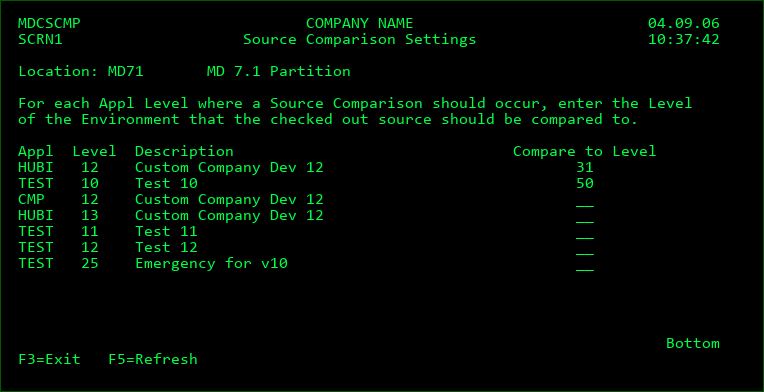
This screen is displayed when a 'C', for Source Comparisons, is requested for the *LOCAL location or a Remote Location within the OS/400 Locations listing.
Appl/Level
Each Application Level that is defined in MDCMS on the local System that allows checkout. If a Compare to Level at another remote location has been defined for an Application's Level, then that Level will not be displayed for the selected remote location. Only levels that are available to the selected remote location will be displayed in the list.
Compare to Level
The level number for the Application at the Remote Location that should be compared to, when checking out source from the selected level on this System.
If the Compare to Level number is higher than 0, then every time that source is checked out on this system for the selected level, the source will be compared to the source residing within the specified level on the Remote System. If the source versions are different, a warning screen will be presented to the programmer.
Location User Mapping
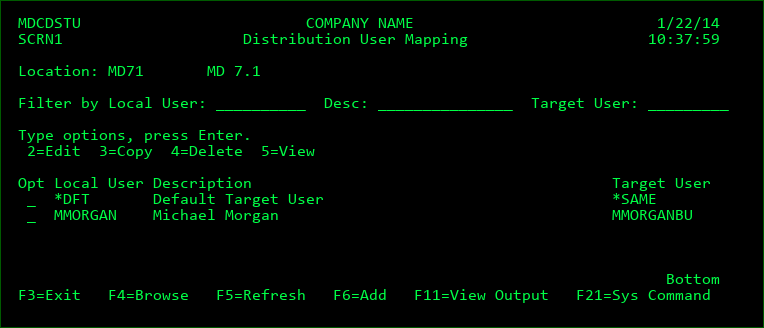
This screen sets the mapping of User IDs from the user sending the RFP on the local system to the user receiving the RFP on the target system. This provides the ability to use automated receipt on the target system even when the naming patterns for the users are different compared to the local system or when responsibility of the RFPs should be handed off to a different person on the target system.
Local User
*DFT - the target user mapping to invoke for any profile that is not explicitly defined in this list. If *DFT is not defined and the user is not defined, the target User ID will remain the same
User ID - the name of a valid User ID on the local system
Target User
*SAME - the target user ID is the same as the local user ID
User ID - the name of a valid User ID on the target system
Function Keys:
F3=Exit
F4=Browse - Browse the list of valid values for a field
F5=Refresh - Refresh the list view
F6=Add - Add a new mapping entry to the list
F11=Output - Display the MD Output panel and other spool files
F21=Sys Command - displays the IBMi command entry screen so that IBMi commands may be run without the need to exit MDCMS.
MDLOCPWD - Change Password for MD Locations
MDCMS is delivered with a command-based API that provides for the systematic update of the password stored for the user defined for the MDCMS OS/400 Location DDM Remote user and/or MDCMS OS/400 Location FTP Connection User.
The MDCMS command is named MDLOCPWD and is located in library MDCMS*.
MDLOCPWD Parameter Table
| Name | Type | Length | Description |
|---|---|---|---|
| Name | Type | Length | Description |
| USER | CHAR | 10 | The name of the user defined for one or more OS/400 locations in MDCMS on the local partition. |
| PWD | CHAR | 40 | The new, mixed-case password to use when connecting to the location. The password is updated for the MDCMS OS/400 entry only - it doesn't change the actual password for the user profile on the remote system. |
| LOC | CHAR | 10 | The Location ID of the OS/400 location entry to update. In order for the password to be updated, the location ID value must match (or be *ALL) and the user must match. |