Job Settings
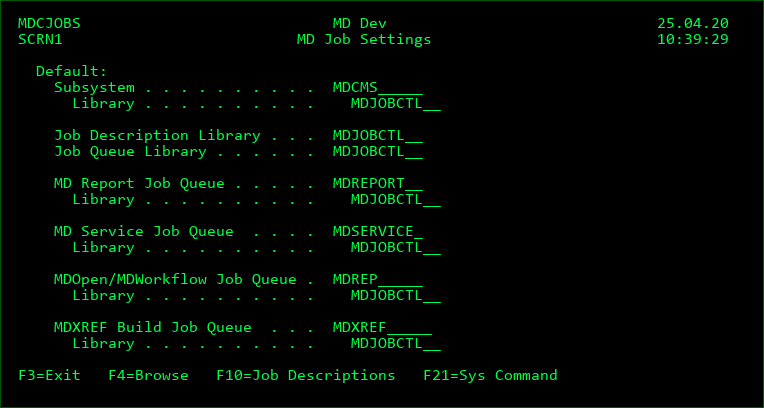
The Job Settings screen provides the ability to easily define where the different sorts of jobs that are submitted by MD products should be run. This screen is available from option 12=Job Settings of the MDCMS Setup Menu.
In order to create subsystems or job queues from this screen, your user profile requires a minimum of change authority to the CRTSBSD or CRTJOBQ commands to create those elements. When changing/deleting subsystems or job queues, sufficient authority must exist for the specific object.
It is highly recommended to have a separate subsystem with its own set of job queues for MDCMS.
You can also list/manage job descriptions from the Job Settings screen by pressing F10.
Default Subsystem
The name and library of the subsystem that will be used by default for MD jobs. This is used for informational purposes as well as to pre-populate the subsystem parameter when creating a new job queue.
Press F4 to browse existing subsystems or create a new subsystem.
When creating a subsystem from the Job Settings wizard, the subsystem description, class and generic routing entry are each created and bound together for ease of administration.
Recommended number of Maximum Jobs for subsystem: 1000
If using MDCMS on a partition with multiple processors, it is also recommended to assign the subsystem to a Workload Group to limit the number of processors that MDCMS can utilize.
Default Job Description Library
The library where job descriptions by default will be stored. Job Descriptions are used in MDCMS per promotion level for the batch jobs to deploy objects. This is used for informational purposes as well as to pre-populate the job description library parameter when creating a new job description.
Press F4 to browse existing libraries.
Default Job Queue Library
The library where job queues by default will be stored. This is used for informational purposes as well as to pre-populate the job queue library parameter when creating a new job queue.
Press F4 to browse existing libraries.
MD Report Job Queue
The name and library of the job queue that will be used by submitted jobs that create report output in MDCMS, MDSEC and MDXREF.
Press F4 to browse existing job queues or create a new job queue.
When creating a job queue from the Job Settings wizard, the job queue and job queue entry are each created and bound together for ease of administration. You can also use the job queue wizard to switch the job queue to a different subsystem or change the number of maximum jobs.
Recommended number of Maximum Jobs for the MD Report Job Queue: 10
MD Service Job Queue
The name and library of the job queue that will be used by submitted MD Service jobs defined in the Services settings.
Press F4 to browse existing job queues or create a new job queue.
When creating a job queue from the Job Settings wizard, the job queue and job queue entry are each created and bound together for ease of administration. You can also use the job queue wizard to switch the job queue to a different subsystem or change the number of maximum jobs.
Recommended number of Maximum Jobs for the MD Service Job Queue: 100
MDOpen/MDWorkflow Job Queue
The name and library of the job queue that will be used by submitted jobs that are used to communicate with a MDOpen or MDWorkflow client session.
Press F4 to browse existing job queues or create a new job queue.
When creating a job queue from the Job Settings wizard, the job queue and job queue entry are each created and bound together for ease of administration. You can also use the job queue wizard to switch the job queue to a different subsystem or change the number of maximum jobs.
Recommended number of Maximum Jobs for the MDOpen/MDWorkflow Job Queue: 200
MDXREF Build Job Queue
The name and library of the job queue that will be used by submitted jobs that are used to refresh the cross-reference information in MDXREF.
Press F4 to browse existing job queues or create a new job queue.
When creating a job queue from the Job Settings wizard, the job queue and job queue entry are each created and bound together for ease of administration. You can also use the job queue wizard to switch the job queue to a different subsystem or change the number of maximum jobs.
Recommended number of Maximum Jobs for the MDOpen/MDWorkflow Job Queue: 5
MDWRKJOBD - Work with Job Descriptions command
MDCMS is delivered with a command-based API that provides an improved experience for administrators to list and manage job descriptions.
The MDCMS command is named MDWRKJOBD and is located in library MDCMS. It is not necessary to have the MD libraries in the library list prior to using this command.
The first time the command is invoked, the list is unfiltered and may take some time to load. The filter values are saved per user profile for the next use of the command.
In order to create job descriptions from this screen, your user profile requires a minimum of change authority to the CRTJOBD command. When changing/deleting job descriptions, sufficient authority must exist for the specific object.
MDWRKJOBD Parameter Table
| Name | Type | Length | Description |
|---|---|---|---|
| KEYWORD | Description | Type | Length |
| ENV | MDCMS Environment ID | CHAR | 4 |