Object Approval Templates
Object Approval Templates provide a means of defining which groups of users must approve an RFP, before the RFP can be installed. Object Approval Template assignments are done at the Object level rather than Attribute level in order to allow for finer granularity.
In order for the templates to be used in the RFP process, the target level and/or target attributes of the RFP must set Auto-Approve to T=Templates.
The Developer Library Naming templates can be modified from the MDCMS Setup Menu option 5=Templates -> option 24=Object Approvals.
To manage the Template Headers and Approval Groups, you must have MDSEC authority to code md/22.
Object Approval Template Header Maintenance
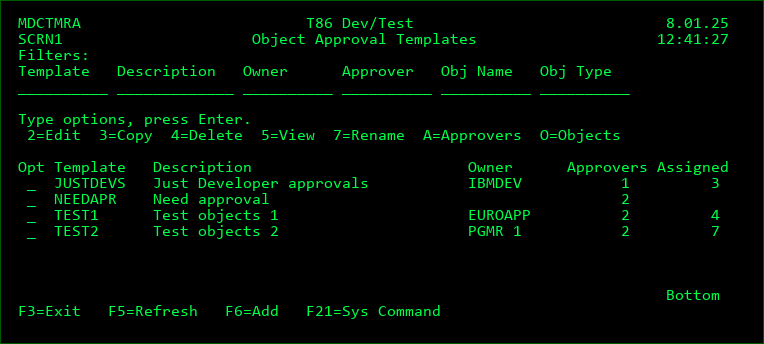
Object Approval Templates Screen:
Filters
The entry of values into one or more of the filter fields will result in a subsetted list of records which contain the values of those filters.
Options
2 - Edit an existing Template definition
3 - Copy the definition for a Template to a new Template name. The Approvers will also be copied.
4 - Delete a Template definition
5 - Display all details of the Template definition
7 - Rename a Template definition
A - View/Manage the list of Approval Groups for the Template
O - View/Manage the list of Assigned Objects for the Template
Function Keys
F3=Exit
F5=Refresh the listing
F6=Add - Add a new Template Definition
F21=Sys Command - access a command line
Object Approval Template Header Fields
Template ID
A unique 10-character identifier for the template
Description
A 50-Character description of the template
Business Owner Type
G - The business owner is a user group defined in User Groups
U - The business owner is a specific user defined in MDSEC
Business Owner
The optional User Group or User that is designated as the Owner (from a business perspective) of all objects assigned to the Template. Use F4 to select a value from User Groups or MDSEC Users, depending on the Business Owner Type.
Allow *ANY/*gen* Value
Y - the Object Name, Object Type and/or Target Library Folder values for object assignments may be set to *ANY or have a generic value using *value* in order to assign entire groups of objects to the template based on a naming pattern.
N - the Object Name, Object Type and Target Library Folder values must be for a specific object
Allow no Approvers
Y - Objects can be assigned to the Template if no Approval Groups are defined for the Template. This means that any such objects on an RFP will be automatically approved for installation.
N - Objects can't be assigned to the Template until at least 1 Approval Group is defined for it.
Require Recomp Approval
Y - Objects requested for recompile (or Update) will require approval for installation
N - Objects requested for recompile (or Update) will be automatically approved for installation
Require Delete Approval
Y - Objects requested for deletion will require approval for installation
N - Objects requested for deletion will be automatically approved for installation
Approval Groups for an Object Approval Template
View/Manage the list of Approval Groups registered for a Template by using option A=Approvers from the Object Approval Templates screen. One member of each group will be required to approve the installation of an RFP if one or more objects on the RFP are assigned to the Template.
Filters
The entry of values into one or more of the filter fields will result in a subsetted list of records which contain the values of those filters.
Options
3 - Add an Approval Group to the Template based on the name of the selected group.
4 - Remove a Group from the Template
G - Group Def - View/Manage the details and users belonging to the User Group
Function Keys
F3=Exit
F5=Refresh the listing
F6=Add - Add an Approval Group to the Template
F21=Sys Command - access a command line
Approval Template Group Fields
Approval Group
The ID of a valid User Group
Application
The application(s) that require that the user group provides approval. A generic value can be used. If multiple specific applications require approval for the template, then add additional group records.
*ANY - any application will require the group
Level
The promotion level(s) that require that the user group provides approval. A generic value can be used. If multiple specific levels require approval for the template, then add additional group records. The format of a level number is 3-digit numeric.
*ANY - any promotion level will require the group
Assigned Objects for an Object Approval Template
View/Manage the list of Objects assigned to a Template by using option O=Objects from the Object Approval Templates screen. When an object is included in an RFP, one member of each Approval Group defined for the template will be required to approve the installation of the RFP.
MDCMS weighs the values for the Object name, Object Type and Application so that specific object values have priority over *generic* values and *generic* values have priority over *ANY values when determining which template the object on an RFP belongs to.
To manage any Object Assignments, you must have MDSEC authority to code md/23.
When you don't have global authority to code 23, you can still add/remove object assignments when you have authority to code 23 for the lowest Promotion Level for a specific Application value.
Filters
The entry of values into one or more of the filter fields will result in a subsetted list of records which contain the values of those filters.
Options
3 - Add an Object to the Template based on the values of the selected object
4 - Remove an Object from the Template
5 - View the full values for the Object Name, Type and Target Library/Folder
8 - Move the object to a different Template
Function Keys
F3=Exit
F5=Refresh the listing
F6=Add - Add an Object to the Template
F21=Sys Command - access a command line
Object Fields
Object Type
The type of Object based on MDCMS attribute types. Press F4 to select from a list.
If the Template allows *ANY/*gen* values, *ANY can be used to indicate any type of object. Generic naming patterns are not allowed for the Object Type.
Object Name
The name of the Object. Press F4 to select from a list.
If the Template allows *ANY/*gen* values, *ANY can be used to indicate any object name and *val* can be used for naming patterns for the object. The values are not case sensitive.
Application
The Application group that the object belongs to.
If the Template allows *ANY/*gen* values, *ANY can be used to indicate any application. Generic naming patterns are not allowed for the application.