Promotion Levels
Promotion Level Maintenance defines and sequences the specific environments for the installation of objects for an Application.
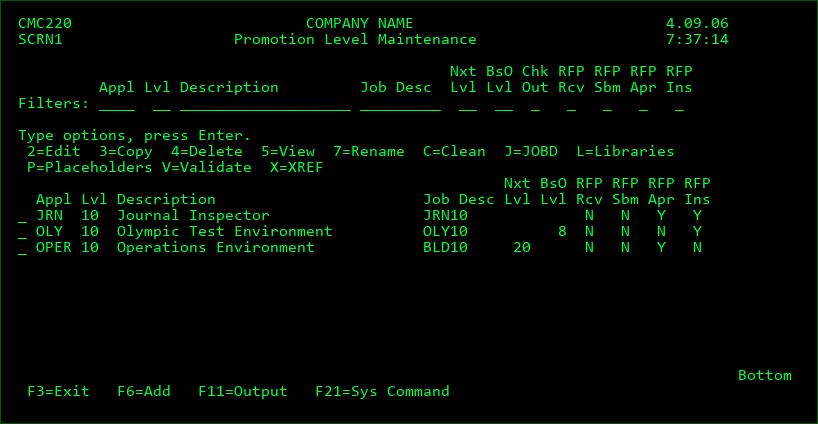
Screen Definitions:
Filters
Filter the list of Promotion Levels based on the values entered into the individual fields. For the Appl, Description, and Job Description filters, a Promotion Level will be listed if any part of the field matches the value entered in the filter.
Option
2=Edit - Change the parameters of a Promotion Level
3=Copy - Copy a Promotion Level's parameters to a new Promotion Level and optionally copy all attributes, commands, scripts, distribution levels and Level Placeholders to a new level as well. See the following Sections for more information:
- Specify Library Names for Copied/Received Levels
- Update Attribute Templates for Copied/Received Levels
- Specify Level Placeholder Values for Copied/Received Levels
4=Delete - Delete a Promotion Level
5=Display - Display the parameters for a Promotion Level
7=Rename - Rename the level number to a new value. When renamed, the level number in all related tables for configuration, activity and history are also renamed. The original value is only retained in API logs for audit reasons.
C=Clean - Delta Level Cleanup Menu. From here, a full Reset or the source, object and data libraries can be performed, or stranded object and source requests can be reported on and selected to be deleted. See section Delta Level Cleanup for more details.
J=JOBD - Display/Modify the job description for the Promotion Level
L=Libraries - view a list of all Object Libraries/Folders and Source Libraries that are defined as target libraries by attributes defined for the level. If authorized, a new value for the name of a library can be entered, which will be applied to all attributes in the level that use that library.
P=Placeholders - View/Define custom placeholder variables to be used, with a different value possible for each variable and promotion level.
V=Validate - Create a validation report for the level. See section Promotion Level Validation Report for more details.
X=XREF - Navigate directly to the MDXREF Cross Reference build screen for the level. This is so that the information for the level can be added quickly for help with setting up attributes for the level.
Promotion Level Parameters:
Application
This is a 6-character abbreviation of an Application Group to be used by MDCMS.
The Application Group must exist - see Application Group Maintenance.
Install Level
This is a 3-digit numeric identification of the Promotion Level. The levels are in sequential numeric order. The lowest numeric value represents the lowest Promotion Level and the highest represents the highest Promotion Level.
Example:
10 = Test
50 = Quality Control
90 = Production
Description
A brief statement to identify the Promotion Level.
Job Description
This is the Job Description used for compiling and deploying objects for an application installation.
Press F4 on the field to browse the list of existing job descriptions or to create a new job description.
To create job descriptions from MDCMS, you must be authorized to MDSEC code 11 (System Settings) and your user profile requires a minimum of change authority to the CRTJOBD command. When changing/deleting job descriptions, sufficient authority must exist for the specific object.
The MDCMS Job Description maintenance screen provides access to the following key parameters:
- Job Queue - the job queue to submit deployment jobs (RFPs) to by default. It's recommended that each Promotion Level has its own Job Queue and that the queue is limited to 1 active job to limit the risk of compiles missing new information in a concurrent RFP. F4 can be pressed on the Job Queue to create/modify job queues.
- User - the user that the RFP job will run under, which is typically the owner of the application environment.
- Description
- Library List - the library list that will be used to be able to locate the appropriate source and objects in the correct order during the compile phase or if executing commands for exit point processes.
If other job description parameters need to be viewed/modified, press F10=All Parameters from the detail screen.
Next Level
If objects that have been installed into this level are to be migrated to a higher level on the same system, then the number entered here identifies the level for the objects to be migrated to. If a migration from this level should not occur (either directly or indirectly), then the next level should remain blank.
Direct Migration
Y - The migration to the next level occurs directly from this level
N - If a Next Level value is defined, then after installation into this level, the objects are sent to a level on a different system and those objects are eventually sent back to this system directly to the next level.
This is typically used when the next level places the objects into the core (Production) libraries after having gone through user testing.
Archive Generations
This is the default number of maximum archived copies to store for source, objects or data collections. If, for example, a level is set to 3 archived copies, then up to 3 iterations of change will be archived. When a specific source member or object is changed for the 4th time, the 1st change is removed from archive history and the cycle is continued. A maximum of 99,999 generations are possible.
Data collections (*DATA or *DTAGRP) attributes can individually set a different maximum value of between 0 and 99 due to the potential large size of those items.
Provide Indirect Source
Y - If a Next Level value is defined and flag Direct Migration is set to N, Provide Indirect Source may be set to Y. This indicates to MDCMS that source will not be sent to a different system, but should be staged on this system for migration to the next level once the objects are sent back to this system.
This is typically used on a system prior to Production when source is not allowed on Production. Then, the core libraries on this system will contain the correct source version that correlates to the object in Production.
N - Source is not staged for indirect migration to the next level
Based on Level
If multiple versions of the same application are managed, they are to be identified by level. The Based on Level represents the application version that existed prior to this level. This provides 2 features:
- When an object is checked out of the Install Level, but the source or object is not found in the chain for that level, MDCMS will then check if it exists in the chain for the Based on Level and then that level's Based on Level, etc. This allows for each new version of an application to be a delta of the prior version.
- When an object is checked out of the Based on Level, MDCMS will prompt for resolution of the objects in the newer Level(s) to ensure that fixes in older versions of objects get pushed forward to newer versions.
For example:
Install Level = 10 and represents version 1.1.
Based on Level = 9 and represents version 1.0.
When object is requested for version 1.1 and isn't found, MDCMS looks in version 1.0.
When a fix is made in version 1.0, MDCMS prompts user for resolution of fix in version 1.1.
Exist Only
This flag is relevant when a Based on Level is defined.
Y - only prompt for resolution of an object in this level when the object already exists within the level's chain. This is recommended when the Based On resolution features are to be used for a level that is a delta of the based on level but contains only certain custom objects rather than all changes for a new version of those objects.
N - prompt for resolution for existing or new objects. This is recommended when using Based On resolution features for new versions of an application.
Resolution Required
Y - Before an RFP can be submitted, all new, modified or deleted objects that exist in newer version levels of the application must be resolved. Resolution prompting occurs when another level is based on this level and the object exists there as well, or it is a new object with Exist Only=N.
N - The programmer can submit the RFP for this level without resolving all version conflicts.
Allow Checkout
The Allow Checkout flag specifies if objects may be requested for modification in the Object Manager for this level. Only levels that are lower than the lowest "Next Level" are allowed a value of Y.
Y - Allow for the direct request to modify an object. This value is recommended to only be used on the development system.
N - Do not allow for the direct request to modify an object. Updates, recompiles and migrations from a lower level or a remote system are allowed.
Allow Receipt
The Allow Receipt flag specifies if objects may be received from another system into this level.
Y - Allow RFPs to be received for this level.
N - Do not allow RFPs to be received for this level.
Delta Object Level
The Delta Object Level flag specifies if only new or modified objects (delta objects) are intended for this level. Technically, a delta level consists of libraries that reside at the top of the library list at run-time and the lower libraries belong to the core permanent environment.
An entry of 'N' specifies that objects remain permanently in this level.
An entry of 'Y' will allow for the automatic deletion of objects. The objects will be deleted when all of the following requirements are filled:
The exact same object (based on the internal MDCMS Object version ID) with the same MDCMS attribute is installed into a level with a higher level number than this level
The attribute for the object at a later level in the migration path uses an Object Deletion Level template that includes this level
Delta Source Level
The Delta Source Level flag specifies if only new or modified source (delta source) are intended for this level.
An entry of 'N' specifies that source members remain permanently in this level.
An entry of 'Y' will allow for the automatic deletion of source members. The members will be deleted when all of the following requirements are filled:
The exact same object (based on the internal MDCMS Object version ID) with the same MDCMS attribute is installed into a level with a higher level number than this level
The attribute for the object at a later level in the migration path uses a Source Deletion Level template that includes this level
Emergency Level
The Emergency Level flag specifies if only temporary source/objects (emergency objects) are intended for this level and should be removed again when the objects are then installed into the standard levels. An entry of 'Y' will allow for the automatic deletion of source or objects. The source or objects will be deleted when all of the following requirements are filled:
The Delta Object and/or Delta Source flags are set to Y depending on if emergencies pertain to Objects, Source or both
An object with the same name and with the same MDCMS attribute is installed into a later level in the migration path. The internal MDCMS Object version ID does not need to match.
When pertaining to objects, the attribute for the object at a later level in the migration path uses an Object Deletion Level template that includes this level.
When pertaining to source, the attribute for the source at a later level in the migration path uses a Source Deletion Level template that includes this level.
An entry of 'N' specifies that source/objects remain permanently in this level or it is a standard Delta level.
Limit Archived Source
Y - the number of generations of archived source for a specific source member or IFS source is limited to the number defined in field Archive Generations.
N - there isn't a limit for source generations - all generations will be stored
Level Check Warnings
The Level Check Warnings flag specifies if MDCMS should compare the file level ID in programs submitted for installation with the file level ID in this level.
N - This validation process will be skipped for this level during the submission of an RFP.
Y - Each program in a promotion for this level will be checked for file level ID mismatches or missing files in the environment. If a problem is found, the RFP will be flagged as containing warnings and each warning is listed in the RFP log.
Target OS Release
The value used for compile placeholder ##TGTRLS## to ensure that objects are created for the appropriate version for the target systems.
*DSTQ - the oldest defined release in the distribution levels for the application
Auto Assign at NxtLvl
The Automatic Assign at Next Level flag is used to control the default of if an RFP should be assigned to new Object Requests for the Next Level after installation into this level.
N - new Object Requests for the Next Level will be created but not automatically assigned to an RFP number, unless the user explicitly sets the "Assign new RFP to Next Level Requests" parameter on the RFP to true.
Y - new Object Requests for the Next Level will be created and automatically assigned to an RFP number, unless the user explicitly sets the "Assign new RFP to Next Level Requests" parameter on the RFP to false.
Auto Receive
The Automatic RFP Receipt flag is used to specify if a Promotion sent from a Remote System will automatically be received and all objects to be received are automatically requested for this Level.
N - An authorized user must receive the Promotion using option 9 from the Main Menu.
Y - Submit the Receive job to batch the moment that the Promotion is finished being sent from a Remote System. If the user id of the sender exists on the local system, then the sender's user id will be used for the receipt. If not, then the user defined in the Job Description for the Promotion Level will be used.
Auto Submit
The Automatic RFP Submit flag is used to specify if a Promotion will automatically be submitted once it is successfully received or is installed into a lower level.
N - An authorized user must submit the Promotion
Y - The promotion will be submitted to batch the moment that the Promotion is finished being received onto the local System or the moment that a Promotion is finished being installed into a lower level for the same application. If errors are encountered during the previous process, then the Promotion will not be submitted.
S - The promotion will be submitted to batch the moment that the prior level's Promotion has been closed in the send list, if that Promotion was successfully sent to at least one target level.
For example, the local copy of production shouldn't be updated until installation is complete on all target production systems. If the prior level closes the RFP in the send list once installed or ignored for all targets, then the local copy will be automatically updated at that time.
W - The promotion will be submitted to batch the moment that the Promotion is finished being received onto the local System. Or, the submit will automatically occur the moment that a Promotion is finished being installed into a lower level for the same application and MDWorkflow acceptance has been completed for all objects for the prior Promotion into the lower level. If errors are encountered during the previous process, then the Promotion will not be submitted.
Auto Approve
The Automatic RFP Approval flag is used to specify if a Promotion Level requires an approval before objects are installed into an Application Environment.
N - Approvals for all attributes in the level will require that an authorized user must approve the promotion before MDCMS will allow it to be installed. The approval step occurs after the Submit portion has completed successfully.
Authority is granted per level in MDSEC with codes 42 (RFPs submitted by different user) and 52 (RFPs submitted by same user).
T - Approvals for all attributes in the level will be based on Object Approval Templates
Y - Approval to install occurs automatically, except when Objects are included for an attribute requiring User or Template approval
Example:
TEST Application Environments are commonly used by programmers - set flag to 'Y'
PRODUCTION Application Environments usually require approval - set flag to 'N' or 'T'.
Auto Launch MDRapid
The Automatic Launch MDRapid flag is used to specify if data copies for modified files should commence immediately after install approval is granted. This flag is ignored if MDRapid isn't required for the promotion.
N - MDRapid must be launched by an authorized user
Y - MDRapid (pre-emptive data copying) will automatically begin as soon as Approval is granted.
Auto Install
The Automatic RFP Installation flag is used to specify when objects are installed into an Application Environment once the preparation and approval is complete.
N - An authorized user must submit the RFP for scheduled installation or the MDINSRFP API may be called to install the RFP.
R - The promotion will be installed as soon as approval is granted, if MDRapid is not required, but will wait for an authorized user to schedule the install if MDRapid is required.
Y - The promotion will be installed as soon as approval is granted (and MDRapid is complete, when applicable).
This flag is usually set to N for production environments. Then, when the compilation and error checking portion is complete, the programmer can schedule the installation to occur when no one is actively using the application.
Auto Close Sent RFP
The Automatic Close Sent RFP flag is used to specify if a Promotion will automatically be closed in the Send listing once a certain status has been reached.
N - An authorized user must always manually close the Promotion in the Send list.
S - The Promotion will close once sent to all default levels
R - The promotion will close once successfully received on each of the default target locations. If a warning occurs during receipt, the promotion will remain open.
I - The promotion will close once successfully installed on each of the default target locations. If a warning occurs during installation, the promotion will remain open.
Function Keys:
F3=Exit
F4=Browse - Browse the defined application groups when the cursor is on the appl field or browse/maintain the job description when the cursor is on the job description field
F6=Add - Add a new Promotion Level
F11=Output - Display the MD Output panel and other spool files
F21=Sys Command - Command line prompt
Promotion Level Considerations
- It is important to have a deployment life cycle defined for an application and to have the Promotion Levels set up to match the migration strategies of the Application.
- The default for checking out source or objects for a development modification is based on the lowest level of an Application Group that allows checkout. MDCMS will automatically search up the chain of levels based on the next level values, followed by the chain of based on levels, if the source or object does not exist in the base level. Search templates can also be defined to look elsewhere for the components.
- The Job Description for a level is very important to the installation process. The Library List and User Profile defined in the Job Description must be correct.
- To save time, it is best to completely define all attributes and commands for the base promotion level. Afterwards, that level can be copied with Option 3 and all attributes and commands will also be copied to the other levels. Or, all attributes and commands can be sent to another partition using option 18 from the Setup menu.
Level Build/Cleanup
This Build/Cleanup Menu is requested by using option C for a Promotion Level in the Promotion Level listing.
Option 1 - Generate Residual Delta Objects List
This option collects a list of all objects in the level's libraries/folders (based on the Attribute definitions) that were installed using an MDCMS attribute applied to an Object Deletion Template.
The level must be defined as a Delta Object Level for this option to be enabled.
An object will be added to the collection if it doesn't have an active request to migrate from the level.
Press Enter to submit the generation to batch. Once finished, the Last Run/Status column will show the date and time of the run. The results can be viewed/managed using Option 2.
Option 2 - Work with Residual Delta Objects List
This option lists all objects collected in option 1.
Fields
| Option / Field | Description |
|---|---|
| Result Code | MDCMS assigns a result code to each entry based on information collected. The list of all possible codes is available by pressing F4 on the Result filter field. |
| Obj Higher Lvl | The level number in the chain of levels above the selected level where the object also exists. If a number isn't displayed in the detail screen, then the object doesn't exist above the selected level. |
| Req Higher Lvl | The level number in the chain of levels above the selected level where an object request for the object exists. If a number isn't displayed in the detail screen, then the object isn't requested above the selected level. |
| Req in Send RFP | An active RFP number in the send listing that contains the object to be sent from this level |
| Deleted by | The user and date/time that selected to delete the object using this option |
| Last Installed | The date/time of the most recent installation of the object into the selected level. |
| RFP | The RFP used for the most recent installation of the object into the selected level. |
| User | The user assigned to the most recent installation of the object into the selected level. |
| Project | The project/task/subtask of the most recent installation of the object into the selected level. |
| Attribute | The MDCMS attribute assigned to the most recent installation of the object into the selected level. |
Options
4=Delete - Delete the object from the library or folder
5=View - View full details of the object
H=History - bring up the Installation History screen for the given object
X=MDXREF - bring up the MDXREF screen for the given object
Function Keys
F8=WRKJOB - Work with the submitted job used to collect the data, if still on the system
F9=Delete All - Delete all objects in the list based on the current filter values at the top of the screen
F15=Print - Create an MD report containing all objects in the list based on the current filter values at the top of the screen. Afterwards, use F11 to view/print/export the report.
Option 3 - Generate Residual Delta Source List
This option collects a list of all source in the level's libraries/folders (based on the Attribute definitions) that were installed using an MDCMS attribute applied to a Source Deletion Template.
The level must be defined as a Delta Source Level for this option to be enabled.
A source will be added to the collection if it doesn't have an active request to migrate from the level.
Press Enter to submit the generation to batch. Once finished, the Last Run/Status column will show the date and time of the run. The results can be viewed/managed using Option 4.
Option 4 - Work with Residual Delta Source List
This option lists all objects collected in option 3.
Fields
| Option / Field | Description |
|---|---|
| Result Code | MDCMS assigns a result code to each entry based on information collected. The list of all possible codes is available by pressing F4 on the Result filter field. |
| Src Higher Lvl | The level number in the chain of levels above the selected level where the source also exists. If a number isn't displayed in the detail screen, then the source doesn't exist above the selected level. |
| Req Higher Lvl | The level number in the chain of levels above the selected level where an object request for the source exists. If a number isn't displayed in the detail screen, then the source isn't requested above the selected level. |
| Req in Send RFP | An active RFP number in the send listing that contains the source to be sent from this level |
| Deleted by | The user and date/time that selected to delete the source using this option |
| Last Installed | The date/time of the most recent installation of the source into the selected level. |
| RFP | The RFP used for the most recent installation of the source into the selected level. |
| User | The user assigned to the most recent installation of the source into the selected level. |
| Project | The project/task/subtask of the most recent installation of the source into the selected level. |
| Attribute | The MDCMS attribute assigned to the most recent installation of the source into the selected level. |
Options
4=Delete - Delete the source from the source file or folder
5=View - View full details of the source
H=History - bring up the Installation History screen for the given object of the installed source
X=MDXREF - bring up the MDXREF screen for the given object of the source
Function Keys
F8=WRKJOB - Work with the submitted job used to collect the data, if still on the system
F9=Delete All - Delete all sources in the list based on the current filter values at the top of the screen
F15=Print - Create an MD report containing all sources in the list based on the current filter values at the top of the screen. Afterwards, use F11 to view/print/export the report.
Option 5 - Full Level Build/Reset
This option does the following:
- All libraries, source files and IFS folders are automatically created (when not already existing) and authority is applied to them based on parameters available in the confirmation screen.
- provides the option to delete any source, non-database objects and IFS files from one or more selected libraries, if the level is defined as a delta level.
- Provides the option to create/refresh any database objects based on another level or to delete the database objects in one or more selected libraries, if the level is defined as a delta level.
Initial Build/Reset Screen Fields
| Option / Field | Description |
|---|---|
| Remove All Source | Y=all source in selected libraries/folders for the level will be deleted |
| Remove All IFS Objects | Y=all IFS files residing directly in the selected IFS folders will be deleted |
| Including Subfolders | Y=If removing IFS Objects, any subfolders will be recursively deleted too |
| Remove All Non-DB Objects | Y=all system objects in selected libraries for the level will be deleted if they aren't a data area, physical file or logical file |
| Database Object Handling | 1=do nothing with data areas, physical files or logical files 2=clear the data any existing physical files 3=all data areas will be replaced by those in the selected from Level, physical and logical files will be removed in not in the selected from Level, will be replaced if not the same format as the version in the selected from Level, and copied from the select from Level if not existing in the delta level. Additionally, any existing data will be cleared. 4=all data areas will be replaced by those in the selected from Level, physical and logical files will be removed in not in the selected from Level, will be replaced if not the same format as the version in the selected from Level, and copied from the select from Level if not existing in the delta level. Additionally, the records in the tables will be refreshed with the data in the selected from Level. 5=Remove Objects=all data areas, physical files and logical files in the selected libraries will be removed |
| Replace DB with Object from Level | The level number in the same Application that contains the Database objects to replicate from |
| Auth Template New Libraries | The MDCMS Object Authority template to apply to any libraries created by the Reset function |
| Auth Template New Folders | The MDCMS Object Authority template to apply to any folders created by the Reset function |
| New Source Files from Level | The level number in the same Application that contains the source files to use as a reference for the length of new source files to create in the target level |
Once the parameters have been set, press Enter to continue to the list of folders and libraries that are to be included in the Reset process. By default, none of the entries will be included. Use option 1=Include to include an entry or press F13 to include all entries. The entries are based on the attribute definitions for the selected delta level.
After the selections are made, press Enter to continue to the confirmation screen.
Press Enter to submit the reset process to batch. Once finished, the Last Run/Status column will show the date and time of the run. The object log can be viewed using Option 6 and the source log can be viewed using Option 7.
Promotion Level Validation Report
This report searches for potential problems in the attribute settings and objects for a promotion level. The report is requested by using option V for a Promotion Level in the Promotion Level listing.
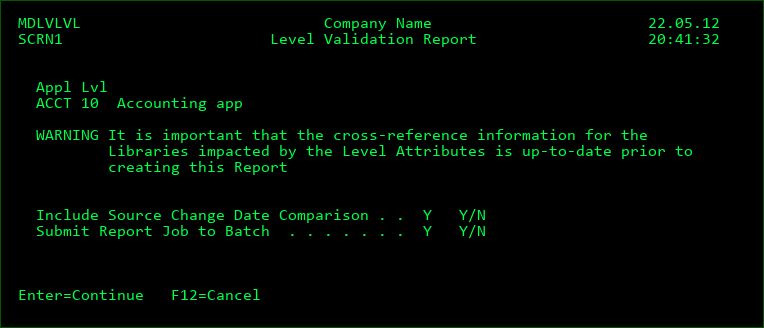
The reporting process looks for the following issues:
• Non-existent Object Library or IFS Folder
• Non-existent Source Library
• Non-existent Source File or Message File
• Managed Library that hasn't been Cross-Referenced
• Object Types in Managed Library without a defined Attribute
• Source not found in target Source File or Search List for Object
• Source Change Date and maximum Record Date for Source Member does not match Object - this check can be excluded by entering N at the Include prompt
The generated output is available from the MD Output Panel (F11) and from there can be viewed, printed or exported.
Custom Level Placeholders
Placeholder variables can be defined per Promotion Level and then be used as replacement variables at runtime for commands, IFS/Remote scripts, Email bodies and SQL Scripts.
The following list screen is available using option P=Placeholders on a level in the Promotion Levels settings.
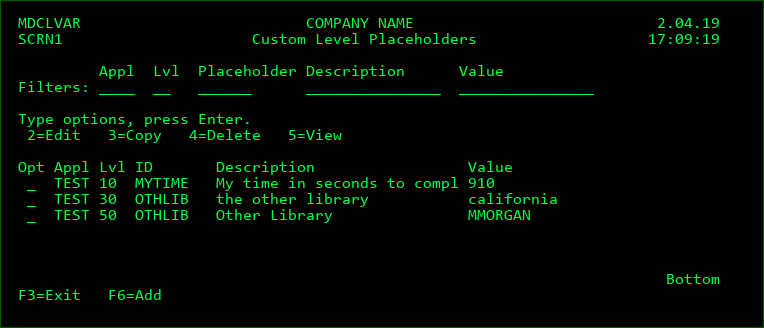
Screen Definitions:
Filters
Filter the list of Placeholders based on the values entered into the individual fields. For the Placeholder, Description, and Value filters, a Placeholder will be listed if any part of the field matches the value entered in the filter.
Option
2=Edit - Change the description or value of a placeholder for the level
3=Copy - Copy a placeholder
4=Delete - Delete a placeholder
5=View - Display the placeholder details
Placeholder Parameters:
Application
This is a 4 character abbreviation of an Application Group to be used by MDCMS.
The Application Group must exist - see Application Groups.
Install Level
This is a 2-digit numeric identification of the Promotion Level. The level must exist - see Promotion Levels.
Placeholder
The placeholder ID, which must be 6 alphanumeric characters in length and not already be defined in the list of fixed placeholders or as Placeholder IDs for Project/Task Custom fields.
Description
A description of the Placeholder for the level.
Value
The replacement value for the placeholder to be used at runtime for the command or script.
MDUPDLWC - Update Level Placeholder Value command
MDCMS is delivered with a command-based API that allows external tools or applications to update the value for existing Level Placeholders.
The MDCMS command is named MDUPDLWC and is located in library MDCMS. It is not necessary to have the MD libraries in the library list prior to using this command.
Successful MDUPDLWC transactions are logged in file MDCMS(ENV)/MDDLVARHST and visible from Settings->Logging.
MDUPDLWC Parameter Table
| Name | Type | Length | Description |
|---|---|---|---|
| Name | Type | Length | Valid Values and Format |
| Placeholder | CHAR | 6 | unique ID - Required |
| Application | CHAR | 6 | *ALL - Apply the update to existing entries for all applications otherwise - Apply the update to existing entries for the specific application |
| Level Number | DEC | 3 | 0 - Apply the update to existing entries for all application levels otherwise - Apply the update to existing entries for the specific application level |
| New Placeholder Value | CHAR | 160 | The value to apply to existing placeholder entries |
| MDCMS Instance | CHAR | 5 | Specifies the MDCMS environment that should be used for the API. The ID correlates to the suffix of the MDCMS library name. Special values: *DFT - default instance (no suffix) *SAME - the current instance based on the library list |