Send Settings to Remote System
Attributes, including command and authority information, can be sent to Remote Locations using the distribution methods, such as FTP, that are defined for the locations. If *ALL attributes are selected for an Application/Level, then the definitions for the Application and Level, including the Level's Job Description, will also be exported.
Before settings can be sent to a remote system, a Distribution Level for the local Application/Level must be defined (MDCMS Setup Menu Options 6 & 7).
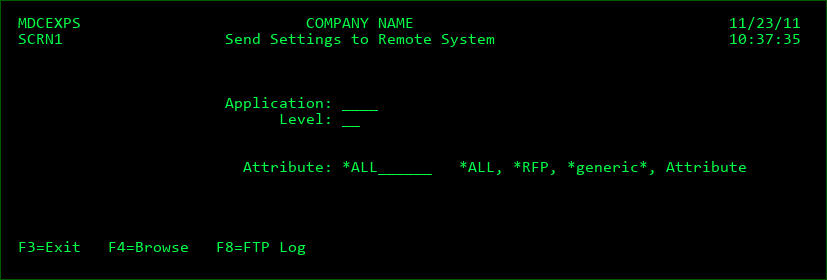
Screen Definitions:
Application / Level
The local Application and Level that contains the Attribute(s) to be sent to Remote System(s).
Attribute
a specific Attribute to send only that Attribute
a portion of the Attribute name with a wildcard, i.e. R*, to send all matching Attributes that begin with an 'R'
*ALL to send all defined Attributes for the Application/Level. If *ALL is selected, then the entire definition of the Application and Level, including the Level's Job Description and *RFP commands will be sent.
*RFP to send only the Application Level's *RFP command types
Function Keys:
F3=Exit
F4=Browse - Browse the list of valid values for a field
F8=FTP Log - If one or more of the selected Distribution Queues use method FTP, the F8 key will be enabled after the attempt to send the settings has finished. If the send failed, the log can be viewed in order to better troubleshoot the connection problem. The log is also available when successful.
Once the selections have been made, press Enter. Then, the list of Distribution Queues for the selected Application and Level are displayed. Select 1 or more Distribution Queues to send the settings to.