Starting MDCMS
The MDCMS menu is accessed by typing MDCMS from a command line. Press F4, if necessary, to select a product instance other than the default instance.
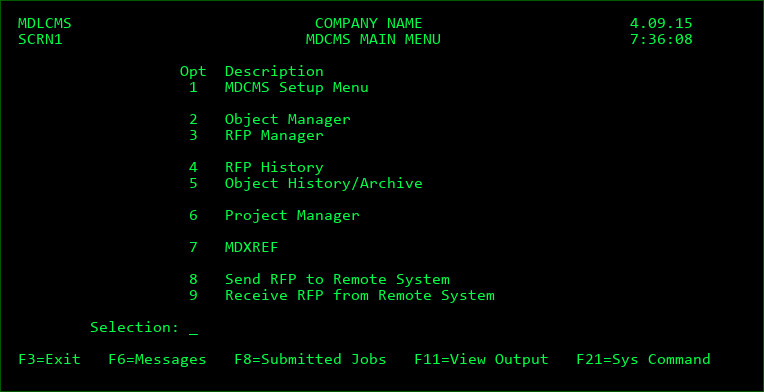
Option 1: MDCMS Setup Menu
The first step in preparing to use MDCMS is the MDCMS Setup Menu. This portion of MDCMS defines the environment, object types and methods of source and object management. It is a mandatory process for using MDCMS.
Option 2: Object Manager
The Object Manager function contains the daily processes for checking out source or objects from application environments, making modifications to the checked-out source, and requesting the installation of the changes back into the application environments.
Option 3: RFP Manager
The RFP Manager function provides the means to create, manage, submit, approve and install Requests for Promotion, which are installation packages containing 1 or more objects for deployment.
Option 4: RFP History
The RFP History function lists all installed Requests for Promotion to view the activity logs, perform a rollback or to copy a completed RFP to a new RFP.
Option 5: Object History/Archive
The Object History/Archive function is a post-installation process for reviewing Source and Object installations. The installation process archives the source or object that is being replaced in application environments. This function provides a method of retrieving previous versions of application source or rolling back objects.
Option 6: Project Manager
Project Manager. Here, users may create and maintain requests for work to be done on a Project or Task basis.
Option 7: MDXREF
MDXREF is a tool used to view the inter-relationship between objects. This includes what and how programs use files, what and how files relate to one another, the complete process flow of applications, etc. See the MDXREF manual for instructions and more information.
Options 8 & 9: Send RFP to Remote System / Receive RFP from Remote System
When MDCMS is installed on 2 or more IBMi systems or logical partitions, application changes may be transported quickly and safely between the systems/partitions. This allows for a development system to be separate from a production system with very little hassle. Or, it allows for unlimited remote IBMi systems to send and receive updates simultaneously.
Function Keys:
F3=Exit - Exit MDCMS
F6=Messages - Display messages
F8=Submitted Jobs - Work with submitted jobs
F11=View Output - Display the MD Output panel and other spool files
F21=Sys Command - Command line prompt