User Groups
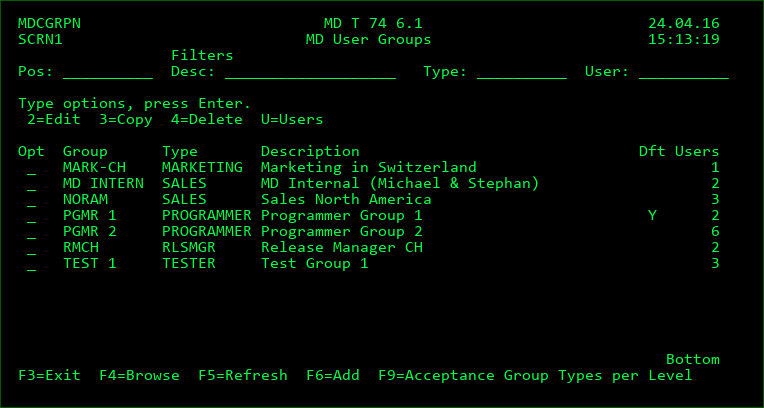
The User Group list (Setup Menu option 15) provides the ability to create and manage collections of users that can be used for sending emails, project assignments and MDWorkflow.
Options
2=Edit - edit the group details
3=Copy - create new group with information for existing group pre-filled in the parameters
4=Delete - delete the group
U=Users - View/Maintain the list of users that belong to the group. A user may belong to a group if the user is defined in MDSEC.
Group Type
The type or category to assign to the group. Press F4 to view/manage the group types.
If MDWorkflow is used, group types can be assigned to promotion levels to indicate which category of groups must accept an RFP before that RFP can continue to the next step in a migration path. Multiple user groups can belong to the same group type, so that project groups can vary based on regional or application requirements.
Dft
Y - when a project is created, or the workflow acceptance dialog is opened for unassigned groups, the group will be involved by default with the project for the given group type, if the group type is required for workflow acceptance.
Acceptance Group Types per Level
If MDWorkflow is licensed, F9 can be pressed from the User Group or User Group Type screens to define the Acceptance Group Types per Level on this partition,
For each MDCMS Promotion Level, between 0 and n types of groups can be designated to be responsible for the acceptance of an installed RFP into that level. This means that each time an RFP, which is a package of objects, is installed into a specific level, 1 person from a group for each required group type must accept the results of the installation before that object package will be allowed to move on to the next step in the Workflow process.
The actual groups containing the users for any given group type are assigned to the project(s) that are impacted by the RFP. So, different projects could use different groups of users for any given group type.
Example:
MDCMS Promotion Level 50 is defined as the User Acceptance Environment level. When objects are installed into this level, business users and IT management must test the environment before those objects are allowed to be installed into the Production Environment level. To ensure that this occurs, group types BUS_USER and IT_MGMT are specified as Required Acceptance Group Types for level 50. Then, whenever an RFP is installed into level 50, a user within a group of type BUS_USER and a user within a group of type IT_MGMT must accept the RFP before it can be sent to Production.
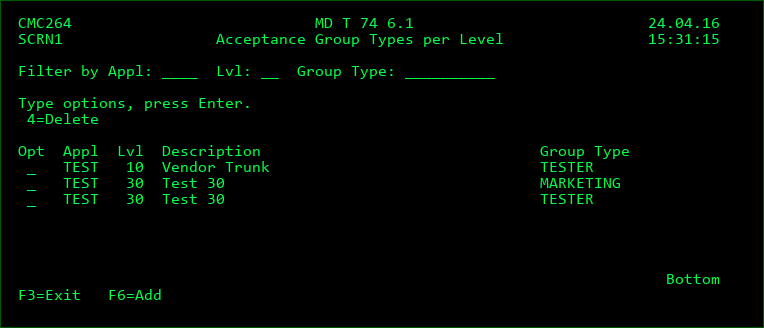
In order to add or remove an acceptance group type to a promotion level, you must have authority to MDSEC code 73 for that promotion level's application.
When F6 is pressed to add group types, you first select one or many promotion levels and then press Enter. Then, you select one or many group types and press Enter. MDCMS then creates the list of all combinations of the selected levels and group types.