Installation History Audit Report
To generate a report over promoted objects from within MDCMS, press F8 from the Installation History screen and select option 1 MDCMS Installation History from the MDCMS Audit reports menu. The following prompt screen is then displayed:
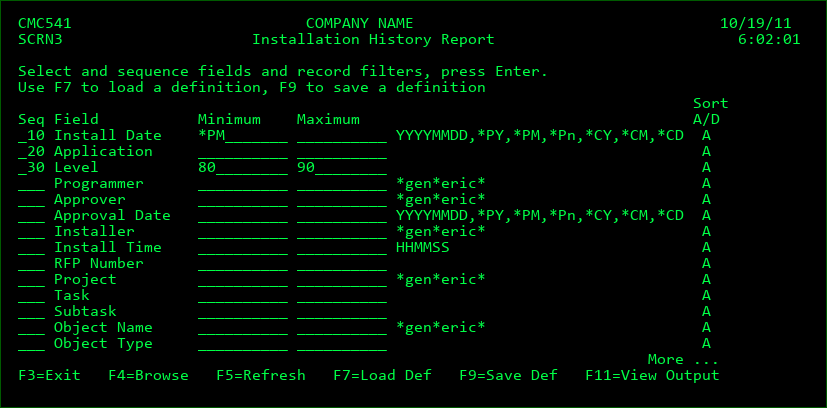
This screen allows you to define your own report. The report may consist of any or all of the listed fields and any or all promotion records may be selected and sorted as you choose. The report definitions may then be saved and used again in the future from this screen or from a command line.
Seq
Each field with a sequence number > 0 will be included in the report. The columns of the report are ordered by the sequence number. The sorting of the records is also based on the order of the sequence fields.
Minimum
The smallest value that the corresponding field may contain, unless the value is a special value or a generic value.
Special Values:
*PY - the date must fall within the previous year (only valid for date fields)
*PM - the date must fall within the previous month (only valid for date fields)
*Pn - all object changes occurring during the previous n (1-9) days (only valid for date fields)
*CY - the date must fall within the current year (only valid for date fields)
*CM - the date must fall within the current month (only valid for date fields)
*CD - only report on object changes occurring on the current date (only valid for date fields)
M - the object must have been selected for a modification request (only valid for reason)
D - the object must have been selected for a deletion request (only valid for reason)
R - the object must have been selected for a recompile request (only valid for reason)
U - the object must have been selected for an update request (only valid for reason)
Generic Values:
The wildcard value * may be used multiple times anywhere within a string to limit records to occurrences where the field contains the string. For example, *3XJ* will select all records where the value 3XJ is contained somewhere within the field string. *XJ will select all records where the value XJ is contained at the end of the field string. Wildcards may be used for all alphanumeric fields, except Object Type and Reason.
Maximum
The largest value that the corresponding field may contain. This field must be left blank if a special or generic value was entered in the Minimum field.
Sort
A - Sort this field in ascending (A->Z) order.
D - Sort this field in descending (Z->A) order.
NOTE: Only the first 10 columns will be considered for sorting. The system attribute and text for an object can be included in the report, but the filtering and sorting features aren't applicable for these 2 columns.
Function Keys:
F3=Exit - Exit the prompt screen.
F4=Browse - Browse the list of available entries depending upon which field the cursor is positioned.
F5=Refresh - Reset the definition back to the initial settings
F7=Load Def - Load a definition from the list of saved definitions
F9=Save Def - Save the entered configuration as a report definition. The saved definition may then be reused anytime in the future from within MDCMS or from a command line. See the chapter on MDRUNRPT for more information about running reports from a command line.
F11=View Output - Display the MD Output panel and other spool files.
When the report runs, optimized SQL routines are used against the MDCMS tables so that the report is created very quickly, even if several years of data are to be inspected.