MDWorkflow Acceptance of Installed Promotion
If MDWorkflow Acceptance Group Types are defined for the RFPs promotion level, then the groups assigned for acceptance for the Projects contained in the RFP must sign off on the installed changes before the RFP may continue to the next step. A next step would be submission to the next level on this system and/or sending to target levels on other systems.
To perform MDWorkflow acceptance, either use the MDWorkflow web application or use option A=Accpt Test from the RFP listing for the installed RFP.
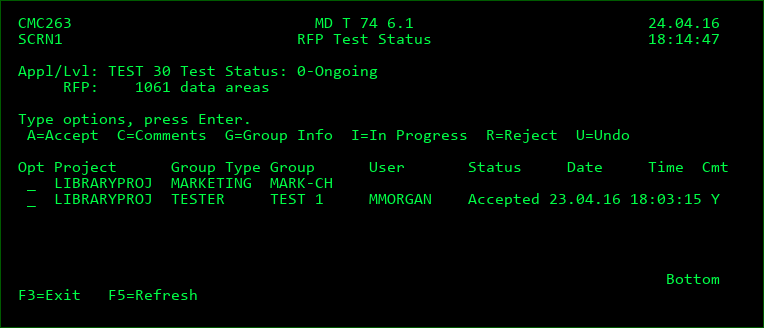
Options
A=Accept - accept the RFP for the project entry. You must belong to the defined group for the project to perform acceptance or rejection. Every entry must be accepted before acceptance confirmation can be granted.
C=Comments - view/edit comments for the project entry
Group Info - If a group isn't yet defined for the project, and you have authority to edit projects, the group (and optionally user) can be selected. If a group is already defined, the information about the group is displayed.
I=In Progress - specify that you are testing the results for the project entry. The entry is then reserved for you.
R=Reject - reject the RFP for the project entry. If any entry is rejected, the entire RFP can be confirmed for rejection.
U=Undo - Undo the provisional acceptance or rejection of a project entry. This also frees the entry to be worked on by another member of the group, if not for a specific user for the project.
Confirm Acceptance/Rejection
Once all entries are accepted, or any entry is rejected, F10 must then be pressed by an authorized user (MDSEC code 46 for the RFPs Application). This then confirms the status for the RFP, which will either of the following:
2 - MDWorkflow acceptance complete - next step in process for RFP is freed, as long as all objects in RFP aren't waiting for acceptance in another RFP
9 - MDWorkflow rejection complete - next step in process for RFP has been deleted. Corrections must be brought up to this level to allow objects to continue.