Process Request Records
- Edit Request Details
An entry of '2' for an existing request will allow the user to change the request parameters.
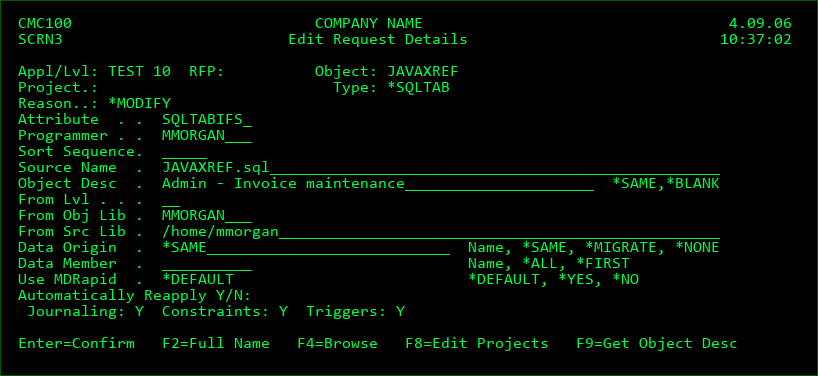
Attribute
The MDCMS attribute may be changed, as long as the new attribute is of the same Object Type as the old attribute, and the target source or object for the attribute isn't already locked by another request.
Programmer
The programmer can be changed to a different user registered in MDSEC.
Sort Sequence
Object Requests are sorted by attribute compile sequence, sort sequence and object name. The sort sequence for the individual object can be entered here in case other objects of the same attribute compile sequence are dependent on this object. For SQL objects see the MD Best Practice - Managing SQL Entities guide for more information on automatic sorting.
Source Name
The source name may differ from the object name and can be modified here
Object Desc
The object description that is either currently on the object or that can be entered to be applied to the object when deployed.
*SAME - keep the same value for the object description when the object is created. If blank, then the object description will be set to the description of the object that it is replacing.
*BLANK - set the object description to be blank.
Press F9 to retrieve the current description for the Object
From Lvl
If more than one level migrates to the request level, a different level to migrate from can be selected
From Obj Lib/Src Lib/Src File
If the request is from the lowest level, the from location for the object (and source when applicable) can be changed.
Data Origin
When the request is for a file, existing data will by default be copied from the old version of the file to the new version of the file.
The origin can be one of the following:
*MIGRATE - the data in the file is migrated with the changed format for the file. This is the equivalent of having a *FILE request and a *DATA request in the same RFP.
*NONE - any existing data will not be retained. *NONE is required when changing the system attribute from PF to LF or from LF to PF.
*SAME (default) - any existing data in the file being replaced will be mapped to the new format for the file.
The system or SQL name of the file containing the data to copy from. The file must exist in the same target library as the file being modified.
Data Member
When the request is for a file, and the Data Origin is a different file, the member in the other file can be defined to copy from. This is particularly helpful when converting an existing multi-member DDS file to several new SQL tables, since SQL only allows for one member per table.
The member can be one of the following:
*ALL - all members in the file will be copied. This is only valid if the requested file is a DDS file.
*FIRST - the first member in the file will be copied.
The name of the member to copy from the Data Origin to the requested file.
Use MDRapid
Whether or not MDRapid, if licensed, should be used to copy data from the prior version of a file to the new version of the file, to significantly reduce the amount of time required during deployment.
*DEFAULT - MDRapid will be used for modify or recompile requests, if the number of records in the file at RFP submission time meet or exceed the minimum defined on the MDRapid Usage template.
*YES - use MDRapid for the copy/syncing of data, even if the current record count is less than the default minimum, or if the file is requested for Update.
*NO - don't use MDRapid for the file deployment, even if the file would otherwise be qualified.
Automatically Reapply Journaling
Whether or not Journaling for a file should be automatically reapplied when the file is modified.
Automatically Reapply Constraints
Whether or not constraints for a file should be automatically reapplied when the file is modified.
Automatically Reapply Triggers
Whether or not system (non-SQL) triggers for a file should be automatically reapplied when the file is modified. Any SQL triggers that should be re-applied should be requested for recompile and placed on same RFP as the file.
Automatically Reapply LF Members
Whether or not existing members for a logical file should be automatically recreated when the file is modified.
- Delete Object Request
An entry of '4' will delete the request for an object modification. This is only allowed if the Status of the request record is currently '00 or '01', which means that the installation of the request is not yet in progress. A confirmation screen is displayed before the request is deleted.
If the request is for the lowest level on the system, the user may choose to delete the source and object from the programmer library. This allows for a cleaner developer environment.
- Display Request Details
The Option '5' will display all relevant information pertaining to the object request.
- Edit Projects for Request
An entry of '6' allows the user to change the list of Projects, Tasks, or Subtasks that the Request is assigned to. If the user has enough authority, they can also edit the details of the projects or add new Projects, Tasks or Subtasks.
- Rename Object Request
An entry of '7' will prompt the user for a new name for the requested object. The user may also let MDCMS automatically rename the source and object residing in the programmer's library.
Renaming is permitted for new or existing objects for a level allowing checkout.
The rename only affects the name to be used in the developer's library and when deployed, but will not automatically delete an object with the prior name.
- Create Object
An entry of '8' will prompt the user to compile the object into their own library from the checked out source. This is useful for validating the source or for unit testing prior to submitting the RFP. This is only valid for object attributes defined with a source and object location or for ILE programs/service programs. The source must be checked out as New, Modify or Recompile from a level allowing check-out.
The compile process uses the Pre-Compile, Compile and Post-Compile commands defined for the attribute or specific object so that the object is created in exactly the same way as during a deployment.
In the case of SQL Constraints or Triggers, the Post-Installation commands are used instead of the Compile commands.
If compiling a physical file, any logical files over the physical that exist in the developer library will be automatically deleted. However, logical files in other libraries must be handled manually.
Library List
1 - The library list defined for the Job Description assigned to the Application Level is used
2 - The current library list for the job is used
Include Dev Library
Y - The developer object library for the request is added to the top of the library list to reference any objects in that library that may also have changed.
N - The developer object library is not added to the library list. If it is already in the library list, it will remain at the position it is in.
Object Exists
Y - The object already exists in the developer library and will be automatically deleted prior to the create process.
N - The object doesn't yet exist in the developer library
Show Create Log
The Create Log consists of job log entries and compile log entries written during the create process. In order for compile log entries to be written, the CRTxxxx command must include the option *EVENTF, if that option is available for the command.
The following options determine when the create log will be shown directly after processing the pre-compile and compile-commands:
E - if command exceptions occurred or the object didn't get created
Y - always
N - never
When the Create Log is displayed, the minimum severity can be set to filter out lower severity messages than the filter value.
- View Spooled File
An entry of '9' will display the most recent spooled file for the object. The spooled file will have been created during the compile of the object into the developer's library using option 8 or during the compile of the object during RFP processing.
A - Assign RFP
An 'A' entry in the option field will assign the RFP number entered in the RFP field to the Object Request record. The Status of the Request record must currently be 00 or UL. If the RFP is blank, the system will transfer the display to the RFP Select Display so that the user may add and/or select an RFP.
B - Bound Objects for Program
An entry of 'B' will allow the programmer to configure the list of Bound Modules and Service Programs for an ILE Program or Service Program.
This information will then be used when the program is created, assuming a compile command is defined for the attribute or object with the placeholders ##MODULE##, ##SRVPGM## and ##ENTMOD## (for programs).
If this option is not used before a program is created during installation, then MDCMS will use the current definition for the object in the migration library.
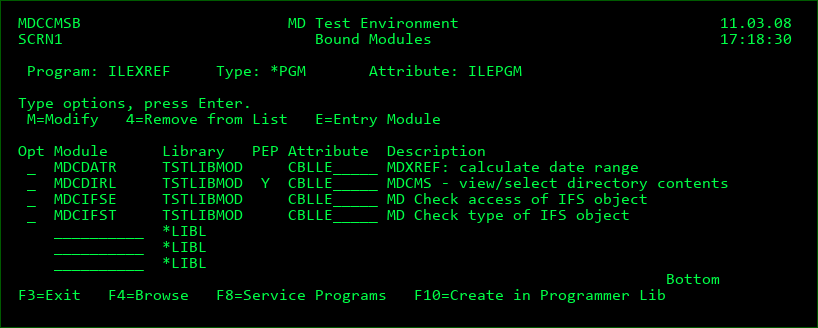
Opt
M=Modify - Request the Module or Service Program for modification. The requested element will automatically be assigned to the same RFP and Project as the Program binding it.
4=Remove from List - Remove a Module or Service Program from the list
E=Entry Module - Designate a specific module to contain the PEP (Program Entry Procedure)
Module [or Service Program]
The name of a Module or Service Program to add to the list
Library
The current location of the Module or Service Program. MDCMS looks first in the developer library and then in the library list for the Level.
Attribute
The MDCMS attribute to use if requesting to modify the Module or Service Program
Function Keys:
F3=Exit
F4=Browse
F8=Service Programs - toggle the listing between Modules and Service Programs
F10=Create in Programmer Lib - create the program in the developer library, based on the currently defined list of bound modules and service programs. MDCMS will use the version of each module or service program based on the found library location. It is not necessary to create a program in the check-out library, but it can be useful for testing purposes.
C - Commands/Scripts for Object
An entry of 'C' activates the MD Detail Command Maintenance function for a specific object. This function is used to define IBMi commands that can be executed during the installation of objects into an application level. This function is also used to override the default compile, data, and update commands defined at the attribute level.
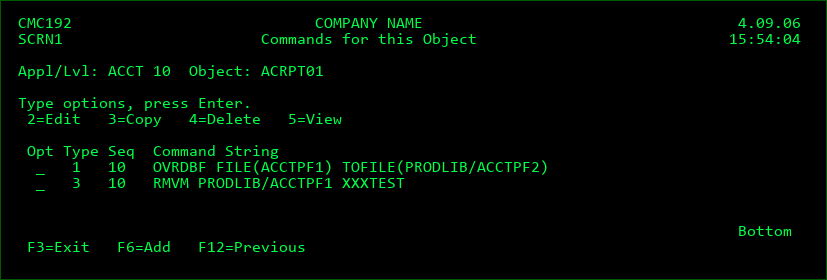
Type
C - Compile Command. Will be used to compile the object from source code. The C command override uses the compilation command as defined in the System Settings for the attribute as a default model. The command can then be changed for the compile process. This override will then be used to compile the specific object rather than the default compile command for the attribute.
D - Data Copy Command
- *FILE attributes - determines how the existing records in a physical file should be mapped to the new format when a physical file is installed.
Data Transformation must be disabled for the file in order for MDCMS to consider a Data Copy command. It can be disabled using option F=File Data Transformation from the Object Manager and then pressing F10.
The data copy command can use CPYF, in which case the parameters FROMMBR, TOMBR and MBROPT are considered. All other keywords in the CPYF command are ignored. Only 1 command may be defined for *FILE mapping.
Other commands, such as RUNSQLSTM or CALL, may also be used for mapping the data in a changed file from the old format to the new format. If such a command is used, it is critical to use the ##OFF placeholders so that MDCMS can correctly provide the location of the old file format. - *DATA attributes - determines how and which data records should be copied from one environment to another. All keywords except FROMFILE and TOFILE are then used when the CPYF command is run.
Only the CPYF command is permitted for *DATA attributes
U - Update Command. The U command override will be used to update the existing object rather that the U commands defined at the attribute level. An example would be the UPDPGM command to update existing ILE programs. The Update Command may also be used to update an existing object using the modified source. An example for this would be the CHGPF command to update the format of a physical file for a modified DDS source. In this case, the source would be checked out using the M (modify) option and at installation time, the Update command would be used.
1 - Pre-Compile Command runs prior to compiling objects
P - Post-Compile Command runs after compiling objects
2 - Pre-Installation Command runs prior to installing objects into the environment
3 - Post-Installation Command runs after the installation of objects is complete, but prior to releasing the application for usage. Possible to roll back RFP if command fails.
Q - Command that runs during the Archive/Cleanup phase of the RFP after the application is released. Any command error will flag a warning, but not cause a roll back. Typically used post-installation notifications or for additional processing of archived source and objects. For example, command MDCMPPFM can be invoked to generate a comparison report between the prior and new code in source members.
O - Data Copy during Send runs for *DATA requests only during the copy of data to send to a remote location, determining which data records should be sent to a remote location based on the INCCHAR and INCREL parameters of the CPYF command. The command is run separately for each target location. Placeholder ##SVFLOC## could, for example, be used to filter by the location ID, if a column in the table contains that value.
Ignore Errors
Y - Continue with RFP processing even if the command fails. Flag will always be Y for type 3.
N - Cease and Rollback RFP processing if the command fails
Keep MD Libs in Libl
N - The MD Libraries (MDCMS and MDXREF) are removed from the library list before the command is invoked. This assures that any MD Objects with the same name as your objects are not used.
Y - The MD Libraries are left in the library list. This is necessary when MD Objects, such as interface programs, MDMAIL or MDMAILF, are needed to process the command.
Reuse Command
Y - The next time that this same object is checked out, this command will be reapplied to the request
N - This command is intended to be used only once for this object
Placeholders in SQL
N - The SQL member or IFS file used by a RUNSQLSTM command does not contain MDCMS placeholders - no conversion will occur
Y - The SQL member or IFS file used by a RUNSQLSTM command contains MDCMS placeholders - MDCMS will create a temporary copy of the script and convert the placeholders in the copy to the actual runtime values.
This flag is only relevant for RUNSQLSTM commands. The placeholders embedded in the SQL script may be delimited by ++ instead of ## to avoid code page issues.
Sequence
The sort sequence of the command at run time, in case multiple commands for the same type are defined.
Frequency
If the command type is 5 (Pre-Send), 6 (Post-Send) or 7 (Send Error), the Frequency parameter will be displayed and allow one of the following values:
B - Batch - the command will be executed once per batch of locations to be sent to
L - Location - the command will be executed for each target location/level
Location to run Cmd
The location that the command should be run, allowing for commands to be run only for certain environments. Enter a valid Location ID or press F4 to select a location from the list.
Otherwise, select from one of the following special values:
*ALL - run the command on every level in the migration path
*LOCAL - run the command on any level on this system
*LOCLVL - run the command only for this level
*REMOTE - run the command on any level everywhere but this system
Run as User Profile
By default, commands executed during an RFP run under the profile of the user profile defined on the job description of the application level for the RFP. If a specific command should run under the authorities of a different user, that user ID can be entered here. As a safety precaution, the user placing a value in this field must have authority to use that entered user profile in order to save the command definition.
Command
The IBM i or user-defined command to be performed. Enter the name of the command and then press F4 to fill in the keywords.
Some placeholder parameter values may be used and are substituted by MDCMS at run-time. The placeholder value may be typed directly into the command or the cursor may be positioned in the command and F7 pressed to insert the value from a list. The full list of values are in this manual in the Attribute Command section.
Scripts
If the MDCMS object type for an object is *IFS or *REMOTE, then scripts can be applied to the object to be run before or after the object is deployed to IFS or a remote server.
To manage the scripts for an object, use option C for Commands/Scripts from the object manager and press F10 from the command listing.
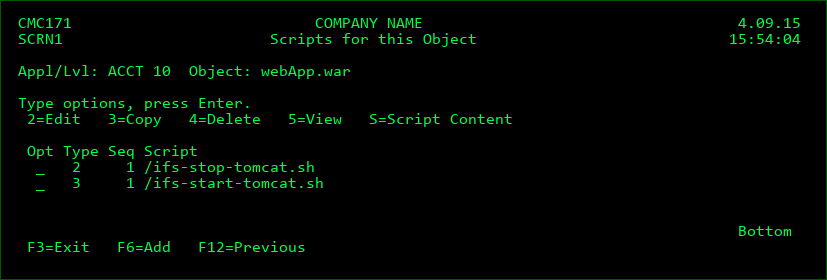
Type
The Type value designates when a script should run
| Column 1 | Column 2 | Column 3 |
|---|---|---|
| 2 | Pre-Installation | runs prior to installing objects into the environment |
| 3 | Post-Installation | runs after the installation of objects is complete |
Sequence
The sort sequence of the script at run time, in case multiple scripts for the same type are defined.
Ignore Errors
Y - Continue with RFP processing even if the script fails.
Flag will always be Y for type 3.
N - Cease and Rollback RFP processing if the script fails
Reuse Script
Y - The next time that this same object is checked out, this script will be reapplied to the request
N - This script is intended to be used only once for this object
Replace Placeholders
N - The script doesn't contain placeholder values to be replaced by runtime values when executed
Y - Replace placeholder values in the script at run time
Loc. to run Script
The location that the command should be run, allowing for commands to be run only for certain environments. Enter a valid Location ID or press F4 to select a location from the list.
Otherwise, select from one of the following special values:
*ALL - run the command on every level in the migration path
*LOCAL - run the command on any level on this system
*LOCLVL - run the command only for this level
*REMOTE - run the command on any level everywhere but this system
Run as User
The user profile that the IFS script will run under within QSHELL
Wait for Response
Y - MDCMS waits until the Remote server confirms completion of the script execution
N - MDCMS continues without waiting for a response from the remote server
Submit Job
Y - Submit the IFS Script execution to a separate job. MDCMS will not wait for a response in this case, but instead continue with RFP processing.
N - the ifs script execution runs within this job
Job Name
The name of the submitted job that will process the IFS script
Job Queue
The name and library of the Job Queue to receive the submitted job
Script Subfolder
The relative path of the script, if it isn't directly located in the script root folder.
Script
The name of the script file located in IFS
D - MDRapid Data Copy Status
A 'D' entry in the option field will result in seeing the copy status of all physical and logical files that require MDRapid processing once copy is pending until such time that the RFP is installed. The status can also be viewed from the RFP after installation to check the amount of time that was required for the copy.
F - File Data Transformation
An 'F' entry in the option field will bring up the Data Transformation screen. This is only relevant for physical files or SQL tables that are checked out for modify or recompile, or for files/tables that are checked out for update and MDRapid has been enabled for that request.
Data Transformation is used, by default, to map the data in a file from the prior format for the file to the new format during the installation of the file.
Data Transformation performs a dynamic SQL insert to populate the new version.
The results for each column, by default, are the contents of the same column name in the prior version, if the prior column type can be cast to the new column type. For new or invalid columns, MDCMS automatically fills with blank, 0 or null, depending on column properties.
In order to view/customize the data transformation values for a file, the new and old version of the file must exist. MDCMS will attempt to create the new version of the file if it doesn't exist in the developer's library when requested for a check-out level. For higher levels, the file must exist in the from level to use the Data Transformation screen.
The following screen lists each column in the new format of the file, it's format and the new value of the column when the transformation occurs.
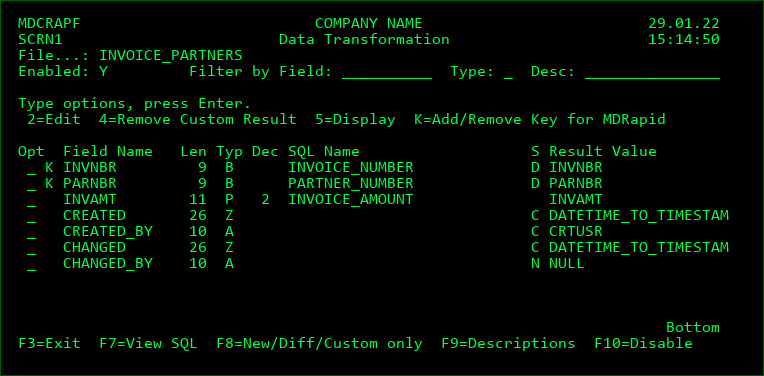
Enabled
Y - When the file is installed, Data Transformation will be used to map the existing records to the new format for the file.
N - A Data Copy Command will be used to map the records. If a Data Copy Command isn't defined, then a CPYF *MAP/*DROP will be performed.
A file is enabled by default, unless it contains temporal or generated expression columns. Use F10 to toggle between disabled and enabled.
Filter by Field
Enter a value to limit the list of fields to field names or SQL names that contain that value
Filter by Type
Enter a field type to limit the list of fields to that type
Filter by Desc
Enter a value to limit the list of fields to field descriptions that contain that value
Opt
2 - Edit - add or change the custom Result value for a field
4 - Remove Custom Result - return the Result value to the default value for the field
5 - Display - view all information about the Data Transformation for the Field
K - Add/Remove Key for MDRapid. If MDRapid will be used to minimize downtime during deployment of the file, K can be used to designate the columns that combined would uniquely identify each record in the file. If the file has a unique key or primary key constraint on it, those fields will automatically be designated and the key fields. If key fields are defined, MDRapid will map the records by relate record number instead, which is a bit slower and takes more overhead during the journal syncing process. If using MDRapid to transition a table from single-membered to partitioned, the designation of key fields is required. Up to 99 fields can be designated a key field. If a field is marked in error, use option K to remove the designation.
Function Keys
F7 - View the SQL syntax for the INSERT statement that will be used for the copy based on the current transformation definitions for the file. This can then be copied to an interactive SQL session for troubleshooting purposes.
F8 - toggle the listing between all fields in the new format of the file and only those fields that are new, have a different format, or have a custom Result Value.
F9 - toggle the listing between showing the Field Description and the SQL Name
F10 - toggle Data Transformation for the file between Enabled and Disabled
Result Value
This is the SQL syntax containing the value for the field in the new version of the file for each record selected from the old version of the file.
When Data Transformation is performed, MDCMS runs an SQL insert into new file select
The Result Value can be any valid SQL value, containing any combination of constants, functions, expressions and field names.
Basic SQL syntax checking is done immediately when a custom value is entered. Additionally, full validation of the insert statement occurs during the Compile phase of the RFP, in order to catch any issues before the actual installation occurs.
*GEN - this special value can be used on columns containing the Generated By Clause. *GEN for a column will cause a new value to be generated for each row during the copy from the old version to the new version of the file. In the case of Temporal Columns and Generated Expression columns, *GEN is the only value that is permitted. If it is important that the existing values for such columns are retained, then MDTransform should remain disabled for that file.
H - Installation History
An 'H' entry in the option field will result in directly navigating to the Installation History listing for the object. This option is available for new or existing request records in the display.
I - Include Related Objects
This option is used to request objects that 1) are dependent upon a requested file, ILE module, Service Program, or copybook or 2) invoke a requested program, command, query, function, procedure or menu. MDXREF is used to identify the objects.
Example 1: the length of a field in file COHDRP needs to be changed. The user would first select COHDRP for modification. Then, the user would place an 'I' in front of the request record so that all of the objects that use COHDRP (or other files that use COHDRP, such as logical files) can be selected for modification, deletion, or recompilation.
Example 2: the linkage section of a COBOL program needs to be changed. The user would first select the program for modification. Then, the user would place an 'I' in front of the request record so that all of the objects that invoke the program can be selected for modification, deletion, or recompilation.
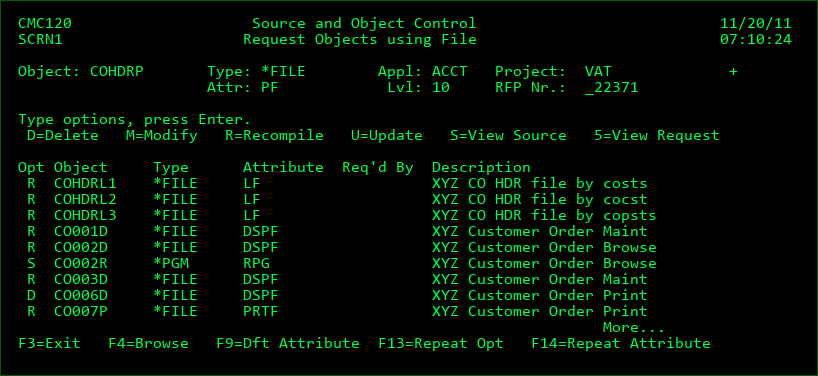
This display lists all objects that somehow reference a selected file or invoke a selected object.
OPT
D=Delete - Delete the object and source for the object. When the promotion occurs that causes the deletion, the source or object is archived prior to deletion (if archiving is turned on for the level.) Any cross-reference information about the object is also removed at promotion time.
M=Modify - Modify the object (and source used to create object).
R=Recompile - Recompile an object from the existing source at the requested level. This can be requested even when work is in progress for the source.
U=Update - Update the existing object
S=View Source - View the source code for the object.
5=View Request - View the details of an already requested object.
Function Keys:
Enter=Confirm - Process the Request selections for the currently listed Application. If other Applications are linked to the Base Application and references to the Object are found, a list references for each Linked Application will be displayed. A separate RFP can be selected for each Application by changing the number at the upper right of the screen.
F3=Exit
F4=Browse
F9=Dft Attribute - Default Attribute will be set to be used for new objects with same system attribute.
F13=Repeat Opt - Repeat an option until end of list. For example, if 'R' was entered on the 4th line of the list and F13 was then pressed, lines 5 through the end would also have 'R' entered.
F14=Repeat Attribute - Repeat an attribute. Place cursor on line for attribute to be repeated and press F14. For every object with a matching object type, this attribute will be inserted.
L - Lock Object Request
The Option 'L' will lock a requested object so that other users are unable to install a different request of the same object. A lock will only be granted to the request if the object is not already locked by another request.
M - Merge Source Updates
The Option 'M' for checked out source provides the ability to compare and merge source code from another member.
Member Selection Fields:
Location
*LOCAL - the other member is located on the same system
Synchronization Location - The location of a remote system containing the other member
Source File
*TGTFIL - the source file name is identical to the name of the source file of the checked out member
Source File - The name of the source file containing the other member
Library
*TGTLIB - the source library name is identical to the name of the source library of the checked out member
Source Library - The name of the source library containing the other member
Member
*TGTMBR - the source member name is identical to the name of the checked out member
Source Member - The name of the other member
Compare/Merge Screen:
If the 2 members are identical, a message is returned stating this and the code is not displayed.
If they are different, the top half of the screen displays the checked out member and the bottom half displays the other member. The code will positioned to the first difference between the 2 members and the difference will be highlighted.
Press F14 to merge all differences from the other member into the checked out member.
Press F15 to merge only the highlighted difference from the other member into the checked out member.
Press F16 to position the source code to the next difference
O - Object Replication Rules
This option is used to override the Add/Update rules for Object Replication for the specific object request.
The overrides travel with the object request to all target levels.
This option is only applicable for system/SQL objects. IFS and Remote objects are limited to template rules.
Any overrides will take effect for the object and given promotion level when an Object Replication Template is defined for the attribute at a level at RFP installation time. Any specific library rules will take effect when the Object Replication Template includes the library.
Usage example 1: by default, a number of template libraries are set to only update objects but not add new objects. However, this specific object should be added to those libraries. The general rule could be set to *ALL or left as *DFT and specific libraries could be added to the specific rules list.
Usage example 2: by default, the object is updated for all replication libraries, but for this object, certain libraries should retain the old version of the object. The rules could be set to generally not update except for certain libraries or to generally update except for certain libraries.
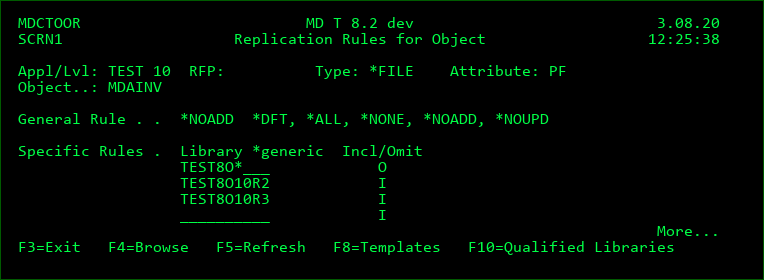
This display lists the general and specific override rules for the object request.
General Rule
*DFT - Library add and update rules are based on the rules defined in the Replication Template
*ALL - object will generally be included for all replication libraries
*NONE - object will generally be omitted for all replication libraries
*NOADD - Library Add rule set to Omit. Library Update rule based on rule defined in the Replication Template
*NOUPD - Library Update rule set to Omit. Library Add rule based on rule defined in the Replication Template
Specific Rule Library
The specific or generic library name to include/omit for replication. This rule will only apply for deployment to a target level if the template for that level's attribute also includes the library.
Hierarchical Logic to Determine if a Library will be included for replication at deployment time:
- Load the libraries from the Replication Template and set the Add/Update rules based on the template
- Override the Add/Update rules for the libraries in the work list based on the General Rule
- Override the Add/Update rules for the libraries in the work list based on generic libraries in the Specific Rules list
- Override the Add/Update rules for the libraries in the work list based on specific libraries in the Specific Rules list
F10=Qualified Libraries can be pressed to see the list of libraries that would be included for the object request for the current promotion level of the object request.
P - PDM/IFS-links
The Option 'P' will begin the Work with Members[or Objects] Using PDM display for the specific source member or, for the specific object (when source is not applicable).
This option is valid as long as the source/object is requested for modification and has not yet been submitted for installation.
For IFS objects, the Work with Object Links display is presented.
Q - Trace Request
The Option 'Q' will list the route that an object request has taken as it is deployed to various levels across all partitions. The data includes the date/time of the event as well as the RFP number and user.
The steps listed will include:
• all steps up to the request for the selected level
• all steps for the request after the selected level on the same partition
• if the partition is designated as an MDWorkflow location, then all steps taken on other partitions where data syncing back to this partition is defined.
The possible Step values are:
REQ - The object request is created
RCV - The object request is received from another partition or level
INST - The request is installed into the level
DEL - The request is manually deleted
REPL - The object request has been replaced by a newer object request, either through the installation of a follow-up RFP into the prior level, or by the merge of multiple RFPs.
R - Remove Object from RFP
An entry of 'R' will remove the assigned RFP number from the object. This is only allowed if the Status of the request record is currently '01', which means that the request has been assigned a promotion number that is not yet in progress. A confirmation screen is displayed before the RFP number is removed.
S - View/Edit Source
Option 'S' will open the IBM editor for the source based on the type and attribute of the source.
For IFS - The Stream file editor will be opened
For Message Descriptions, S will start a WRKMSGF session for the file that the message description resides in.
For Source Members, the Source Entry Utility (SEU) is invoked for the editor based on the source member attribute.
A user may edit the source if it is requested for modification by that user and if the request is for a level flagged as a Check-out level. Otherwise, the user will only be allowed to view the contents of the source.
U - Unlock Object Request
The Option 'U' will unlock a locked object request, which allows another user to request the same object.
V - Version Conflict Resolution
This option is used to manage resolution of objects belonging to multiple versions of the same Application. Conflict Resolution is automatically prompted for an object when it is checked out for New, Modify or Delete from a level that other levels are based on. In the case of Modify or Delete, the prompt is only given when the object also exists in at least one of the dependant levels.
Since Resolution may not be possible immediately when an object is checked out, or to view/change the status of Resolution, it can be managed at any time by using option V for an object showing a Resolution Status in Object Manager or by using option V for an RFP to see all relevant objects in the RFP in one view.
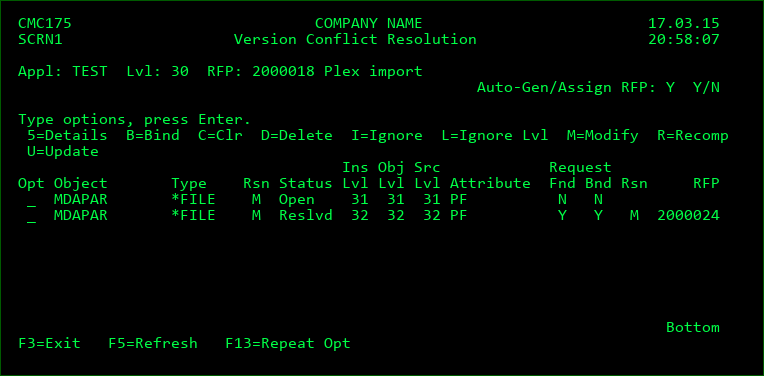
This display lists all objects that somehow reference a selected file or invoke a selected object.
OPT
5=Details - View extensive details about this request and the Object in the depending version
B=Bind - Resolve the conflict by binding this request to an existing request for the depending version
C=Clr - Clear the Resolution Status, which returns the status to Open
D=Delete - Request to Delete the Object in the depending version. MDCMS automatically binds the new Delete request to this request and sets the status to Resolved.
I=Ignore - Ignore the Conflict between this Object and the depending version for entire migration path. MDSEC authority to code 36 for application required.
L=Ignore Lvl - Ignore the Conflict between this Object and the depending version for this level only. Status will return to Open for next level in migration path. MDSEC authority to code 36 for application required.
M=Modify - Request to Modify the Object in the depending version. MDCMS automatically binds the new Modify request to this request and sets the status to Resolved.
R=Recomp - Request to Recompile the Object in the depending version. MDCMS automatically binds the new Recompile request to this request and sets the status to Resolved.
U=Update - Request to Update the Object in the depending version. MDCMS automatically binds the new Update request to this request and sets the status to Resolved.
Auto-Gen/Assign RFP
When an object for a depending version is requested for Modify, Delete, Recompile or Update, it can be automatically assigned to an RFP for that level with the same description as the RFP description as this request. If an open RFP for the level and description is not found, it is automatically created. This is only applicable if this request is assigned to an RFP.
Status
Ignore - Conflict ignored between this object and the depending version of the object and will continue to be ignored throughout the migration path.
TmpIgn - Conflict ignored between this object and the depending version of the object, but will be reset to Open status at next level.
Open - Conflict Resolution has not yet occurred for this version. If the Level requires resolution, the RFP cannot be submitted until Resolution occurs.
Reslvd - Conflict Resolution is completed for this version.
Ins Lvl
The level number of the other version
Obj Lvl
The level number where the object for the other version was found. MDCMS first searches in that level, then in the chain for that level, then in the chain of levels it is based on. This helps to indicate if the object already exists for that version when delta levels are used.
Src Lvl
The level number where the source for the other version was found. MDCMS first searches in that level, then in the chain for that level, then in the chain of levels it is based on. This helps to indicate if the object already exists for that version when delta levels are used.
Attribute
The MDCMS attribute for the object
Request Fnd
If an active request for the object in the depending level already exists.
Request Bnd
If an active request for the object is bound to this request
Function Keys:
F3=Exit
F13=Repeat Opt - Repeat an option until end of list. For example, if 'R' was entered on the 4th line of the list and F13 was then pressed, lines 5 through the end would also have 'R' entered.
X - MDXREF Information
The Option 'X' will result in directly navigating to the MDXREF Cross-Reference screen with the search criteria pre-filled with the object name, application and level.
Y - Synon/2E Model List
If MDCMS is configured to migrate objects from Synon/2E models, Option Y will appear that can be used to view/work with checked out objects in the Synon/2E model list for the user.
See the PDF document MDCMS_SYNON-2E_Interface_Manual for further information and instructions.