Project/Task Exit Points
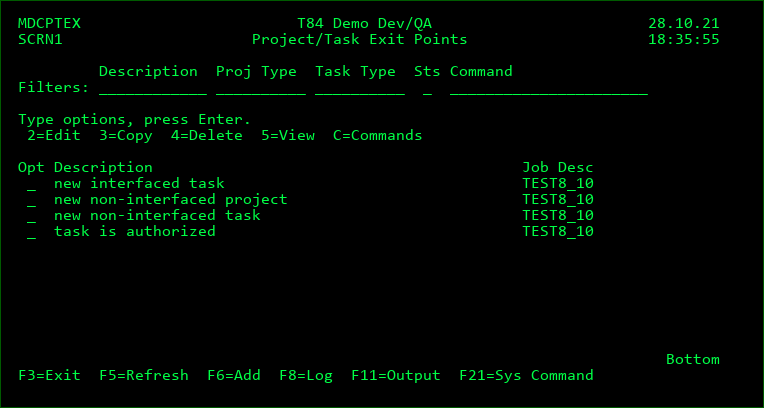
If a valid MDWorkflow Base license exists for the partition, F13 can be used from Project Listing to view/manage all exit points for a projects and tasks. A potential exit point is any time a Project, Task or Subtask is created or when the status transitions to a new status.
Description
A description of the exit point
Project Types
The list of Project Types to be considered for the exit point. Any project of the allowed type will then be a candidate if the status conditions are also met.
*NONE - the exit point is not relevant for any project types
*ANY - the exit point is relevant for all project types
Otherwise, you may enter a single value in the prompt when editable or press F4 to select 0-n project types to be included. If multiple project types are defined for the Exit Point, the field will be protected and F4 should be used while the cursor is positioned on the field to add/remove types.
Task Types
The list of Task Types to be considered for the exit point. Any task or subtask of the allowed type will then be a candidate if the status conditions are also met.
*NONE - the exit point is not relevant for any task types
*ANY - the exit point is relevant for all task types
Otherwise, you may enter a single value in the prompt when editable or press F4 to select 0-n task types to be included. If multiple task types are defined for the Exit Point, the field will be protected and F4 should be used while the cursor is positioned on the field to add/remove types.
Transition From
The list of Status Codes that are transitioned from to be considered for the exit point.
*NEW - the project, task or subtask has been created
*ANY - the exit point is relevant for when transitioning from any status
Otherwise, you may enter a single value in the prompt when editable or press F4 to select 0-n status codes to be included. If multiple status codes are defined for the Exit Point, the field will be protected and F4 should be used while the cursor is positioned on the field to add/remove codes.
Transition To
The list of Status Codes that are transitioned to to be considered for the exit point.
*ANY - the exit point is relevant for when transitioning to any status
Otherwise, you may enter a single value in the prompt when editable or press F4 to select 0-n status codes to be included. If multiple status codes are defined for the Exit Point, the field will be protected and F4 should be used while the cursor is positioned on the field to add/remove codes.
Job Desc/Library
The name and library of the job description to use to determine the default user, library list, job queue and other job run attributes when the exit point is submitted to batch. Press F4 while the cursor is on the field to select/manage a job queue.
Options
2=Edit - change the exit point conditions or job description
3=Copy - make a copy of the exit point definition
4=Delete - delete the exit point definition
5=View - view the exit point conditions or job description
C=Commands - View/Edit the commands to be executed when the exit point is triggered for a project, task or subtask
Function Keys:
F3=Exit
F5=Refresh
F6=Add - Add a new exit point definition
F8=Log - View the log of all triggered exit points for auditing or troubleshooting purposes. The log is stored in file MDCMS/MDDPTEL and is accessible from the Log Manager or using any file tool such as SQL.
F11=View Output - Display the MD Output panel or spool files.
F21=Sys Command - Save the current list of groups and users to your profile. When you create a new project, the list will automatically be applied to that project.
Project/Task Exit Point Commands
For each exit point an unlimited number of commands can be defined to be executed in a specific sort sequence.
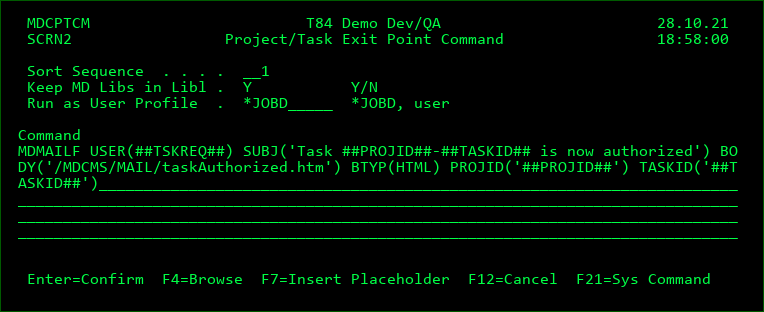
Screen Definitions:
Sort Sequence
The sort sequence of the command at run time, in case multiple commands are defined.
Keep MD Libs in Libl
N - The MD Libraries (MDCMS and MDXREF) are removed from the library list before the command is invoked. This assures that any MD Objects with the same name as your objects are not used.
Y - The MD Libraries are left in the library list. This is necessary when MD Objects, such as interface programs, MDMAIL or MDMAILF, are needed to process the command.
Run as User Profile
By default, commands executed during an RFP run under the profile of the user profile defined on the job description of the exit point. If a specific command should run under the authorities of a different user, that user ID can be entered here. As a safety precaution, the user placing a value in this field must have authority to use that entered user profile in order to save the command definition.
Command
The IBM i or user-defined command to be performed. Enter the name of the command and then press F4 to fill in the keywords.
Some placeholder parameter values may be used and are substituted by MDCMS at run-time. The placeholder value may be typed directly into the command or the cursor may be positioned in the command and F7 pressed to insert the value from a list.
Function Keys:
F4=Browse - Browse for values.
F7=Insert Placeholder - Insert placeholder value into command string at the location of the cursor. A list of all fixed placeholder values followed by all placeholders for custom fields will displayed to select from.