Project Task/Subtask Listing
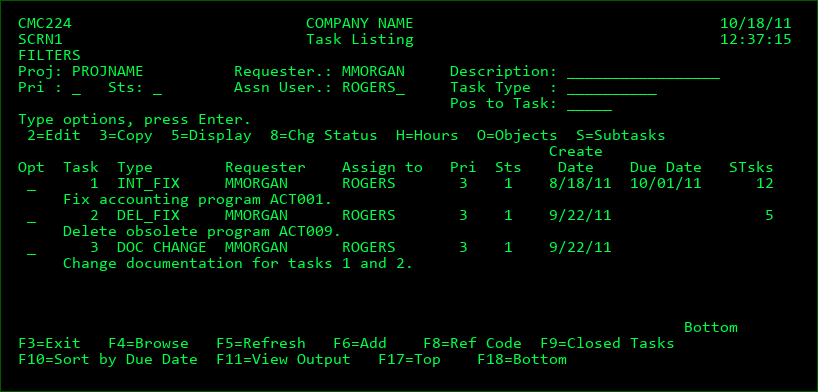
If necessary, projects can be granulated by tasks, which can be further granulated by subtasks.
The Project Task Listing display is accessed with option T from the Project Listing. Subtasks are then accessed with option S from the Task Listing.
The fields and handling for tasks and subtasks are largely the same as for projects. The only key difference is that the project can have any number of involved groups, but the task/subtask are limited to one assigned group (or user) and one test group (or user). The task-level groups and users do not have to be part of the groups at the project level.
FILTERS
Requester
Filter the listing by the Tasks Requester or leave blank to see all tasks for all Requesters.
Description
Filter the listing by a Tasks Description.
Pri - Priority
Filter listing by available Priority values.
1 - Critical
2 - High
3 - Medium
4 - Low
5 - Optional
Sts - Status
Filter listing by available Status values.
1 - Created
2 - Modified
3 - Email Sent
4 - Work in Progress
5 - Ready to Test
6 - Testing in Progress
7 - Testing Complete
8 - Closed
9 - Cancelled
If the MDWorkflow license is active, additional status codes may be created and used.
Assn User
Filter the listing by the user assigned to the task.
Task Type
Filter the listing by the Task Type. Press F4 on the Task Type to manage the Task Type definitions and/or select a valid Task Type from the list.
Pos to Task
Position the listing to the selected Task.
Options
1=Select - Return the selected Task (and Project) back to the requesting process. This option will only appear when using F4=Browse in the Project field of the Object Manager panel.
2=Edit - Edit the Tasks detail information.
3=Copy - Copy the details of a Task to a new Task.
5=Display - View the Tasks detail information.
8=Chg Status - Select a new status for the Task from a list of possible status codes, based on authority and current status. NOTE: If the new status closes the Task, a warning will be given if the Task still has open Subtasks. The user can bypass the warning by pressing Enter and all Subtasks will also be closed.
H=Hours - View and enter hours worked on behalf of the Task.
O=Objects - Display requested objects for Task.
S=Subtasks - Display a list of Subtasks for the selected Task.
Function Keys:
F3=Exit
F4=Browse - Browse list of valid values for available fields.
F5=Refresh
F6=Add - Add a Task to the selected Project.
F8=Ref Code/Description - Toggle between the Reference Code and Task Summary/Description for the filter field and information on the 2nd row of each task entry.
F9=Closed Tasks - Display a listing of closed Tasks for selected Project.
F10=Sort by Due Date - Sort the Task listing by the value of Due Date.
F11=View Output - Display the MD Output panel and other spool files
F17=Top - Position the display to the Top.
F18=Bottom - Position the display to the Bottom.
Task Types
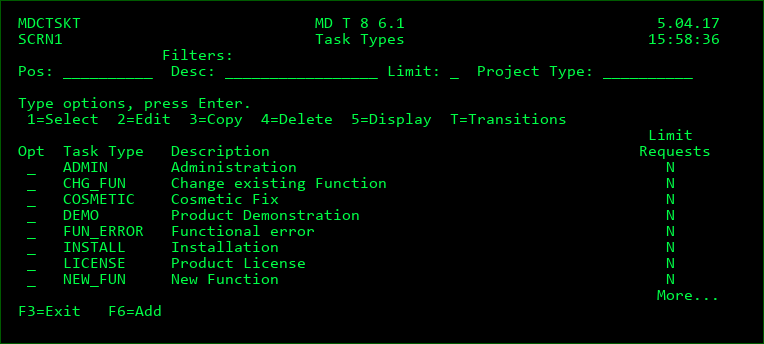
Task Types are a means to categorize tasks and to set certain rules for tasks of a given type. Every task must have a Task Type defined for it.
Only Task Types that are enabled for a Project Type can be used for Tasks and Subtasks within a Project of the given Project Type.
The listing to view and manage task types is reached by pressing F4 on the Task Type field in the Task screen.
Task Type
A 10-character identifier for a type of task
Description
Description of the Task Type
Limit Object Requests to Assigned Users
If developers are limited from assigning Object Requests to a Task of this type.
Y - Only developers that have been assigned to the Task, either directly or as a member of an assigned group, are allowed to assign Object Requests to the Task.
N - Any developer can assign Object Requests to a Task of this type, unless they aren't involved with the Project and the Project Type has limited Object Requests.
Allow Manual Task Creation
Y - users are permitted to create tasks for the given type from within the standard MDCMS, MDOpen and MDWorkflow screens.
N - tasks of the given type must be created via an external process such as Jira, ServiceNow or via the MDUPDTASK interface.
Allow Task Creation via API
Y - tasks for the given Task Type are permitted to be created via the MDUPDTASK command or the /mdcms/task REST API.
N - tasks of the given Task Type may not be created using the MDUPDTASK command or the /mdcms/task REST API.
Import Tasks from Jira
Y - if the Task Type is mapped to a Jira Issue Type, allow issues that are created in Jira to be imported into MDCMS.
N - Jira Issues are not permitted to be imported into MDCMS as tasks of the given Type.
Export Tasks into Jira
Y - if the Task Type is mapped to a Jira Issue Type, allow tasks that are not created in Jira to be exported to Jira as new issues within Jira.
N - Jira Issues shouldn't be created as a result of Tasks of the given Type.
Import Tasks from ServiceNow
Y - if the Task Type is mapped to a ServiceNow Incident Type, allow incidents that are created in ServiceNow to be imported into MDCMS.
N - ServiceNow incidents are not permitted to be imported into MDCMS as tasks of the given Type.
Export Tasks into ServiceNow
Y - if the Task Type is mapped to a ServiceNow Incident Type, allow tasks that are not created in ServiceNow to be exported to ServiceNow as new incidents within ServiceNow.
N - ServiceNow Incidents shouldn't be created as a result of Tasks of the given Type.
Options
2=Edit - change the type properties
3=Copy - copy to a new type
4=Delete - remove the type
T=Transitions - specify the allowed Task/Subtask Status Transitions permitted for the Task Type