RFP Details
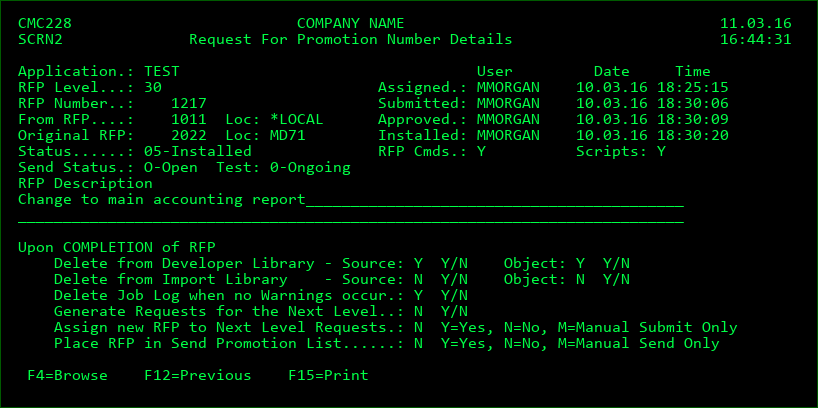
The Request for Promotion Number Details display is where the Promotion number details are entered.
Application
The Application that objects will be promoted into.
RFP Level
The Application level for this RFP.
RFP Number
The assigned number of the RFP.
Merged into RFP
The number of the RFP that the objects for this RFP were merged into for this level when the RFP was merged/cancelled.
From RFP
The number of the RFP that was installed one step prior in the migration path. If the path started at the current level, then this will be blank.
From Loc
The location ID of the RFP that was installed one step prior in the migration path. If the path started at the current level, then this will be blank. Special value *LOCAL will be displayed if the prior level was on the same system as this RFP.
Original RFP
The number of the initial RFP in the migration path. If the path started at the current level, then this will be blank.
Original Loc
The location ID of the initial RFP in the migration path. If the path started at the current level, then this will be blank. Special value *LOCAL will be displayed if the prior level was on the same system as this RFP.
Status
The status of the RFP.
Send Status
O - open - the RFP hasn't been sent to any target systems yet
P - partial - the RFP is in the process of being sent and installed on some target systems
C - closed - the RFP is no longer open in the send list
Test Status
The state of MDWorkflow acceptance for an installed RFP.
Blank - MDWorkflow not applicable for RFP
0 - MDWorkflow acceptance is ongoing - any further steps are blocked at this time
1 - MDWorkflow provisionally accepted - waiting for confirmation from authorized user
2 - MDWorkflow acceptance complete - next step in process for RFP is freed, as long as all objects in RFP aren't waiting for acceptance in another RFP
8 - MDWorkflow provisionally rejected - waiting for confirmation from authorized user
9 - MDWorkflow rejection complete - next step in process for RFP has been deleted. Corrections must be brought up to this level to allow objects to continue.
Assigned
The programmer that the request changes are assigned to. More than one programmer may be included in a request, but only one programmer may be entered on this display (includes the Date and Time of assignment).
Submitted
The user who submitted the RFP (includes the Date and Time of submission).
Approved
The user who approved the RFP (includes the Date and Time of approval).
*AUTO - the RFP was automatically approved
*STSTRG - the RFP was approved by a status trigger after a status transitioned for a Project or Task impacted by the RFP
*TEMPLATE - Object Approval Templates were used for approving the RFP. Press F10 to view the list of all involved Approval groups, as well as the approver, date, time and comment per group. From that approval logging screen, you can also press F10 a 2nd time in order to list the object and template for each object requiring approval on the RFP.
Installed
The user who installed the RFP (includes the Date and Time of installation).
*AUTO - the RFP was automatically installed
*STSTRG - the RFP was installed by a status trigger after a status transitioned for a Project or Task impacted by the RFP
Upon COMPLETION of RFP:
Delete Source from Developer library
Y - Delete the source from the developer library after the successful installation of the RFP. This is only permitted when installing into an Application Level that permits checkout.
N - Leave a copy of the source in the developer library
Delete Object from Developer library
Y - Delete the objects from the developer library after the successful installation of the RFP. This is only permitted when installing into an Application Level that permits checkout.
N - Leave a copy of the objects in the developer library
Delete Source from Import library
Y - Delete the source from an imported library after the successful installation of the RFP. This is only permitted when installing into an Application Level that permits checkout.
N - Leave a copy of the source in the import library
Delete Object from Import library
Y - Delete the objects from the imported library after the successful installation of the RFP. This is only permitted when installing into an Application Level that permits checkout.
N - Leave a copy of the objects in the import library
Delete Job Log when no Warnings occur
Y - Delete the job log for the RFP installation job once it has successfully finished and no warnings occurred.
N - Retain the job log even if there were no errors or warnings
Generate Requests for the Next Level
Y - If a next level on the same system is defined for this level, automatically create request records for all objects in this RFP for migration from this level to the next level.
N - Do not create request records for the next level
Assign new RFP to Next Level Requests
Y - If object requests are to be generated for the next level, then also create a new RFP number to assign to those requests. The description and user will be copied from this RFP.
N - Do not assign object requests to a new RFP
M - Assign to a new RFP for the next level, but don't automatically submit the RFP, even if the next level is defined to automatically submit RFPs by default.
Place RFP in Send Promotion List
Y - If a distribution queue is defined for this level, automatically place the RFP in the send queue.
N - Do not place the RFP in the send queue.
M - Place RFP in the send queue, but don't automatically send the RFP, even if the level is defined to automatically send RFPs by default.
Function Keys:
F4=Browse - Browse the Assigned field.
F12=Previous - Cancel any changes.
F15=Print - Print the details of the RFP to a spooled file.