RFP Listing
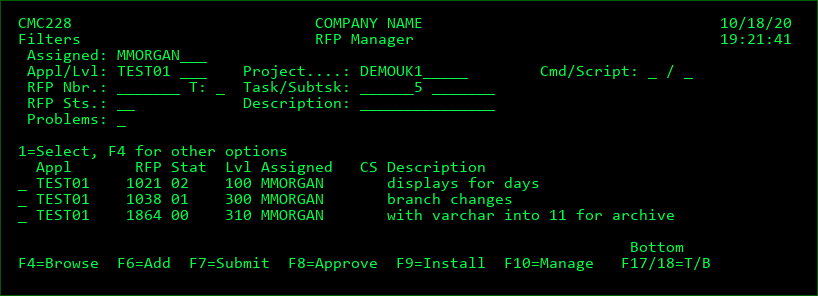
The RFP (Request for Promotion) Manager is accessed with option 3 from the Main Menu or by pressing F9 from the Object Manager panel. It may also be accessed by pressing F4 while the cursor is positioned on an RFP Number field.
Filters
The Request for Promotion Number Listing can be filtered by any of the following fields at the top of the display.
Assigned - The Programmer assigned to the RFP
Appl -Application
Lvl - Application Level
Project - The Project associated with the RFP
Cmd - Y= only RFPs containing commands are listed, N only RFPs not containing commands are listed
Script - Y= only RFPs containing scripts are listed, N only RFPs not containing scripts are listed
RFP Nbr - Request for Promotion number
T - RFP Type - used in conjunction with the RFP number filter
C - number of current RFP
F - number of prior RFP in migration path
O - number of original RFP in migration path
Task - The Project Task associated with the RFP
Subtask - The Projects Task and Subtask associated with the RFP
RFP Sts - If the Install Status filter is set to blank, only open RFP numbers will be displayed. Enter a Status of 09 to see closed RFPs or press F10=History to see installed RFPs.
Description - The RFP Description. The description filter will list all RFPs that have matching text in the description. For example, enter PRINT to list only RFPs with print somewhere in the short description. The Description filter is not case sensitive.
Problems - if warnings or errors have occurred for an RFP
Send Status - the state of deployments of this RFP to other systems for an installed RFP
Test Status - the state of MDWorkflow acceptance for an installed RFP
Install Date - When in history mode, the minimum and/or maximum install date can be entered.
RFP Status
RP - Request pending - the RFP is waiting for MDWorkflow acceptance of an RFP in the prior level before the new RFP can be used.
00 - Open, no request records assigned to RFP
01 - Open, one or more request records assigned to RFP
SP - RFP has been scheduled for submission and is waiting for the MD Submission service to submit the RFP
YY - RFP Submission currently in Job Queue
XX - RFP Submission in progress
02 - RFP is waiting for approval
CP - MDRapid Data Copy process is pending launch
CJ - MDRapid Data Copy process has been submitted to a job queue
CR - MDRapid Data Copy is in process
03 - RFP is waiting to be installed
IP - Installation Pending - RFP has been scheduled for installation and is waiting for the MD Installation service to install the RFP
04 - Installation in JOBQ
XY - RFP Install in progress
IC - The installation of the objects into the target application is complete
05 - The entire RFP process, included clean-up, is complete
09 - RFP Closed/No Install
Exception Status
E - RFP Error has occurred, causing the processing of the RFP to be rolled back
W - Warnings occurred during the processing of the RFP
B - Special filter value to show only RFPs with errors or warnings
N - Special filter value to show only RFPs without an exception
Option L=Log can be used for extensive details about any warnings or errors that occurred.
Send Status
O - open - the RFP hasn't been sent to any target systems yet
P - partial - the RFP is in the process of being sent and installed on some target systems
C - closed - the RFP is no longer open in the send list
N - not applicable - special filter value to show only RFPs that aren't defined to be sent to targets
U - not closed - special filter value to show any open or partially sent RFPs
Option T=Target Locs can be used for extensive details about the send progress as well as to initiate the send of the RFP to target systems.
Test Status
The state of MDWorkflow acceptance for an installed RFP.
Blank - MDWorkflow not applicable for RFP
0 - MDWorkflow acceptance is ongoing - any further steps are blocked at this time
1 - MDWorkflow provisionally accepted - waiting for confirmation from authorized user
2 - MDWorkflow acceptance complete - next step in process for RFP is freed, as long as all objects in RFP aren't waiting for acceptance in another RFP
8 - MDWorkflow provisionally rejected - waiting for confirmation from authorized user
9 - MDWorkflow rejection complete - next step in process for RFP has been deleted. Corrections must be brought up to this level to allow objects to continue.
Options
1=Select - Select, Enter and return the RFP number back to the requesting process.
2=Edit - Edit the RFP's detail information.
3=Copy - Copy the RFP's detail information to a new RFP. If a completed RFP (status 05) is copied, the user can also choose to re-request some or all of the objects in the RFP.
5=View - View the RFP's detail information.
7=Reset - Reset the RFP. This function causes the following based on the current RFP Status:
01 - All requests assigned to the RFP are removed from the RFP and may optionally be deleted.
02 - Installation Package waiting for Approval is deleted and the status is returned to 01.
CP - RFP is returned to status 02 or 01, depending on whether or not Approval is automatic
CR - MDRapid Data Copy is stopped and the RFP returns to status CP
03 - If Approval is required at the RFP's level, the status returns to 02, otherwise the Installation Package waiting for Installation is deleted and the status returns to 01.
XX/04/XY - MDCMS checks if the submitted RFP job is still active. If the job is no longer active, the status returns to 01 or 03 depending on the last completed installation step.
9=Close - If the current status of the RFP is 00-Empty, the close option will close the RFP (status set to '09') so that it no longer appears in the list. If the current status is IC-Installation Complete, and the RFP job that was performing the clean-up is no longer active, the Close option should be used to finish the post-installation process for the RFP.
A=Accpt Test - View/Manage the MDWorkflow Acceptance of an installed RFP
C=Cmd/Scrp - Define commands or scripts to run for this specific RFP.
D=Rapid Sts - the MDRapid Copy Status of all physical and logical files that require MDRapid processing are displayed. This option is available once the RFP has at least reached Copy Pending status.
L=Log - view all steps that have occurred during the processing of the RFP. For each step, the job log entries can be viewed for additional information. The steps, the job log, or a combination of both can be exported to an excel report. The job log entries are applied to the RFP by the MDLOG service. If the entries are missing, then check that MDLOG is running. Both the log and joblog entries will be retained for only as long as the age parameter in the MDCMS Log Maintenance screen.
M=Merge - Merge 2 or more RFP Packages into 1 RFP. Enter an M for at least 2 RFP packages of the same application and level and then press Enter. A confirmation screen is shown where the target RFP number can be selected and the description of the merged package can be edited. All objects (and commands) of the selected RFPs will be merged into the target RFP. The other specified Packages will be emptied and closed once the merge is complete. Duplicate objects and commands will be eliminated automatically.
O=Objects - Display all objects that are contained within the RFP.
P=Projects - Display all projects that are contained within the RFP.
R=Rollback - Select to rollback some or all objects in a completed RFP.
S=Spools - Display the spooled files for the most recent submission of the RFP
T=Target Locs - view extensive details about the send progress as well as to initiate the send of the RFP to target systems
U=AutUsrs - Display the users in MDSEC that have authority to submit, approve or install depending on the status of the selected RFP.
V=Versions - Display the Conflict Resolution Status for dependent versions of object requests in this RFP. See the section on option V from Object Manager for additional details.
Function Keys:
F3=Exit
F4=Browse - Browse list of valid values for the filter fields.
F5=Refresh
F6=Add - Add a new RFP.
F7=Submit/Manage - Toggle between RFP Submit and RFP Manage modes
F8=Approve/Manage - Toggle between RFP Approve and RFP Manage modes
F9=Install/Manage - Toggle between RFP Install and RFP Manage modes
F10=History/Manage - Toggle between RFP History and RFP Manage modes
F17=Top - Position cursor to the top of the RFP listing.
F18=Bottom - Position cursor to the bottom of the RFP listing.