Send Promotion to Remote System
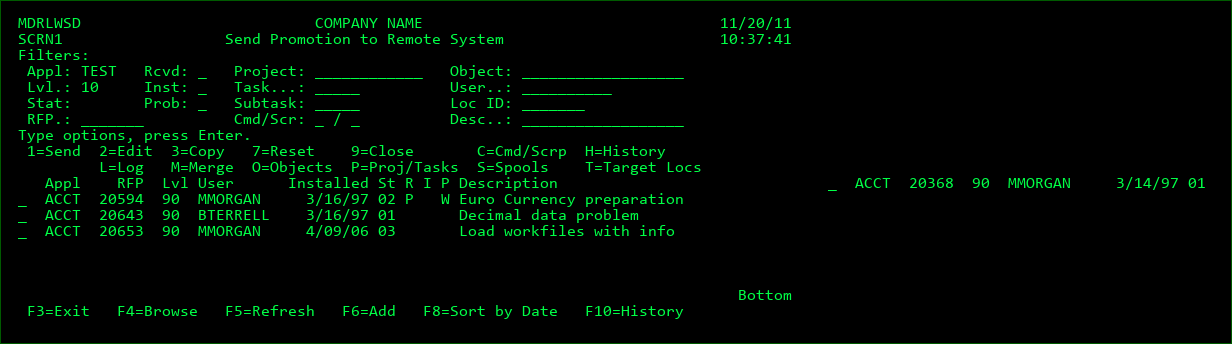
It is possible to control applications across IBMi systems or logical partitions via MDCMS, as long as a licensed copy of MDCMS exists on each of the systems involved.
The first step for specifying what is to be sent where is to define the distribution levels (see the sections for OS/400 Locations and Distribution Levels for instructions).
If a promotion is installed into an Application/level, the RFP with all of its installed objects and commands will appear in the list as long as:
the application/level has at least 1 defined distribution level
the flag, Place RFP in Send Promotion List, is set to Y for the RFP
For each entry, the application, RFP number, application level, RFP Manager, date installed, and description of promotion are listed.
The following additional columns are shown:
St
The send status of the RFP across all target levels.
RP - The installed RFP is pending MDWorkflow acceptance. Until acceptance occurs, none of the objects in the RFP can be sent to other locations.
00 - The RFP is empty - no objects assigned to RFP
01 - The RFP is ready, but not yet sent to any locations
02 - The RFP has been sent to some of the defined locations
03 - The RFP has been sent to all defined locations that normally expect to be sent to
04 - The send process is currently running for the RFP
05 - The RFP is closed in the Send List
R
If the receipt of the sent RFP has occurred for some or all of the locations. There must be a defined DDM push or pull connection defined between this location and a target location for this information to be available.
Blank - Receipt of RFP hasn't occurred or isn't known
P - the RFP has been received on a portion of the locations that it has been sent to
C - the RFP has been received on every location that it has been sent to
I
If the installation of the sent RFP has occurred for some or all of the locations. There must be a defined DDM push or pull connection defined between this location and a target location for this information to be available.
Blank - Installation of RFP hasn't occurred or isn't known
P - the RFP has been installed on a portion of the locations that it has been sent to
C - the RFP has been installed on every location that it has been sent to
P
If warnings or errors occurs during processing of the RFP on the target systems. There must be a defined DDM push or pull connection defined between this location and a target location for this information to be available.
Blank - problems haven't occurred or isn't known
W - warnings have occurred
E - errors have occurred
The entries may be filtered by a large number of criteria. For most of the filters, F4 can be used to list and select a filter value.
The following options are available for each entry in the list:
1=Send - send the promotion package to remote systems. Any default send locations that haven't been ignored or already sent to will be pre-selected to send
7=Reset - reset the status from 04=running back to 01 or 02. This can only be used if a send job ended abnormally or hasn't been processed in the send queue yet.
9=Close - remove RFP from list.
A confirmation screen will be displayed before the promotion would actually be removed.
Closed RFPs can be reopened in the Send History screen.
If default target levels haven't been processed yet for the RFP, the user must be authorized to MDSEC function code 54 in order to be able to close the RFP.
C=Cmd/Scrp - add or edit RFP-Level commands and scripts for the promotion package.
H=History - View the Send History for the RFP
L=Log - view all steps that have occurred during the most recent Send Batch for the RFP. For each step, the job log entries can be viewed for additional information. The steps, the job log, or a combination of both can be exported to an excel report. To view the log entries for older batches, use the Log option from Send History (F10 from Send Listing). The job log entries are applied to the RFP using the MDLOG service. If the entries are missing, ensure that the MDLOG service is running.
M=Merge - Merge 2 or more RFP Packages into 1 RFP. Enter an M for at least 2 RFP packages of the same application and level and then press Enter. A confirmation screen is shown where the target RFP number can be selected and the description of the merged package can be edited. All objects (and commands) of the selected RFPs will be merged into the target RFP. The other specified Packages will be emptied and closed once the merge is complete. Duplicate objects and commands will be eliminated automatically.
O=Objects - View/edit the objects contained in the promotion package. Specific objects (and commands) may be added or removed.
P=Proj/Tasks - view list of all Projects, Tasks and Subtasks impacted by object requests on the Send RFP
S=Spools - View any spool files from the most recent attempt to send the RFP.
T=Target Locs - view the send status for the target locations and individually send the promotion package if the status allows it.
Function Keys:
F3=Exit
F4=Browse - Browse list of valid values for a field (place cursor on appropriate field)
F5=Refresh - Refresh listing display
F6=Add - Manually add a promotion package to send
F8=Sort by Date/Appl - toggle the sort sequence for the listing between Appl/RFP ascending and Install Date descending
F10=History - View the Send History for all promotions