Programs
Tip
Programs is one of the view type which can be invoked from the Programs option under Programming head from the left navigation menu.
It gives the the list of all the programs with their object information.
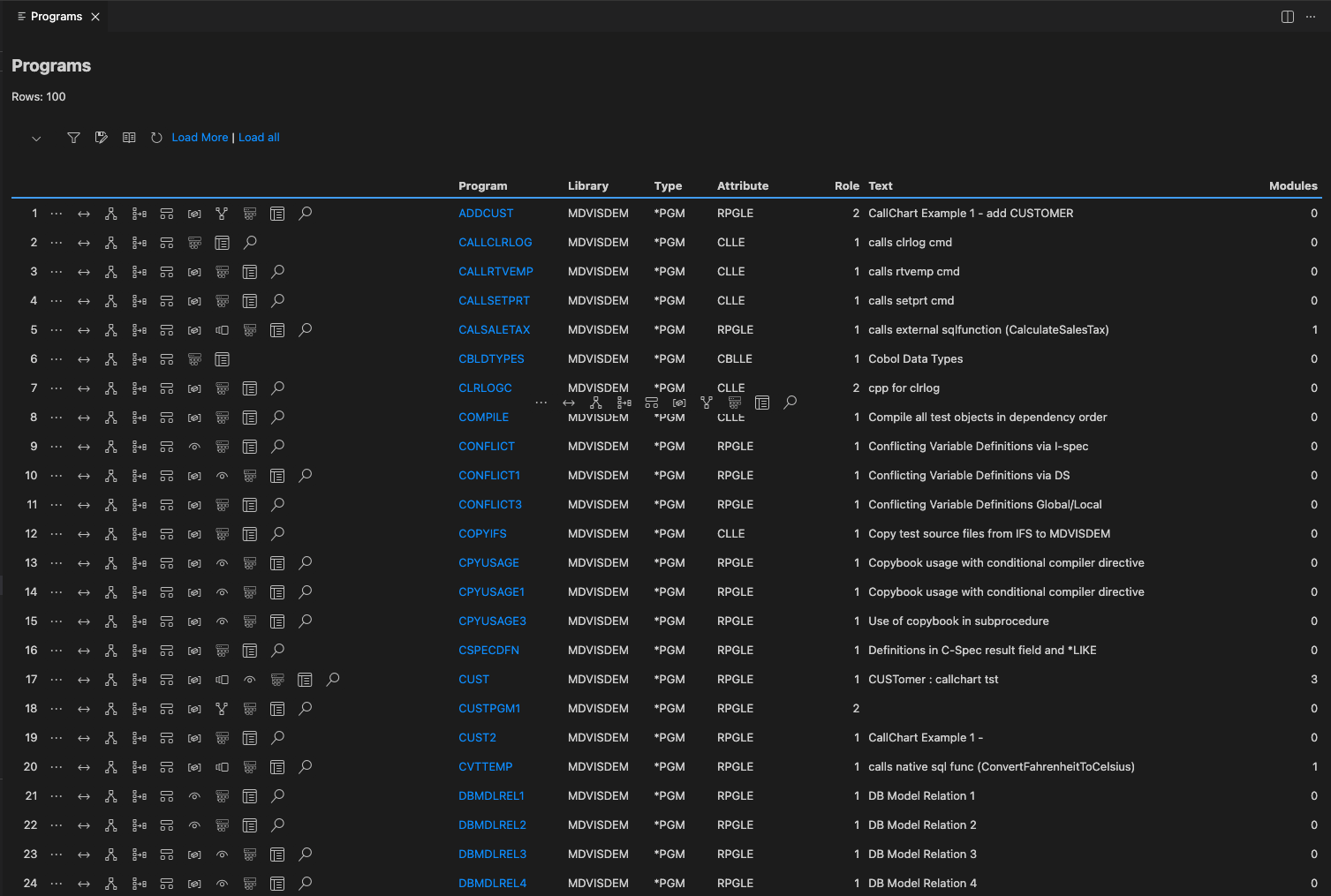
It has different options  , clicking on which gives further details about that particular program.

Parameters
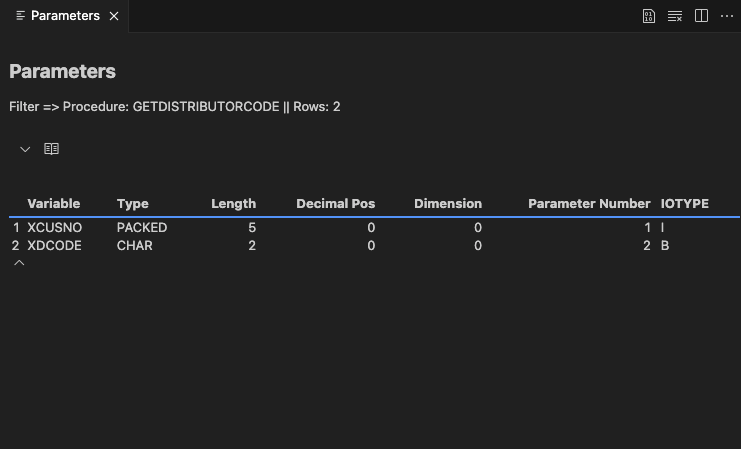
Clicking on  icon, gives the details of parameters used in the selected procedure.
Call Chart
Clicking on  icon, gives the hierarchal call path from a given root program.
The detailed information about the call chart screen is explained in Call Chart
Where Used
Clicking on  icon, a screen appears with the list of objects where this program is being used.
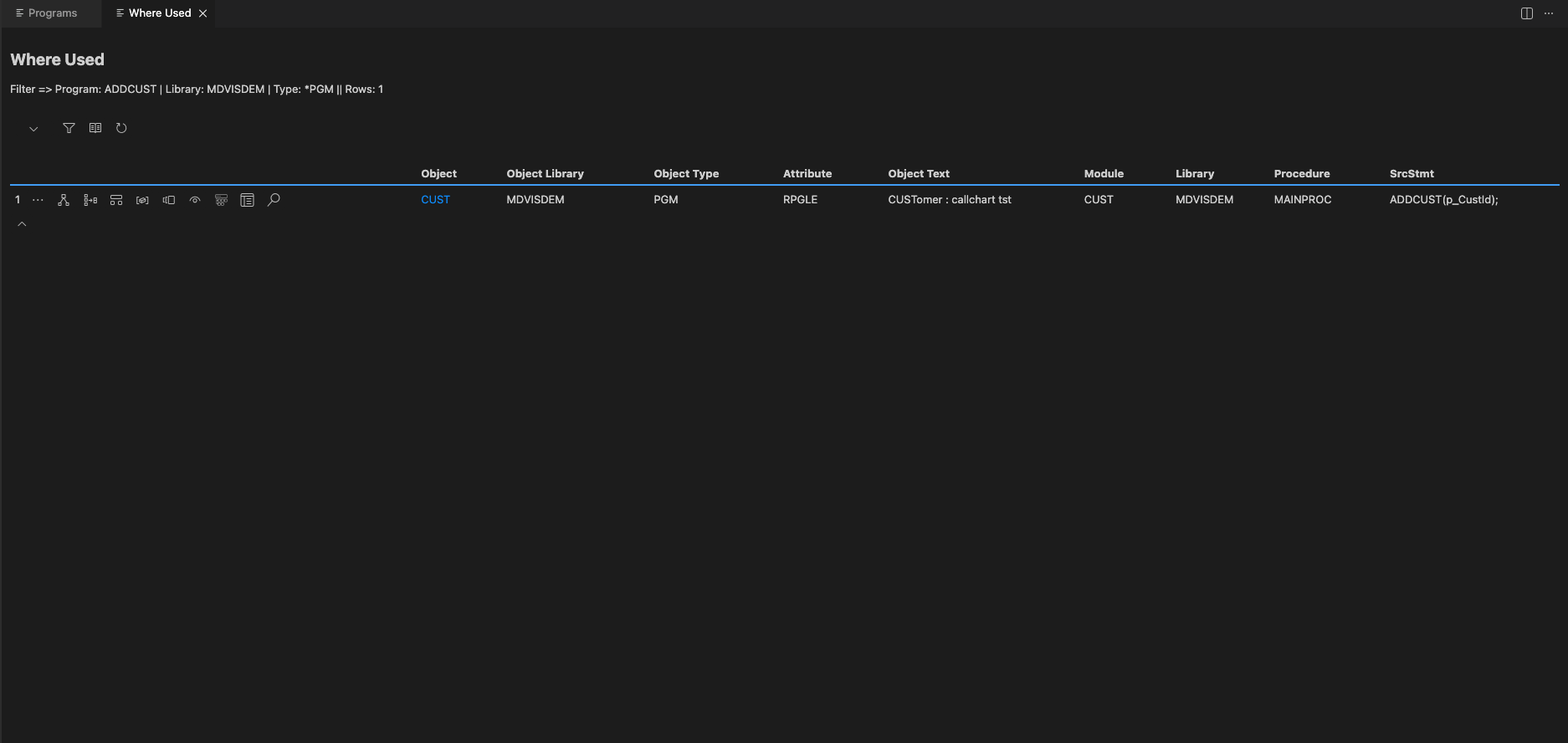
The detailed information about the whereused option can be seen here Where Used
Data Usage
Clicking on  icon, a screen appears having details of data used in the selected program.
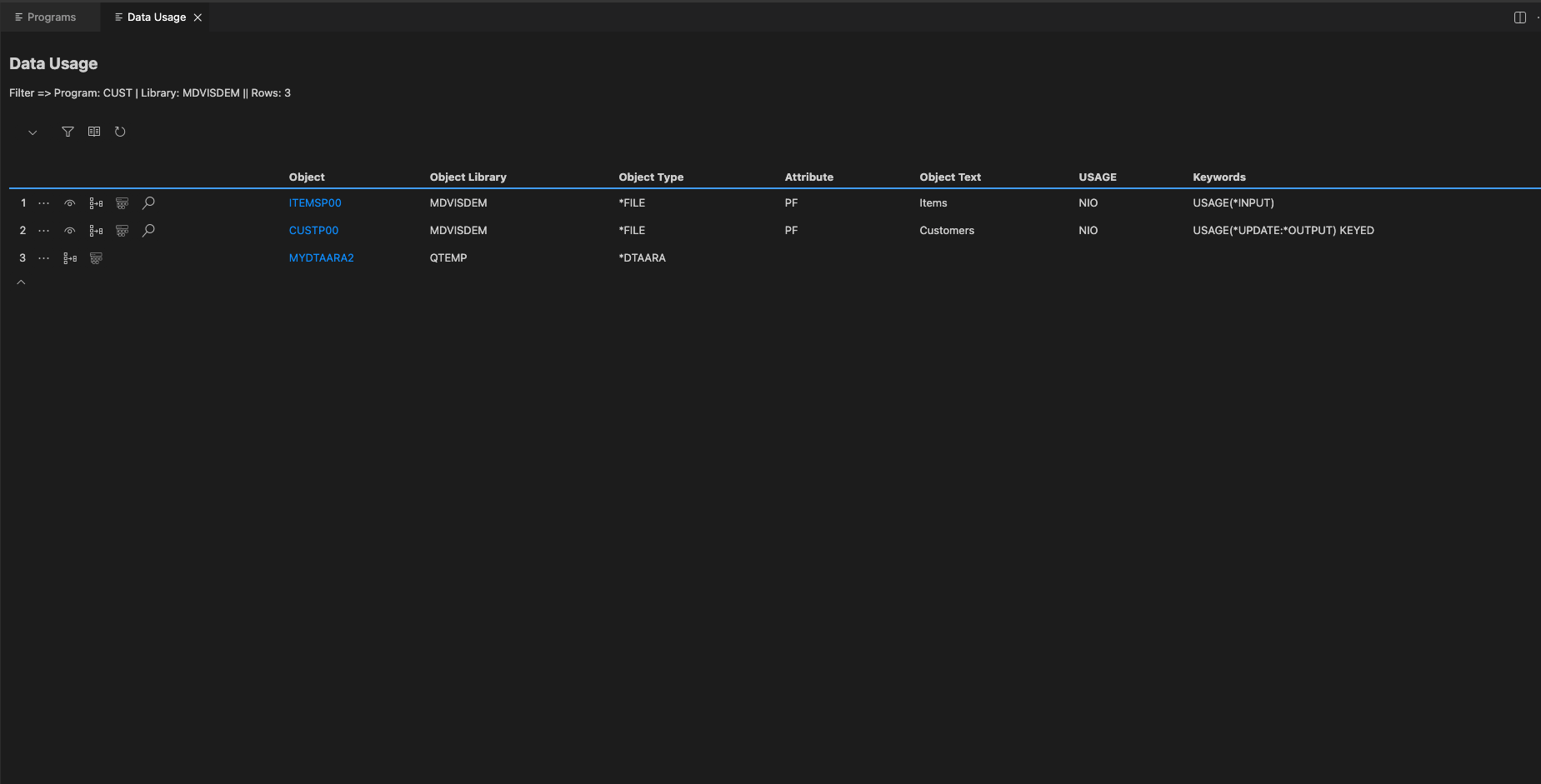
The eloborated information about the data usage screen is explained in Data Usage
Variables
Clicking on  icon, a screen appears having details of variables used in the selected program.
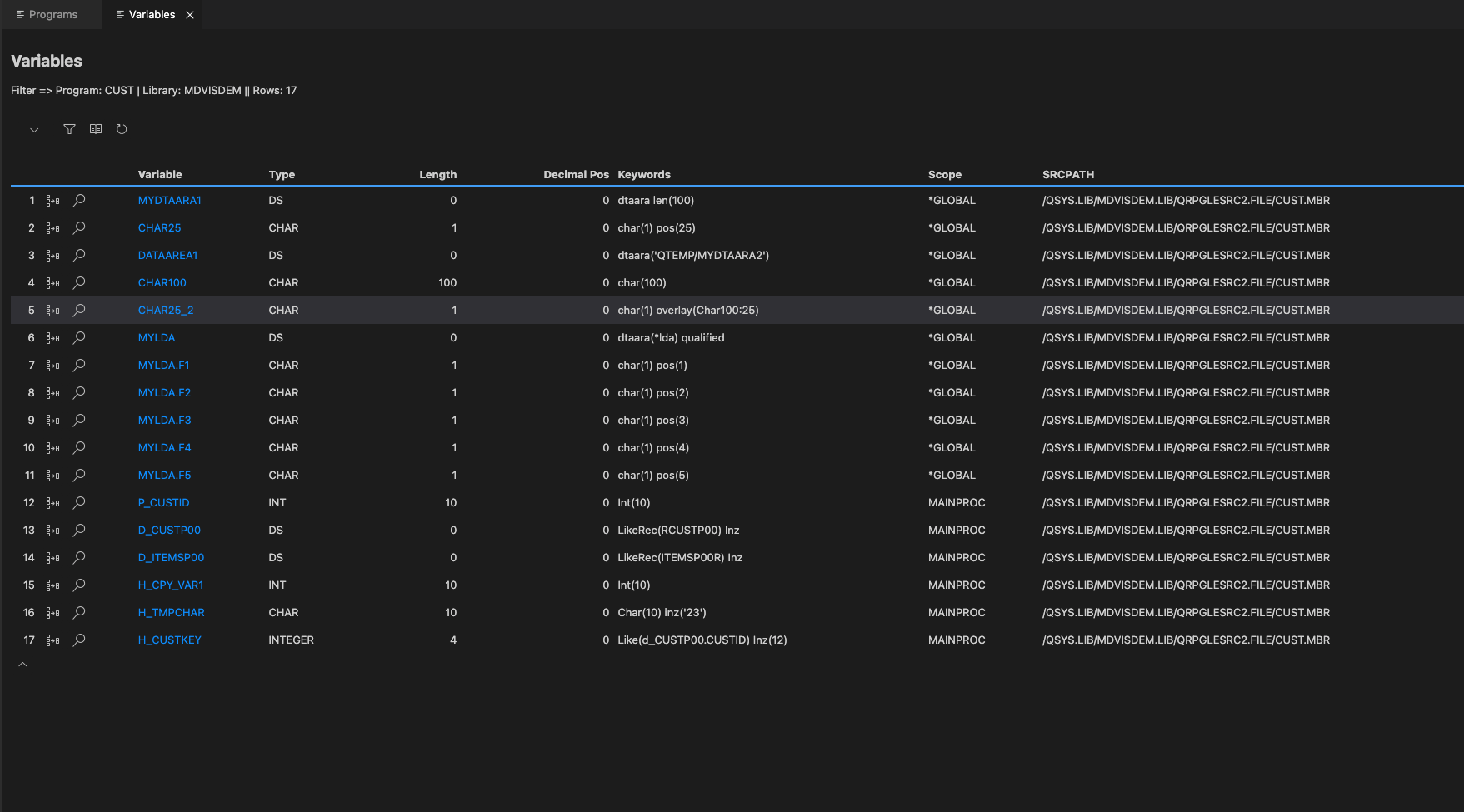
The eloborated information about the variables screen is explained in Variables
Where Called
Clicking on  icon, a screen appears having list of objects which called this selected program.
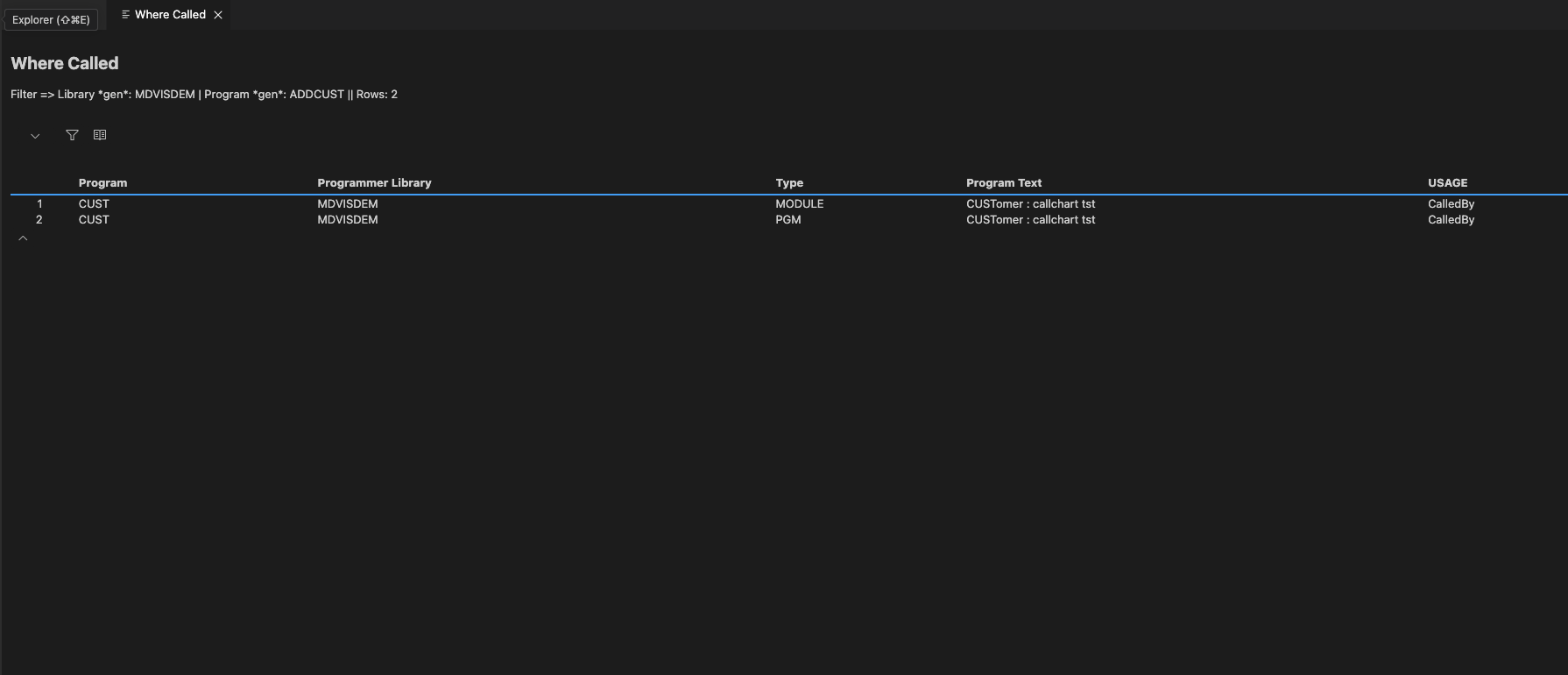
Dashboard diagram
Clicking on  icon, a screen appears with a stand-alone diagram that visualizes the content of the Object Dashboard, adding context about the flow of control between the root object and all other objects and procedures.
The detailed information about Object Dashboard Diagram can be viewed here Dashboard Diagram
Dashboard List
Clicking on  icon, a screen renders a stand-alone list view of detailed attributes of a selected object called root object. These details are broken down into different attribute/categories, which vary depending on the object type selected.
The detailed information about Object Dashboard can be viewed here Object Dashboard
Source
Clicking on  icon, a screen with source code of the relevent object appears.
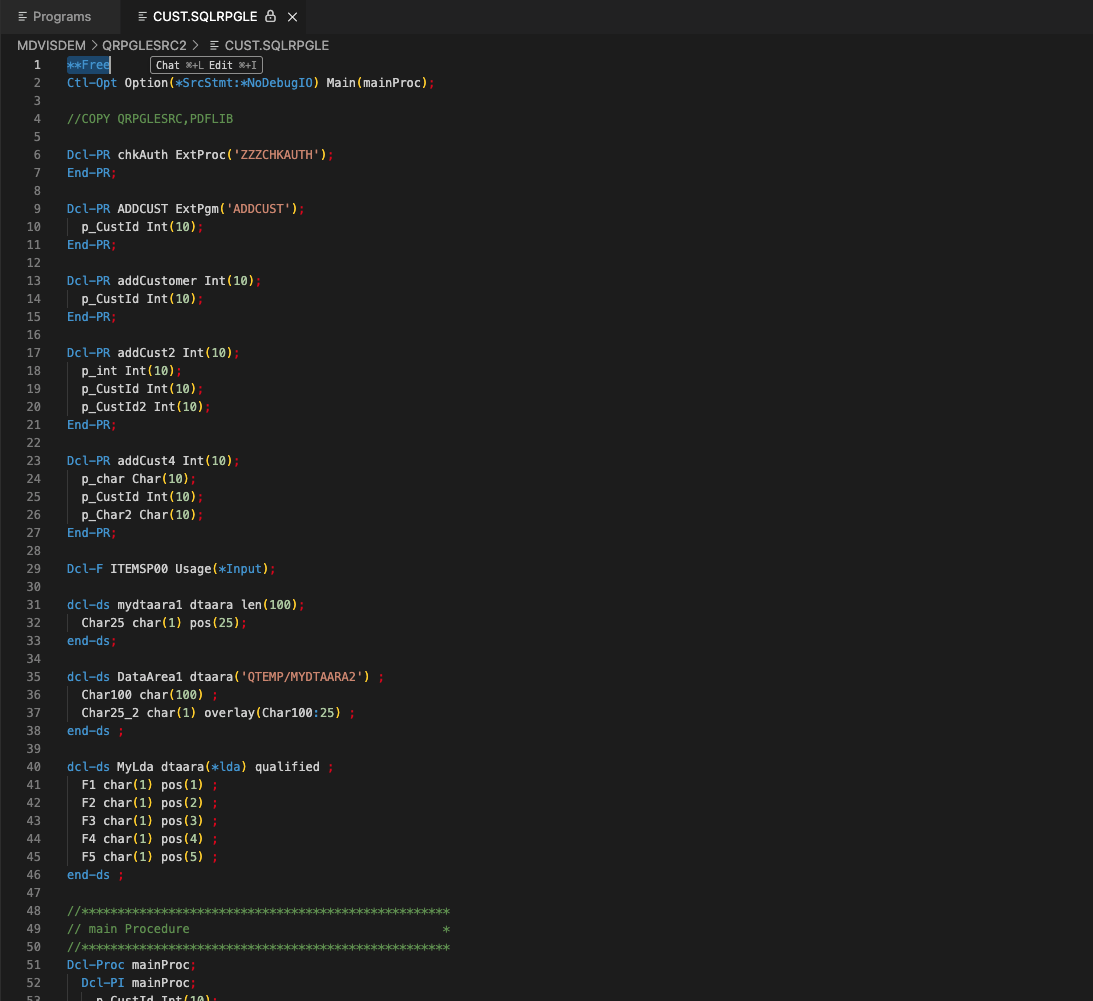
More Options
More options open a context menu with some more options like
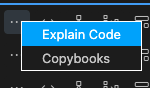
On clicking these options, it will open the relevent screens and displays the related information.