Configure MDRapid
Once MDChange (MDCMS) is installed, the product is available from a 5250 command line using command MDCMS.
Once in the MDCMS Main Menu, use option 1 to navigate to the MDCMS Setup Menu
If a value for the SAPLIB (SAP Library) parameter was provided when MDINSSAVF was invoked to install MDRapid, then the necessary Application, Level, Attribute and MDRapid Usage Template will have been pre-configured.
Otherwise, refer to the MDCMS User Manual for instructions on configuring Applications, Promotion Levels and Attributes.
Configure the MDRapid Usage Template
A MDRapid Template defines the rules and behavior for usage of MDRapid for those MDCMS Attributes that are then applied to it. Multiple templates can be created, though only one of them can be applied to a specific attribute for a given Promotion Level.
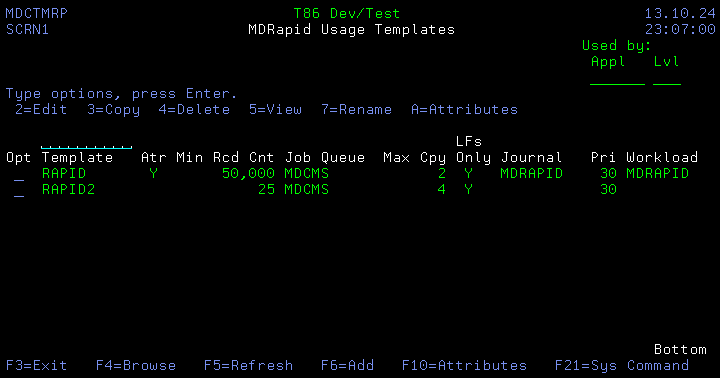
Screen Definitions:
Used By
Filter to list only templates that are used by attributes for the entered Application or Level.
Position to Template
A value can be entered into the field above the Template column to position the cursor to the first entry in the list greater than or equal to the value.
Options
2 – Edit an existing Template definition
3 – Copy the definition for a Template to a new Template name
4 – Delete a Template definition
5 – Display all details of the Template definition
7 – Rename the Template; all attributes using the template will automatically be updated
A – List all attributes using the template / Apply attribute to MDRapid
Function Keys
F3=Exit
F4=Browse – Browse the list of valid values for a filter field.
F5=Refresh
F6=Add – Add a new Template Definition
F10=Attributes – List all attributes to be able to view and change the usage of the Templates
Fields
Template
A 10-Character name for the template definition.
Atr
Y – The template is assigned to 1 or more MDCMS attributes
Minimum Record Count
The minimum number of records that must exist in the current version of the file (across all members) for that file to be included by default in the MDRapid process. This can be overridden for specific file requests in the Object Manager.
Job Queue
When MDRapid runs, a single monitor job is submitted for the entire RFP and a job is submitted for each target physical file. Enter the name of the job queue that these jobs should be submitted to. It should be a queue that allows enough jobs to be concurrently active.
The subsystem that the Job Queue belongs to should also be defined to allow enough jobs to be concurrently active.
Job Queue Library
The library that Job Queue exists in. If left blank, MDCMS will attempt to retrieve the library from the library list.
Max Parallel Copy Jobs
The data for each physical file in an RFP being copied using MDRapid gets its own copy job(s) to allow for parallel copying to speed up the process. However, data copies are Database- and CPU-intensive processes, so to throttle resource consumption, the maximum number of parallel copy jobs for an RFP can be set. A number between 5 and 20 is recommended, depending on resources available. MDRapid then starts n copy jobs for the files in the RFP in descending order of the number of records in the file so that the largest files start first. Once the copy step is finished for a file, the next pending copy job is started.
If the value for the Max Parallel Copy Jobs is 0, then the default of 5 will be used.
Max Copy Jobs per File
The copying of records for large files can be separated into multiple, concurrent jobs to reduce the amount of time to copy. The maximum number of jobs to use for a single file can be entered here. If blank, the default of 3 copy jobs (+ one monitor job) will be used, where applicable.
Pre-Requisites:
- The file must have columns defined as keyed to uniquely identify each record. This will happen automatically for files with Unique Key or Primary Key constraints. For other files, the keys must be manually selected in the File Transformation screen for the object request. When keys aren’t defined, only 1 copy job (+ one monitor job) will be used.
- The total number of copy jobs can’t exceed the maximum number of parallel copy jobs. If jobs are already running for another file, only the number of remaining jobs is started. If the jobs for another file have finished copying, you can increase the number of jobs for the file in process by ending and restarting the copy process in the MDRapid console.
- The number of outstanding records to be copied exceed the minimum number of records required to split jobs.
Min Recs to split Jobs
The minimum number of outstanding records in a file that must exist to split the copy process into multiple jobs. The number of jobs will depend on the multiple of that minimum as well as the maximum number of copy jobs allowed. Example, a file has a minimum number of records set to 500,000 and there are 2,000,000 records to copy, then MDRapid will start up to 4 copy jobs (+ one monitor job).
Use for Standalone LFs
If MDRapid should be used for logical files when the physical files they are based on are not in the RFP. This is useful when the files will be replicated to many libraries in order to speed up the installation of those replications. This flag will be considered for a logical file, if the template is applied to the logical file’s attribute for the target promotion level.
Job Run Priority
The run priority can be set for the jobs that are submitted by MDRapid so that they get more or less resource priority than other jobs on the system.
If the value for the Job Run Priority is 0, then the default of 20 will be used.
Workload Group
The name of a Workload Group can be defined for an MDRapid Template. Workload Groups define the maximum number of Processors used by a job assigned to the group. All jobs using the template will be assigned to the Workload Group, if entered.
Use command ADDWLCGRP to add a Workload Group.
MDRapid Journal
A persistent Journal to use when the live version of a table isn’t already journaled or when MDRapid needs to journal the new version of the table to track inserts. If blank, MDRapid will automatically create a journal in the RFP temporary install library named MDRAPIDJRN.
MDRapid Journal Library
The library that Journal exists in. If left blank, MDCMS will attempt to retrieve the library from the library list.
Apply Attributes to MDRapid Usage Template
Within the listing screen for the MDRapid Usage Templates, use option A to list all attributes that are currently applied to the template. If no attributes are currently applied, then all potentially relevant attributes will be listed.
MDCMS Attributes of type *SQLTAB, *SQLIDX and *SQLVW will be listed as well as Attributes of type *FILE when the Dft Source Type is PF or LF.
Use option 1=Assign Template to assign any *SQLTAB or *FILE/PF attributes that should be considered for MDRapid processing.
If using MDRapid for faster deployment of Standalone LFs (New or modified logical files, indexes or views that don’t include the based-on files in the RFP), then also assign the template to those attributes. MDRapid will automatically be used for dependent database relations, even if they aren’t assigned to a MDRapid Template.
Recommended Subsystem Storage Settings for MDRapid
In order to avoid negatively impacting the performance of your production application jobs, it is highly recommended that the subsystem that the MDRapid Usage Template Job Queue belongs to has dedicated memory storage in a separate shared Storage Pool.
In order to configure this, use command CHGSBSD for the subsystem and set the POOLS parameter to one of the 60 shared pools that are not used by other processes. For the Activity level portion of the parameter, it is recommended to grant 250 MB per concurrently altered table for this value.
Example CHGSBSD command for 2 concurrent table changes:
CHGSBSD SBSD(QGPL/MDRAPID)POOLS((01 \*SHRPOOL1 500 \*MB))
If the partition is not being used for production and/or has limited base storage, then leaving the Storage size to *BASE may be the better option.
Relevant Promotion Level Settings for MDRapid
Auto Launch MDRapid
Y – as soon as the tables have been created and validated and the RFP (Request for Promotion) has been approved, begin the copy of the data from the target application library to the MDRapid temporary library containing the new version of the tables.
N – The launch of MDRapid will wait until a user manually decides to execute it.
Auto Install
Y – as soon as the table rows have been copied and the tables are fully in sync with the live application, MDCMS will attempt to get an exclusive lock on the application tables and move in the new version of the tables.
N –MDRapid will continue to sync transactions in the background until a user manually decides to disrupt the application to perform the installation.
R – RFPs that require MDRapid will not auto install, but those that do not require MDRapid will auto install.