Process Flow Reports for Level
Function: to report on the flow of all execution objects for an application level.
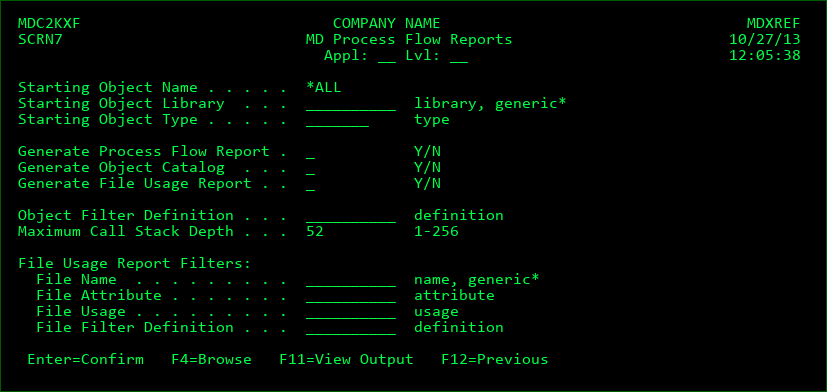
Generate Process Flow Report
Create a report that shows each distinct call stack possible for the entered application/level. A call stack starting point is any command, menu or program in the level that isn't called by something else.
Each column in the report represents the depth of the object in that stack, meaning that the object in column 1 is a starting point and it calls the object in column 2 which calls the object in column 3, etc.
If an object in the stack had previously been listed in the report, and that object calls other objects, it will be listed with *REPEAT as the value in the proceeding column.
Process Flow Report Filters
The Process Flow Report can be further filtered by the following parameters:
Appl
The application code
Lvl
The application level
Starting Object Library
The report may be filtered to consider commands, menus and programs as starting points only if they reside in the specified library or libraries.
Starting Object Type
The report may be filtered to consider either only *AJSE, *CMD, *IWS, *MENU, *PGM, *RBTJOB, *SCDE or *SQLPRC object types as starting points.
Object Filter Definition
A filter definition can be selected in order to omit certain libraries or objects from the Process Flow reports. Press F4 to create, modify or select a Filter Definition.
Maximum Call Stack Depth
The depth of the reported stack can be limited to between 1 and 256 columns
Generate Object Catalog
Create a report that alphabetically lists every object invoked in the Process Flow Report. In addition to the name of the object, the library, type, attribute, description, create date, create time, source change date and source change time are also listed.
Generate File Usage Report
Create a report that alphabetically lists every file that is used within the process flow as well as which objects use the file and how the file is used.
File Usage Report Filters
The File Usage Report can be further filtered by the following parameters:
File Name
The report may be filtered to show only a specific file or, with the use of '*', files beginning with a specific character string.
File Attribute
The report may be filtered to show only files with a specific attribute. For example, enter LF to show only logical files.
File Usage
The report may be filtered to show only objects that use a file in a certain way. For example, enter I/O to show only objects that read and write to a file.
File Filter Definition
A filter definition can be selected in order to omit certain libraries or files from the Usage report. Press F4 to create, modify or select a Filter Definition.