Valid Object Options in MDXREF
The options available for an object differ depending upon the object attribute. To list all options for an attribute, press F4 on the option prompt in front of the object in question.
A - Display the object attributes
Valid for many object types. This option is a shortcut to the IBMi DSPFD, DSPPGM, DSPMOD, DSPSRVPGM, or DSPCMD command.
If the selected object had the library entry of '*LIBL' and the object exists in more than one library within the cross-reference database, the user is prompted to select the desired library from a list before the object description displayed.
C - List the Copybooks used
Valid for CLP, COBOL and RPG programs (ILE or OPM) and modules if the source for those objects is managed by MDCMS
This option lists all source members that are used as copybooks in the program or module.
C - Compare File Data (for physical files only)
Valid option for physical files only.
This option allows you to view the content differences between 2 file members on a record-by-record and field-by-field level.
When 'C' is entered, the following screen is displayed for entering the file information.
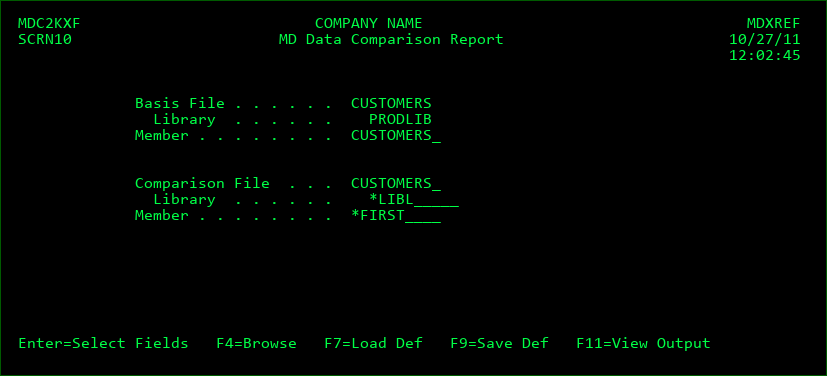
Basis File
The basis file and library was selected on the prior screen where the 'C' was entered. If the file has multiple members, a member name may be entered. F4 may be pressed to select a member from the list.
Comparison File
Enter the name of the file to compare to. The file structure of the comparison file does not have to be the same as the basis file. If the library is left as *LIBL, a list of cross-referenced libraries where the file exists will be displayed. If the file has multiple members, a member name may be entered. F4 may be pressed to select a file, library, or file member.
Function Keys:
Enter - Display the field listing screen based on the files entered for the comparison.
F4 - Browse the list of valid entries for a field by first placing the cursor on the field.
F7 - Load the parameters from a saved Comparison Report definition
F9 - Save the entered parameters as a report definition. The saved definition may then be reused in the future from within MDXREF or from a command line. See the chapter on MDRUNRPT for more information about running reports from a command line.
F11 - view the results of this comparison or any other MDXREF report
F12 - Cancel/end comparison analysis.
The following screen is displayed for controlling the sort and selection of records by the comparison job. All fields that have the same name and type (numeric/alphanumeric only) are displayed.
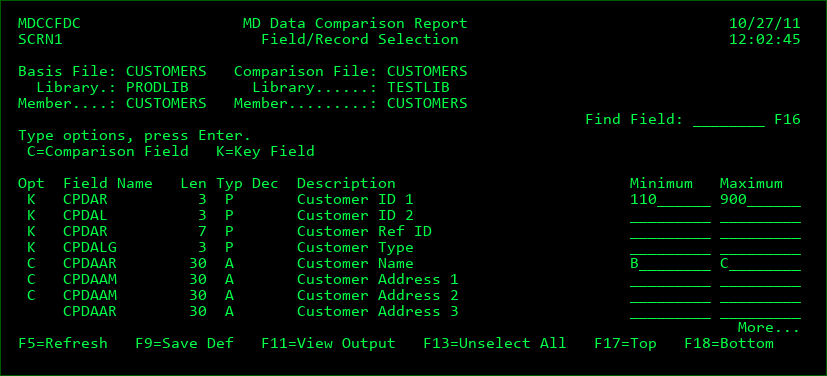
Find Field
This is used in conjunction with F16 to find a specific field in the listing.
Opt
C - Comparison field. The field's data will be compared and listed when a difference is found.
K - Key field. The field will be used to sort and join the 2 file members. It is best if the fields necessary to make a record unique are selected as Key fields. Up to 50 key fields may be selected.
If the field option is blank, the field will be ignored for key and comparison purposes, but a minimum/maximum may still be entered for the field to limit records.
Minimum/Maximum
The set of records to compare may be limited by entering a range of values for 1 or more fields.
Function Keys:
Enter - Submit comparison job to batch. A message will be sent at the end of the job specifying whether or not differences were found. The results of the comparison, if differences are found, will be written to the output file at the very end of the job. The file may be viewed by pressing F11 from any MDXREF screen.
F3 - Cancel comparison analysis.
F5 - Refresh the listing. The fields are sorted by key fields, then compare fields, then unused fields.
F9=Save Def - Save the entered parameters as a report definition. The saved definition may then be reused in the future from within MDXREF or from a command line. See the chapter on MDRUNRPT for more information about running reports from a command line.
F11=View Output - View Output from XREF reports or spooled files.
F13 - Select/Unselect comparison fields. This is a toggle to set all 'C', or compare, fields to blank or vice-versa.
F16 - Find Field - If a value is entered in the Find Field prompt, located near the top of the screen, the next field in the list matching that value is displayed. The search for the matching field begins 1 line past where the cursor is currently located. If the cursor is not located in the list, the search starts at the first currently displayed line in the list. '*' may be used as a wild-card value before and/or after the search string. For example, if the user enters 'P350*', the search will look for the next field in the list starting with 'P350'. If the user enters '*P350', the search will look for the next field in the list ending with 'P350'. If the user enters '*P350*', the search will look for the next field in the listing containing the string 'P350'. If the search reaches the bottom of the list without a match, it will restart at the top of the list.
F17 - reposition the cursor to the first field in the list.
F18 - reposition the cursor to the last field in the list.
D - Display the object description
Valid for all system objects. This option is a shortcut to the IBMi DSPOBJD command.
The most important information that this option displays is:
- when an object was created
- who created the object
- the last time that the object was used
- the # of days that the object has been used
If the selected object had the library entry of '*LIBL' and the object exists in more than one library within the cross-reference database, the user is prompted to select the desired library from a list before the object description displayed.
E - Exported Procedures
Display the list of all procedures exported by the ILE Module or Service Program
F - Full Name
Table Definition entries and SQL entities can be up to 80 characters in length within MDXREF. Option F can be used in order to display the full name for such components.
F - Process Flow Reports
See that the section titled P - Process Flow Reports below.
I - Imported Procedures
Display the list of all procedures imported by the ILE Module.
J - Journal Analysis report (for Physical files only)
Valid option for Physical files only.
This option allows you to view the journal records for a physical file in a customizable and easy-to-read format. When 'J' is entered, the following screen is displayed for entering the primary record and journal receiver selection information.
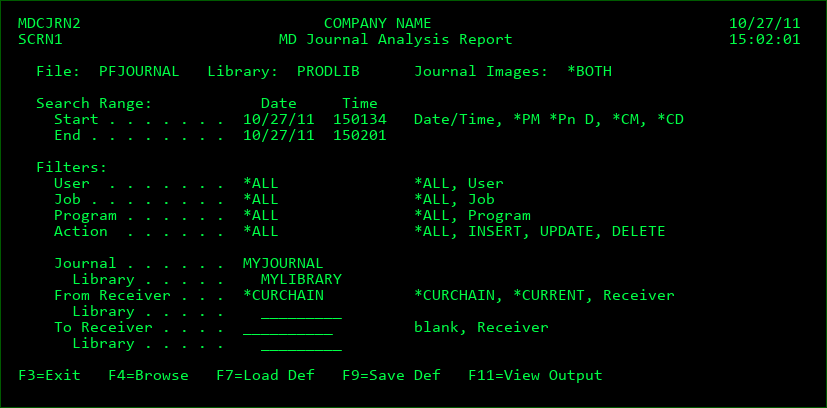
Search Range:
Start Date/Time
Enter the start date and time of journal entries to be considered. The default start date/time is either the date/time of the first entry for the selected file, or the creation date/time of the selected file, whichever is younger.
Special Values
| Option / Field | Description |
|---|---|
| *CM | The current calendar month |
| *CD | The current day |
| *PM | The prior calendar month |
| *Pn D | n number of days prior to today. Example - enter *P3 to select journal transactions for the prior 3 days |
End Date/Time
Enter the end date and time of journal entries to be considered. The default end date and time is the current date/time. If a special value is used for the Start Date, then the End Date/Time are not applicable.
User Filter
Enter the profile id of a user to limit journal entries to records updated by that user.
Job Filter
Enter the name of a job to limit journal entries to records updated by that job.
Program Filter
Enter the name of a program to limit journal entries to records updated by that program.
Action Filter
Enter INSERT, UPDATE, or DELETE to limit journal entries to records with that action.
Journal
The Journal Name and library in which the transactions should be searched. This will default to the currently active journal for the physical file.
From Receiver
The starting journal receiver name and library for the Journal
Special Values
| Option / Field | Description |
|---|---|
| *CURCHAIN | The currently active chain of receivers for the journal |
| *CURRENT | The currently attached receiver for the journal |
To Receiver
The ending journal receiver name and library for the Journal - if a special value is entered for the starting receiver, or only one receiver should be included, leave this blank.
Function Keys:
Enter - Display the field listing screen based on the file.
F3/F12 - Cancel journal analysis.
F4 - Browse the list of valid entries for a field by first placing the cursor on the field. The User and Program fields are enabled for the browse function on this panel.
F7 - Load the parameters from a saved Journal Analysis Report definition
F9 - Save the entered parameters as a report definition. The saved definition may then be reused in the future from within MDXREF or from a command line. See the chapter on MDRUNRPT for more information about running reports from a command line.
F11=View Output - View Output from XREF reports and spooled files.
The following screen is displayed for controlling the selection of fields and records for the journal analysis report:
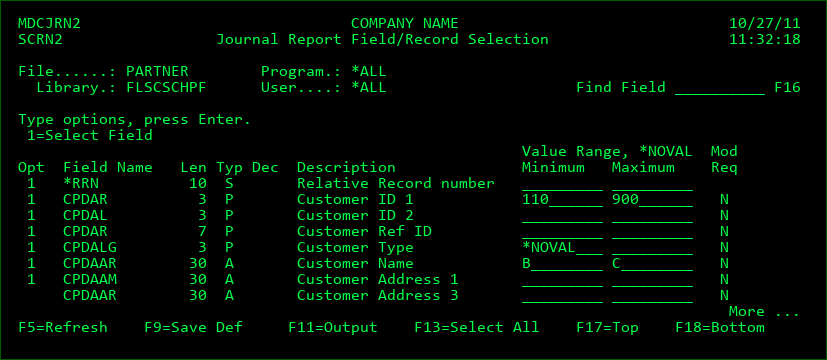
Find Field
This is used in conjunction with F16 to find a specific field in the listing.
Opt
1 - Select Field. Display the field as a column in the journal analysis report.
Even If the field is not selected, the Value Range and Mod Req criteria can be used for the field.
Value Range
The transactions to include may be limited by entering a range of values for 1 or more fields. A blank entry for Minimum means there is no minimum and a blank entry for Maximum means there is no maximum. If transactions should be selected for a specific value, enter it in the minimum and maximum fields.
Special Values
| Option / Field | Description |
|---|---|
| *NOVAL | transactions should only be selected when the value is empty (spaces for alphanumeric fields or zeroes for numeric fields) |
The transactions must fit within the range for ALL fields in order to be included in the list (AND condition).
Mod Req
Include a transaction only if it modified a field's value
Values
| Option / Field | Description |
|---|---|
| N | not required that the field's value was modified by the transaction |
| Y | the field's value must have been modified by the transaction from any value to any other value |
| F | the field's value must have been modified from a value within the entered Value Range to a value outside of the entered Value Range |
| T | the field's value must have been modified from a value outside of the entered Value Range to a value within the entered Value Range |
If this flag is used for 2 or more fields, a transaction must have modified a minimum of 1 of those fields in order to be included in the list (OR condition).
Function Keys:
Enter - Submit job to batch. A message will be sent at the end of the job specifying whether or not journal entries were found. The journal entries will be written to the output file at the very end of the job.
F3/F12 - return to entry selection screen.
F5 - Refresh the listing. The fields are sorted by selected fields, then non-selected fields in record format order.
F9=Save Def - Save the entered parameters as a report definition. The saved definition may then be reused in the future from within MDXREF or from a command line. See the chapter on MDRUNRPT for more information about running reports from a command line.
F11 = Output - View Output or spooled files.
F13 - Select/Unselect fields. This is a toggle to set all '1', or selected, fields to blank or vice-versa.
F16 - Find Field - If a value is entered in the Find Field prompt, located near the top of the screen, the next field in the list matching that value is displayed. The search for the matching field begins 1 line past where the cursor is currently located. If the cursor is not located in the list, the search starts at the first currently displayed line in the list. '*' may be used as a wild-card value before and/or after the search string. For example, if the user enters 'P350*', the search will look for the next field in the list starting with 'P350'. If the user enters '*P350', the search will look for the next field in the list ending with 'P350'. If the user enters '*P350*', the search will look for the next field in the listing containing the string 'P350'. If the search reaches the bottom of the list without a match, it will restart at the top of the list.
F17 - reposition the cursor to the first field in the list.
F18 - reposition the cursor to the last field in the list.
L - Linked Objects / Linked Files
Valid option for files, modules, programs and service programs only.
This option provides a direct method of indicating when files are used or linked by another object when that reference isn't automatically known by MDXREF.
Examples of use:
- Link a primary file with all other files that need to be considered when the primary file changes, due to a shared record format.
- Link a module to a file that is used via dynamic SQL
When there are substantial numbers of instances where MDXREF isn't automatically aware of references, and the updates to such references should happen whenever changes occur, then Table Definitions can be used instead to manage the references.
However, using option L is much quicker and easier to configure a small number of such references.
When 'L' is entered, the following screen is displayed for entering linked information between files and objects.
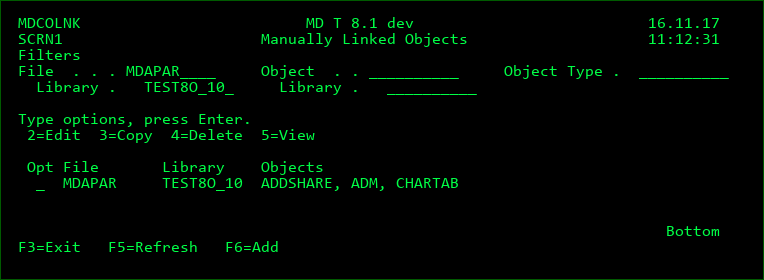
This screen lists the existing linked object definitions based on the filters at the top of the screen. The file/library filter is pre-filled when option L is entered for a file and the Object/Type filter is pre-filled when option L is entered for a module, program or service program.
The filter values can be removed or modified to adjust the listing.
Press F6 to add a new file to be linked to a number of objects, or use options 2-5 to manage existing links.
When adding a file, you will first be prompted for the name of the file and the file library. If the file is qualified for a specific library, it must exist to be stored. If *LIBL is used for the library, then the file can be any name.
After the entry of the file, a list of object names, libraries and types can be entered that should be linked to the file.
M - ILE Modules bound by a Program or Service Program
Valid for programs and service programs.
This option lists all modules that are bound by the program. The PEP flag designates which module contains the Program Entry Procedure (PEP) for the program.
P - All Relational Dependencies Report
Valid option for files only.
This option will result in a formatted report listing all files, programs, queries, etc… that use the file. In addition, if a file uses the base file, all files, programs, queries, etc… are also included for that file.
For example, option 'P' is entered for physical file ORDERS. There are 5 logical files over this physical file along with 48 programs and 10 queries that use this physical file. Additionally, there are 120 programs that use one or more of the logical files. All of these dependencies would be included in the report.
When 'P' is entered, the following screen is displayed for entering report filters.
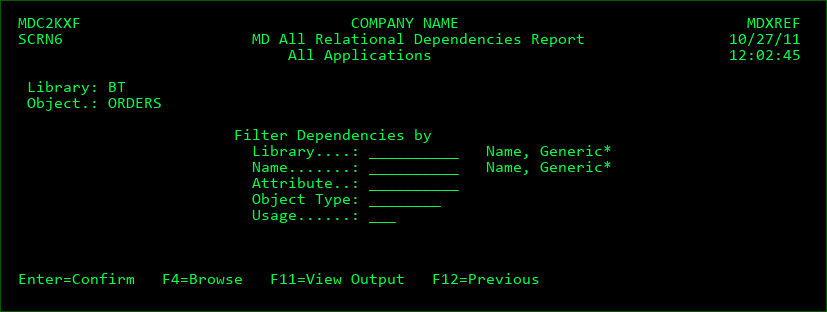
Filter Dependencies by:
Library
The report may be filtered to show only objects in a specific library or, with the use of '*', libraries beginning with a specific character string.
Name
The report may be filtered to show only a specific object or, with the use of '*', objects beginning with a specific character string.
Attribute
The report may be filtered to show only objects with a specific attribute. For example, enter RPG to show only RPG programs.
Object Type
The report may be filtered to show only objects of a specific type. For example, enter *PGM to show only programs.
Usage
The report may be filtered to show only objects that use a file in a certain way. For example, enter I/O to show only objects that read and write to a file.
P - Process Flow Reports
Valid option for menus, commands, functions, materialized query tables, modules, procedures, programs, scheduled jobs, table objects and views.
When 'P' is entered, the following screen is displayed for specifying reporting choices:
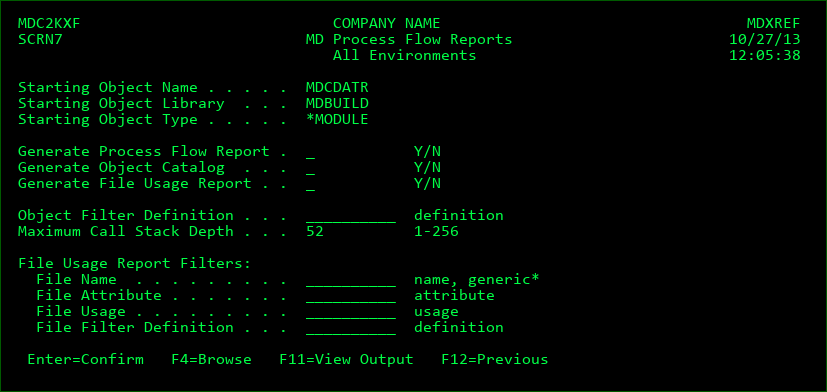
Generate Process Flow Report
Create a report that shows each distinct call stack possible from the initial object. Each column in the report represents the depth of the object in that stack, meaning that the object in column 1 is called by the initial object and it then calls the object in column 2 which calls the object in column 3, etc.
If an object in the stack had previously been listed in the report, and that object calls other objects, it will be listed with *REPEAT as the value in the proceeding column.
Generate Object Catalog
Create a report that alphabetically lists every object invoked in the Process Flow Report. In addition to the name of the object, the library, type, attribute, description, create date, create time, source change date and source change time are also listed.
Generate File Usage Report
Create a report that alphabetically lists every file that is used within the process flow as well as which objects use the file and how the file is used.
Object Filter Definition
A filter definition can be selected in order to omit certain libraries or objects from the Process Flow reports. Press F4 to create, modify or select a Filter Definition.
Maximum Call Stack Depth
The depth of the reported stack can be limited to between 1 and 256 columns
File Usage Report Filters
The File Usage Report can be further filtered by the following parameters:
File Name
The report may be filtered to show only a specific file or, with the use of '*', files beginning with a specific character string.
File Attribute
The report may be filtered to show only files with a specific attribute. For example, enter LF to show only logical files.
File Usage
The report may be filtered to show only objects that use a file in a certain way. For example, enter I/O to show only objects that read and write to a file.
File Filter Definition
A filter definition can be selected in order to omit certain libraries or files from the Usage report. Press F4 to create, modify or select a Filter Definition.
Q - Query the contents of a file or data area
Valid for physical, logical, and message files as well as for data areas.
For data files, this option is a shortcut to the IBMi RUNQRY command with record selection ability turned on. The user may simply press enter from the record selection screen to see all records in the file, or the user may enter conditions in order to limit the records that are displayed. Press F1 from the record selection screen to view the IBM help topics for RUNQRY.
If the selected file had the library entry of '*LIBL' and the file exists in more than one library within the cross-reference database, the user is prompted to select the desired library from a list before the query screen is displayed.
If the selected file has more than 1 member, the user is prompted to select the desired member from a list before the query screen is displayed.
For message files, this option is a shortcut to the WRKMSGF command in display-only mode.
S - View the source member from which the object was compiled
Valid for programs, modules, files, SQL elements, queries, and commands. MDXREF starts an SEU or IFS session in view-only format.
MDXREF determines the name and location of the source based on the following conditions in the order listed:
- For *QMQRY or *QRYDFN objects, the source is retrieved from the query object
- The location of the last installation of the source for the object in MDCMS, if MDCMS is used
- The MDCMS location of the source for the object, according to the attribute definition, if MDCMS is used
- The location the source was found in the last time that someone used option S for the Library/Object/Type combination.
- The source location according to the object description
- The source member with the same name of the object in the first found library based on the library sort sequence for the applications(s) and level(s) that the object library belongs to.
If the source wasn't found, then the user is prompted for the location of the source.
S - View a source member contained in a source file
Valid for files with attribute PF-SRC. MDXREF starts an SEU session in view-only format.
If 'S' is entered in front of a source file, MDXREF will list all members contained within the source file. The list can be generically filtered by name or description. Enter a 1 in front of a member to view the source code for that member.
V - Service Information
This option displays object service information formatted to reflect Object Stamping information applied during the installation of an object in MDCMS. F9 can be pressed to change the display to the standard IBM *SERVICE screen.
X - XREF Refresh for Object
Valid for all objects.
If an object has been manually changed or deleted since the last build of the MDXREF application database, the object's MDXREF information may be refreshed by using option 'X'.
If the selected object had the library entry of '*LIBL' and the object exists in more than one library within the cross-reference database, the user is prompted to select the desired library from a list before the object's information is refreshed.
- Display list of Objects using File or Module
Valid option for Files or ILE Modules only.
This option will display a list of all objects that use the specific file as well as how the file is used by the object. Alternatively, this display will list all programs or service programs that use a specific ILE module. The following is an example of option 1.
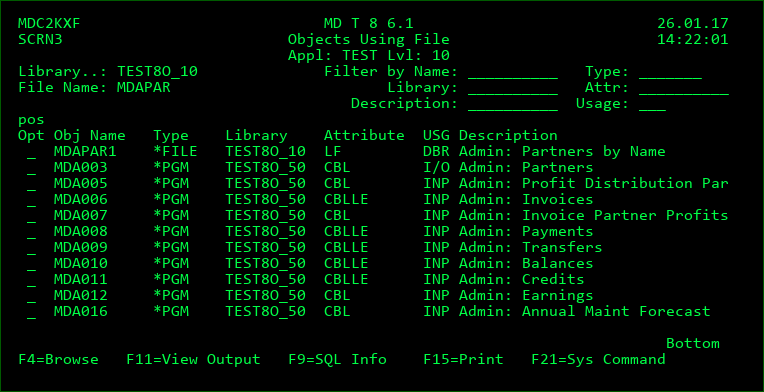
The listed referenced objects are sorted by Object Name, Object Type and Library. If the listing is for a specific application and level, the library sorting is based on the sort sequence for the library list, otherwise, it is based on the alphanumeric value of the library name.
If the parameter "1st in Libl Only" on the initial screen is set to Y, then only the first occurrence of an Object Name/Type combination will be listed.
If a specific application and level was specified on the initial screen, then any reference for library value *LIBL will be replaced by the first found library for the Object Name/Type combination.
Filter by Name
Enter part or all of an object name to filter the list to objects containing the entered value somewhere within the name.
Filter by Type
Enter an object type in this field to view only objects with the entered type. For example, enter *PGM here to view only program types.
If in SQL Info mode, then enter one of the valid SQL types (*SQLALS, *SQLCST, *SQLFUN, *SQLIDX, *SQLMQT, *SQLPRC, *SQLSEQ, *SQLTAB, *SQLTRG, *SQLVAR or *SQLVW).
Filter by Library
Enter part or all of a library name to filter the list to objects containing the entered value somewhere within the library name.
Filter by Attribute
Enter part or all of an object attribute to filter the list to objects containing the entered value somewhere within the attribute.
Filter by Description
Enter part or all of an object description to filter the list to objects containing the entered value somewhere within the description.
Filter by SQL Name
If in SQL Info mode, then enter part or all of an SQL long name for an object to filter the list to objects containing the entered value somewhere within the SQL long name.
Filter by Usage
Enter a usage value (from the list below) in this field to view only objects with the entered usage. For example, enter DBR here to view only logical files over a specific physical file.
pos
Enter a value at this prompt to position the listing to the first object name that is >= the position value.
CHG - A file format is altered.
CPY - The contents of a file are copied to another file.
CRT - A file is created.
CST - A constraint applied to the file
DBR - Database Relation such as Logical file over Physical file or View over View
DDS - A file format is copied into the source for a program
DEL - A file is deleted
HST - A file is a History Table for a linked Temporal Table
INP - An object uses a file for input only.
I/O - A program uses a file for input and output.
OUT - A program uses a file for output only.
OVR - A file is overridden to another file.
REF - A printer or display file contains field(s) that reference field(s) in the file.
SPC - A file is used within a CL program by a FMTDTA or OPNQRYF command or used in a program in embedded SQL statements.
TRG - A trigger applied to the file or program invoked by the trigger
Option
All options that are available from the Object browse screen are also available from this screen. In principle, a person may continue running MDXREF options 1 - 4 until they hit the end of their application.
- Display list of Files used by Object
Valid for many types of objects
This option will display a list of all files that are used by the specific object as well as how the file is used.
Everything in Option 1 applies to Option 2. See the section for option 1 for more details.
- Display list of Objects calling selected Object
Valid for many types of objects
This option will display a list of all objects that call or somehow invoke the selected object.
For example, if a '3' was entered in front of program JORDCB1, a list would be displayed showing all programs that call JORDCB1, all commands that invoke JORDCB1, or all menus that JORDCB1 is called from.
Everything in Option 1 applies to Option 3 (except usage). See the section for option 1 for more details.
SQL object types *SQLFUN and *SQLPRC can be the called object types used by calling object types *SQLFUN and *SQLPRC.
- Display list of Objects called
Valid for many types of objects
This option will display a list of all objects that are called by the selected object.
For example, if a '4' was entered in front of program JORDCB1, a list would be displayed showing all programs that JORDCB1 calls, all user commands that JORDCB1 invokes, all menus that JORDCB1 starts, or all queries that JORDCB1 runs.
Everything in Option 1 applies to Option 4 (except usage). See the section for option 1 for more details.
Additionally, for menus, the option number of the first occurrence of a called object is displayed.
For ROBOT jobs, the command sequence number of the first occurrence of a called object is displayed.
SQL object types *SQLMQT, *SQLVW, *SQLFUN and *SQLPRC can be the calling object types of object types *SQLFUN and *SQLPRC.
- Display list of Fields in File
Valid option for physical and logical files only
This option will display a list of all fields and their attributes for a file. If the selected file had the library entry of '*LIBL' and the file exists in more than one library within the cross-reference database, the user is prompted to select the desired library from a list before the fields are displayed.
The list is initially sorted by field position, but may be sorted by field name by pressing F8. The following is an example of the Field display.
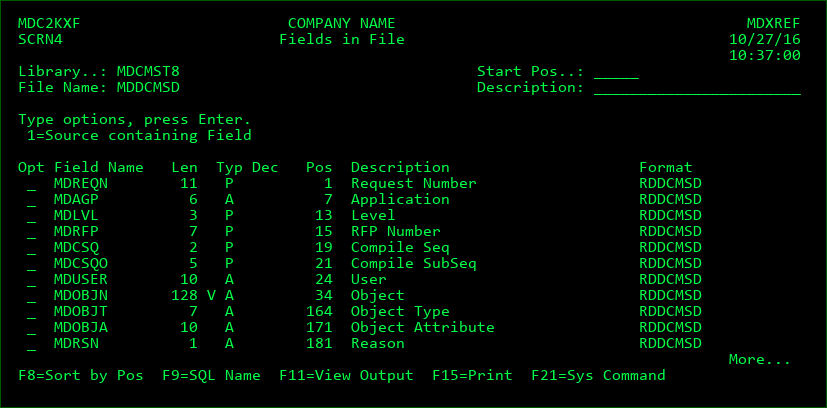
Start Pos/Pos to Field
Enter a value at this prompt to restart the listing at a new point based on the sort column
Description Filter
Entering a text string at this prompt will result in a listing of all fields with a description containing the text string. For example, enter ASSET to see all fields with asset somewhere in the description. The search is not case sensitive.
Opt
1 - Source containing Field - this option causes MDXREF to collect the source for all objects either directly using the file or a logical over the file, along with all copybooks used by dependent programs. It then inspects the code for any non-commented lines containing the field and then presents the results.
Len
The usable length of the field. This value is the number of digits or characters, not bytes.
If the field has a variable length, a V will be included for the column
Typ
The type of field. Common types: A = alphanumeric; P = packed numeric; S = zoned numeric
Pos
The byte # in a file record where the field begins.
Dec
The number of decimal places after the '.' for numeric fields.
Function Key:
F8 - toggle the sorting of the field list between name sort and starting position sort
F9 - toggle between the display of the field description and the SQL Name for the field
- Display Key Structure/Selection Rules for File
Valid option for physical and logical files only.
This option will display the list of field keys and their attributes for a file.
For physical files/tables, a field will be listed as a key if it is part of the primary key constraint, unique key constraint or the access path of the physical file.
For logical files, all select/omit rules will also be listed.
If the selected file had the library entry of '*LIBL' and the file exists in more than one library within the cross-reference database, the user is prompted to select the desired library from a list before the fields are displayed.
The key structure listing is sorted by the key order in the file's access path and is displayed in the color green. Any select/omit rules follow the key structure and are displayed in the color yellow. The following is an example of the Key Structure/Selection Rules display.
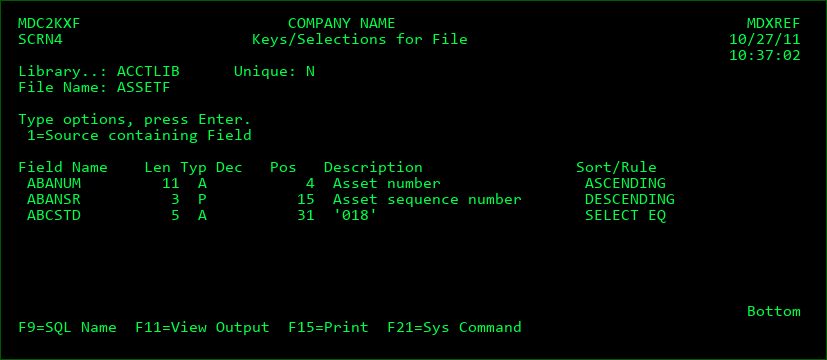
Unique
MDXREF lists whether or not the key structure for the file is defined as being UNIQUE. If a structure is unique, only 1 record in the file may exist for each distinct set of key values.
Opt
1 - Source containing Field - this option causes MDXREF to collect the source for all objects either directly using the file or a logical over the file, along with all copybooks used by dependent programs. It then inspects the code for any non-commented lines containing the field and then presents the results.
Len
The usable length of the field. This value is the number of digits or characters, not bytes.
If the field has a variable length, a V will be included for the column
Typ
The type of field. Common types: A = alphanumeric; P = packed numeric; S = numeric
Start Pos
The byte # in a file record where the field begins.
Sort/Rule
ASCENDING - The key is sorted in ascending order for the access path
CONSTRAINT - The key is part of a Primary Key or Unique Key constraint
DESCENDING - The key is sorted in descending order for the access path
SELECT EQ - select records where field equals value in Description. This may also be an OMIT GT, etc… See the IBMi documentation for a full list of possible selection rules.
Function Key:
F9 - toggle between the display of the field description and the SQL Name for the field
- Display Join Field Information for File
Valid option for logical files only.
This option will display the list of join fields and duplicate sequencing fields for a join file.
If the selected file had the library entry of '*LIBL' and the file exists in more than one library within the cross-reference database, the user is prompted to select the desired library from a list before the fields are displayed.
The listing is sorted in the same order that the join fields were defined. Fields used to order duplicate records are designated with the To Field name *DUPSEQ.
The following is an example of the Key Structure/Selection Rules display.
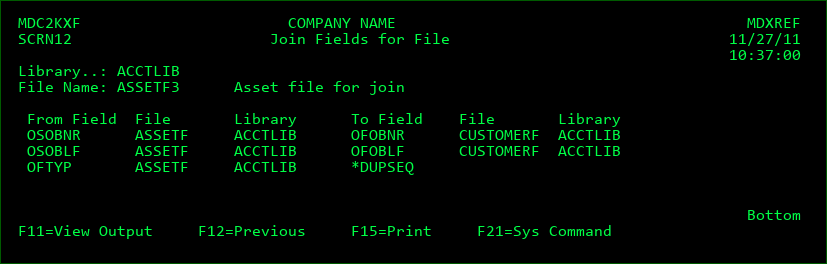
From Field/File/Library
One side of the join of 2 physical files.
To Field/File/Library
The other side of the join of 2 physical files. If the To Field specifies *DUPSEQ, then the From Field is used to sort duplicate records in the join file.
- Display CPYF/OVRDBF Information for File
Valid option for files only.
This option will display the list of all CL programs or robot commands that perform an override or a CPYF from the selected file to another file. CL programs will only be listed if the source is specified as Observable.