Setup the MDCMS HTTP server
Published: 2026-08-07
Based on MDCMS Version 8.6.18+
Overview
What is REST?
From Wikipedia:
Representational State Transfer (REST) is a software architectural style that defines a set of constraints to be used for creating Web services. Web services that conform to the REST architectural style, termed RESTful Web services (RWS), provide interoperability between computer systems on the Internet. RESTful Web services allow the requesting systems to access and manipulate textual representations of Web resources by using a uniform and predefined set of stateless operations. Further information can be found in Wikipedia.
The MDCMS HTTP Server
MDCMS Version 8.2 and higher provides a collection of REST APIs (Web services) that can be used to share information between MDCMS and external tools via HTTP.
This server is also used for communication with MDOpen for VS Code from 8.5, MDOpen for Web from 8.6 and MDOpen for RDi from 8.7.
The server itself is installed as an instance of the native IBM http apache server, which is automatically available as part of the core OS/400 licensed program stack.
The APIs themselves are standard ILE RPG programs, which also run on any OS/400 operating system without further prerequisites. They are invoked by the http server using the native IBM CGI framework.
Setup MDCMS HTTP Servers
Managing HTTP Servers
All MDCMS HTTP servers for an instance of MDCMS on a partition are configured from the MD HTTP Servers screen. Navigate to this screen using:
- Command MDCMS within a 5250 session
- Option 1 - MDCMS Setup Menu
- Option 10 - Interface Settings
- Option 9 - HTTP Servers
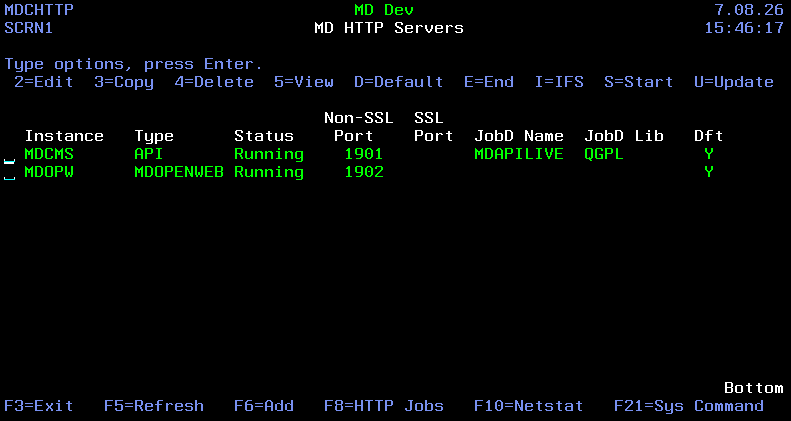
Columns
| Column | Description |
|---|---|
| Instance | The HTTP server instance name. |
| Type | The type of HTTP server: API - REST API Server instance that MDCMS REST APIs are served from. This server is required to use MDOpen. MDIQ Hosts the MDiQ Web application. MDOPENWEB Hosts the MDOpen for Web application. |
| Status | The current run status of the server. |
| Non-SSL Port | the unsecured HTTP Port number the server listens on. |
| SSL Port | SSL Port number the server listens on |
| JobD Name | Name of the job description used by the HTTP server instance which sets LIBL for the server. ONLY Applicable to type "API" and "MDiQ" servers. |
| JobdD Lib | Library where the HTTP server instance Job Description is found. |
| Dft | Specifies whether this server instance is the Default server used by MDCMS DevOps. This server will then be used by MDChange when automatically creating webhooks in Azure, Gitlab etc.. |
Options
| Option | Description |
|---|---|
| 2=Edit | Edit the selected server configuration. |
| 3=Copy | Copy the selected server configuration. |
| 4=Delete | Delete the server instance and its related IFS folders. |
| 5=View | Display the server configuration, including a test URI. |
| D=Default | Make this server the default server for the given server type. |
| E=End | End the HTTP Server Instance. |
| I=IFS | Open the IFS view of the /www/ |
| S=Start | Start the HTTP Server Instance. |
| U=Update | Regenerate the HTTP Server Instance using the current configuration parameters for the server. |
Command-Function Keys
| Commands | Description |
|---|---|
| F3 | Exit to the previous screen |
| F5 | Refresh the screen to see the current Status |
| F6 | Add a new server instance of type API or MDOPENWEB |
| F8 | Show all jobs running under QHTTPSVR subsystem |
| F10 | Runs command NETSTAT *CNN which lists all port numbers actively being used on the IBM i partition |
| F21 | Opens a command line screen (as per CALL QCMD) |
Adding a REST API Server
Press F6 to add a server.
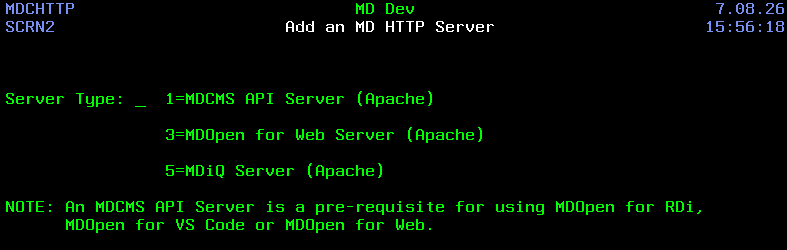
Use option 1 to create a new MDCMS REST API server instance, and press enter.
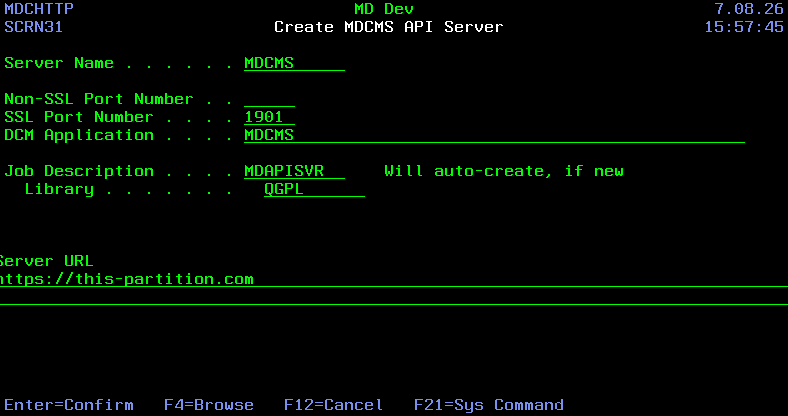
| Parameter | Description |
|---|---|
| Server Name | The name of the Server to create. The server will be replaced if it already exists. Normally, only one server should be active for a given instance and partition of MDCMS. When created, the server configuration will be placed in IFS folder /www/<server name> |
| Non-SSL Port Number | The port number that the server should listen to for incoming insecure http requests. The port number can be up to 5 digits and must not be used by any other server on the partition. |
| SSL Port Number | The port number that the server should listen to for incoming https requests. The port number can be up to 5 digits and must not be used by any other server on the partition. If both the Non-SSL Port number and the SSL Port Number are defined, they can not be the same number. |
| DCM Application | The name of an Application in the *SYSTEM certificate store that is assigned to the preferred SSL certificate. This is only necessary when configuring an SSL port. creating a DCM Application |
| Job Description/Library | The name and library of the job description that contains the MDCMS product library list (MDCMS(env), MDREP(env), MDSEC(env) and MDXREF(env)) as well as the ASP Device name that the libraries reside in If the job description doesn't exist, MDCMS will automatically create it |
| Server URL | The server URL is the address of the partition, including the transport method: http or https. Don't include the context path in the endpoint. Example: https://devbox.mycompany.com When a REST request is sent to the endpoint, it will then be followed by the name of the mdcms instance (usually mdcms) and then the resource name of the API to be invoked. Example: to get a list of all applications defined in MDCMS: https://devbox.mycompany.com/mdcms/applications |
When Enter is pressed, the server is created and automatically started. The MD HTTP Servers screen will update and show the MDCMS API server added to the list.
Verify MDCMS REST API Server is Running
To check if the server is running, select option 5 against the newly added API server and click on the Example API Request link.
Your internet browser should open, and if the server is running, it should return a list of MDCMS Applications that have been configured. For example:
{
  "applications": [
    {
      "appl": "ADM",
      "desc": "Administration tests"
    },
    {
      "appl": "SYNON",
      "desc": "Synon/2E application"
    },
    {
      "appl": "CUSTO1",
      "desc": "Custom objects App1"
    }
  ]
}
If the application json list is not returned, return to the previous MDCMS API Server 5250 screen, select F3 to exit.
Review the status of the server.
Troubleshooting connectivity to MDCMS HTTP server
If there are connectivity problems, try this MDCMS Connectivity Troubleshooting knowledge guide.
Additional Requirement for MDOpen for VS Code
- The OpenSSH server must be active and available through any firewall on each IBM i partition that this extension will connect to.
- The Code for IBM i extension should also be installed, though connections do not have to be created in the Code for IBM i extension for MDOpen to function, as MDOpen creates its own connections.